Guide 7 · Find and sort your fans: groups, types, search
A creator can have hundreds of fans. You find them by nickname, filter them by buyer type, sort them into groups (“VIP”, “Snap”…) and see their MYM box.
How to read this guide
The screens are the real MYMIK screens on the web, with a fictional agency (“Agence Lumière”), fictional creators (including Emma) and fans with made-up nicknames: no real data. The numbered black dot and the purple outline show where to click or look; the same number is used in the text.
Language of the screens
The MYMIK interface is not translated yet: the screens stay in French. For each step, the text gives the exact French label shown on screen, followed by its English meaning.
The order to remember
- Open Fans › Groupes de fans (“Fan groups”) and pick the creator.
- Find a fan with the search, then narrow down with Filtrer (“Filter”, by buyer type) and Trier (“Sort”).
- Create a group with Nouveau groupe (“New group”), tick fans, then Ajouter à un groupe (“Add to a group”).
0. Before you start
What to know in one minute.
What you find here
- Tous les fans (“All fans”) of the chosen creator, with nickname, buyer type and amount spent.
- Boîtes MYM (“MYM boxes”) and Indices (“Indices”): read-only filters.
- Mes groupes (“My groups”): your own sorting.
What a group is for
- To sort a creator’s fans under a name of your choice, for example “VIP” or “Snap”.
- A group can also be used as an exclusion in sends (Mass DM, AI follow-ups): its fans then do not receive the send.
A fan’s type
(Baleine, Régulier, Potentiel…) is chosen in Messagerie Pro, in the “Informations du fan” panel (« Type de Fan » field). This page shows it on each row and lets you filter on it.
1. Find a fan
Search, filter by type, sort.
1. Open Fans › Groupes de fans and pick the creator
In the left menu, open Fans, then Groupes de fans ❶. Click the creator in the Modèles (“Models”) list ❷: her fans appear in Tous les fans ❸, with the search bar, Filtrer and Trier.
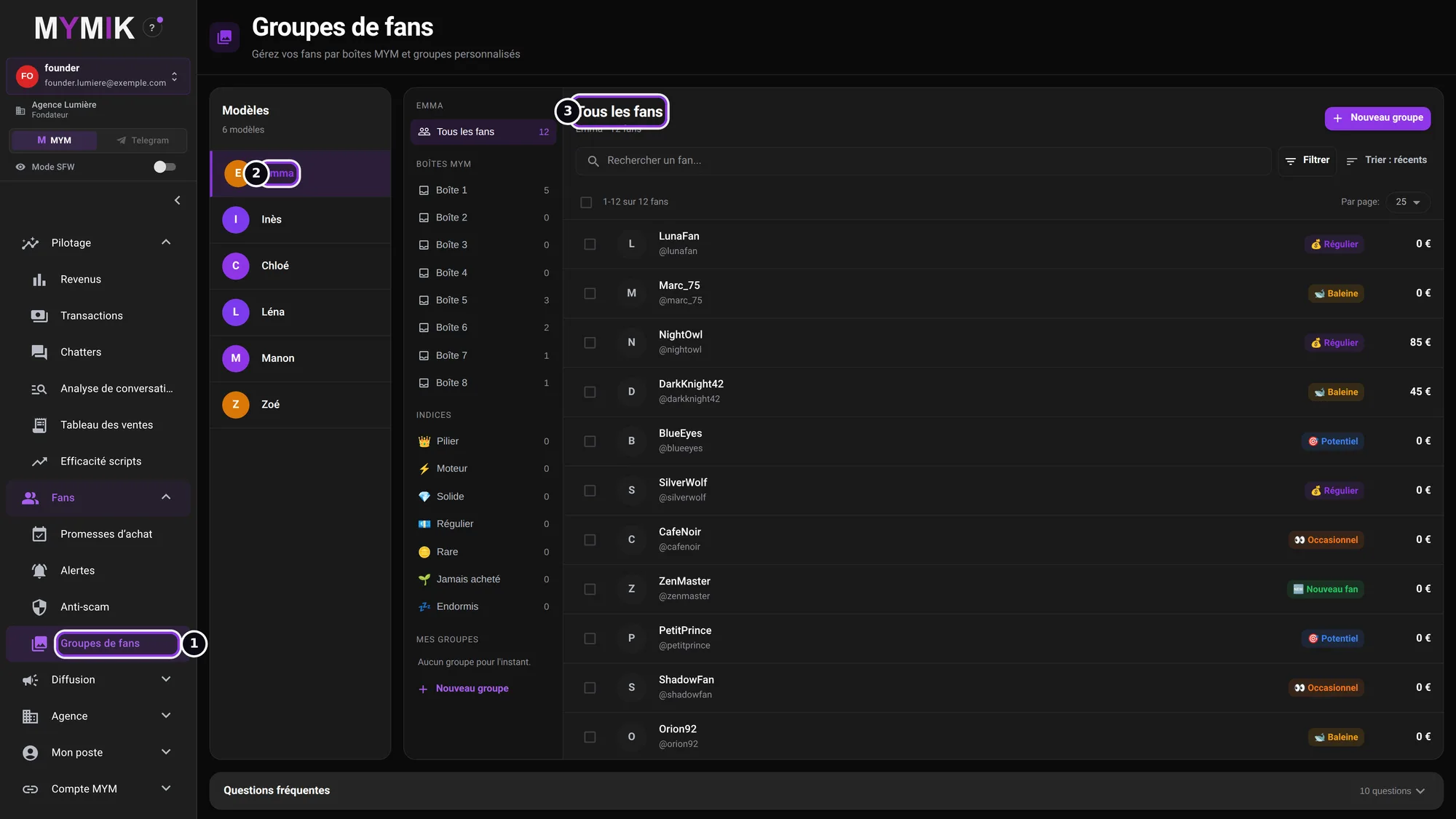 Emma’s 12 (fictional) fans: nickname, buyer type, amount spent.
2. Search by nickname
Type a few letters in the Rechercher un fan… (“Search for a fan…”) bar ❶: the list shrinks to the matching fans ❷. The search finds a fan by nickname, name or conversation identifier, within the open view: all fans, a group or a filter.
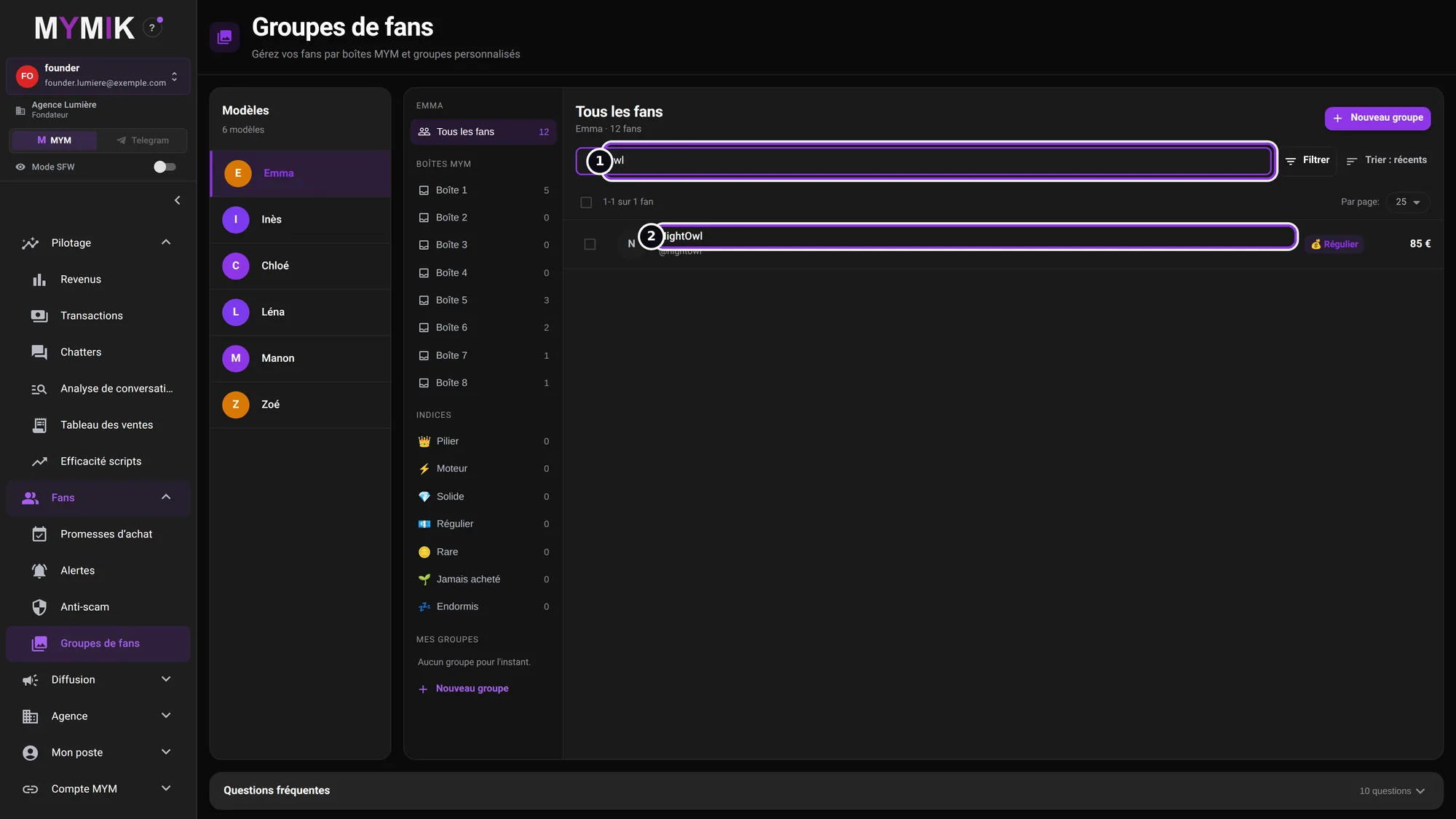 Search “owl”: a single fan.
3. Filter by buyer type
Filtrer opens the Type d’acheteur (“Buyer type”) list ❶: Baleine (whale), Régulier (regular), Potentiel (potential), Occasionnel (occasional), Perte de temps (time waster), Ne pas contacter (do not contact), Nouveau fan (new fan), IA (AI). Each type shows the number of fans concerned. Tick one or several.
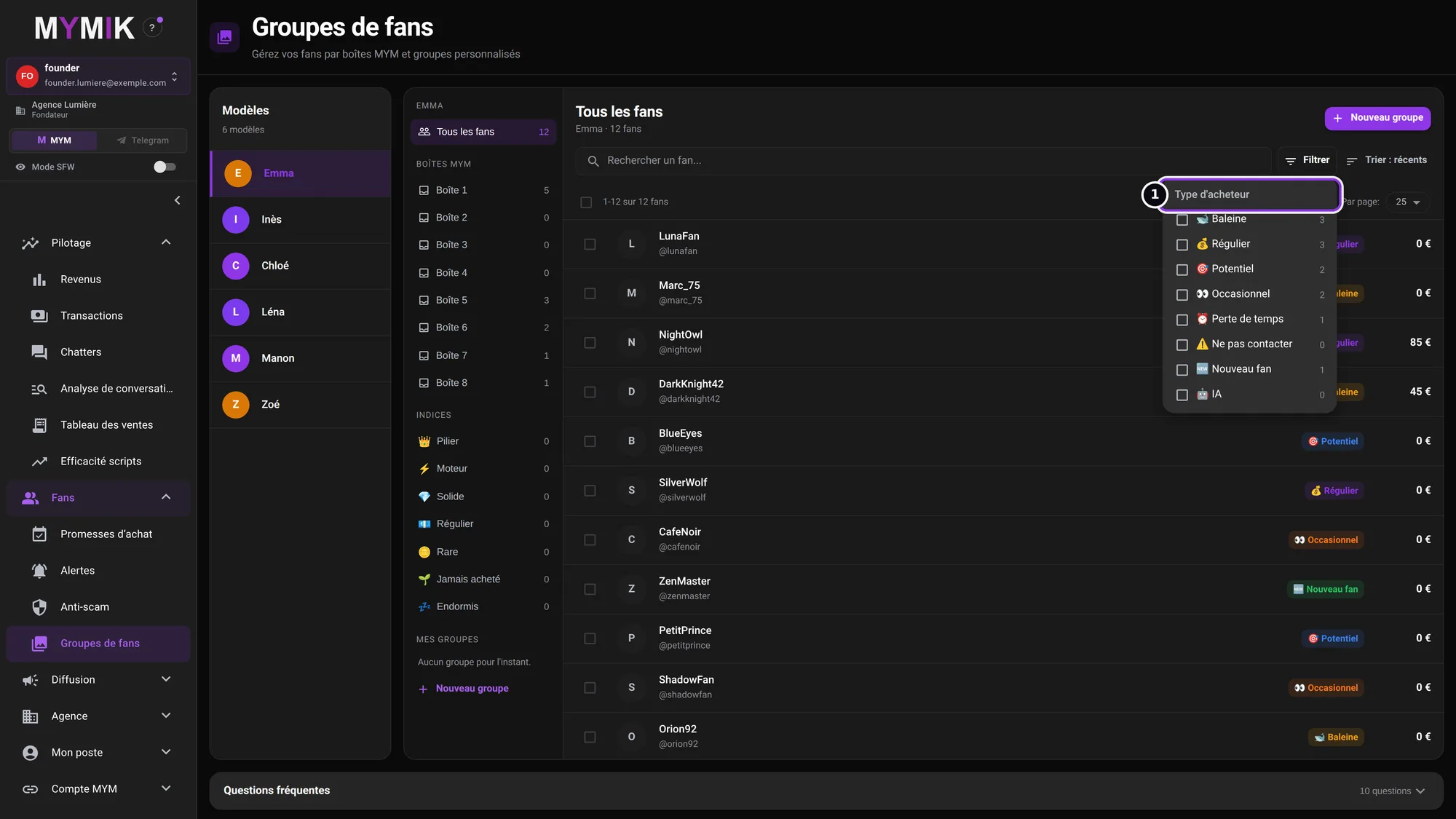 The list of types, with the number of fans of each type.
4. The filter stays shown as a chip
The button becomes Filtrer · 1 ❶ and a chip recalls the filter: a click on the chip removes it, Effacer (“Clear”) removes them all. The counter says « 1-3 sur 3 fans (filtre) » (“1-3 of 3 fans (filter)”); the list ❷ shows only Baleine fans.
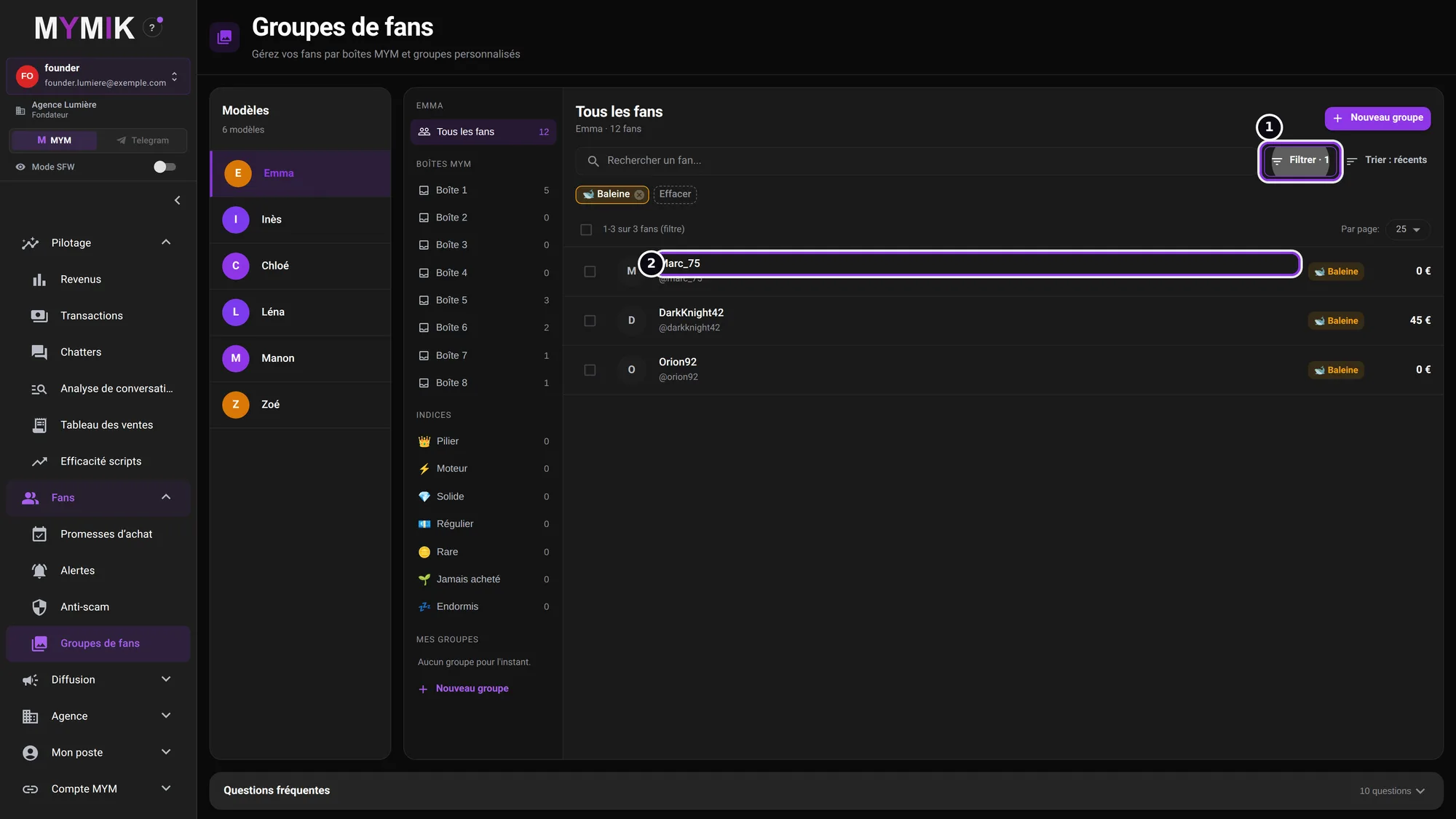 Three fans of type Baleine.
5. Sort by recent or by amount spent
Trier offers two orders: Récents (recent) and Montant dépensé (amount spent) ❶. The latter brings the biggest spenders first.
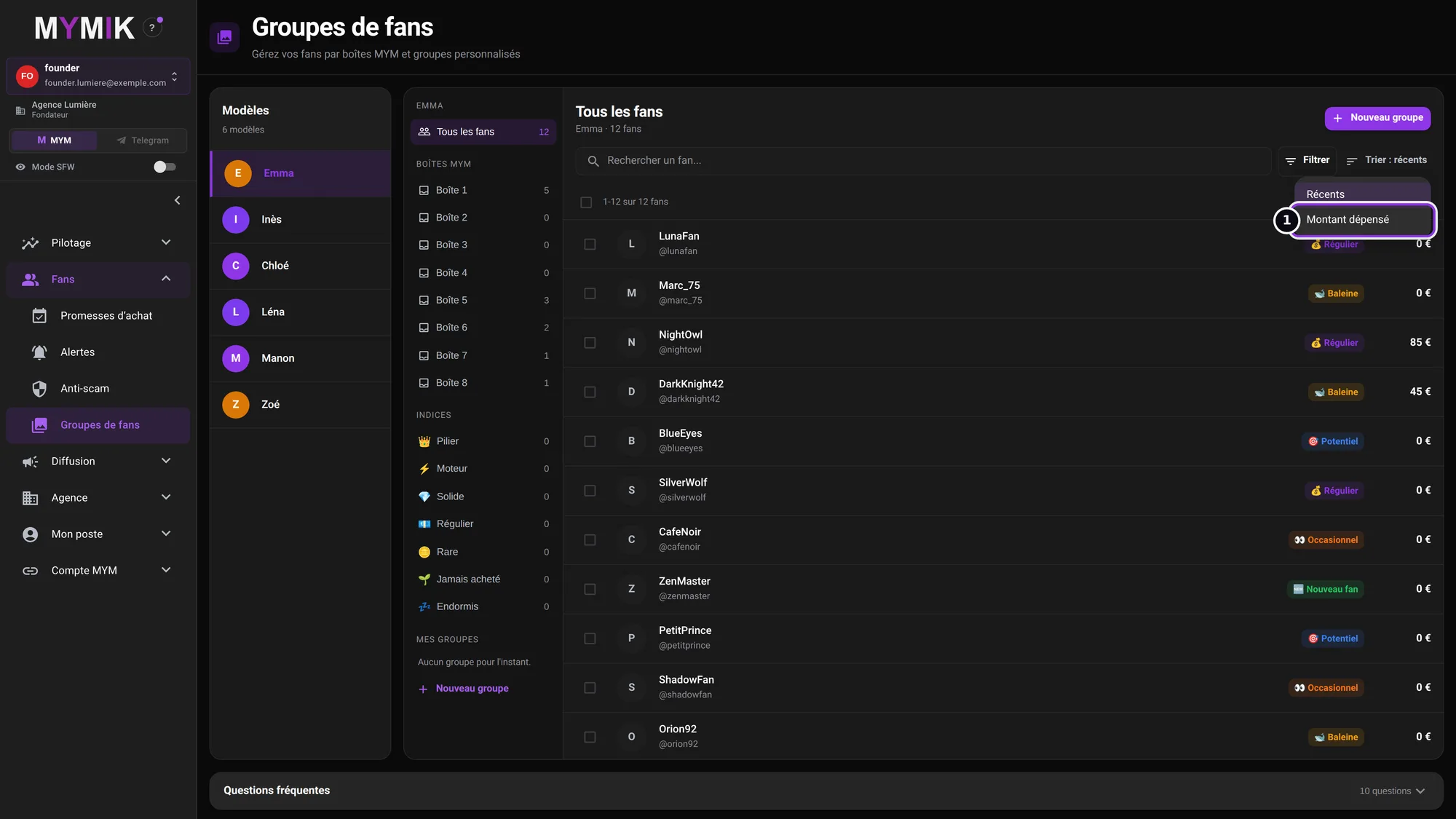 The sort menu.
6. Boîtes MYM and Indices: read-only filters
On the left, Boîtes MYM ❶ shows how the fans are spread across the agency’s boxes, the same as in Messagerie: they are not filled here, the pin is set in Messagerie. Indices ❷ groups fans by buying profile (Pilier, Moteur, Solide, Régulier, Rare, Jamais acheté, Endormis). A click filters the list.
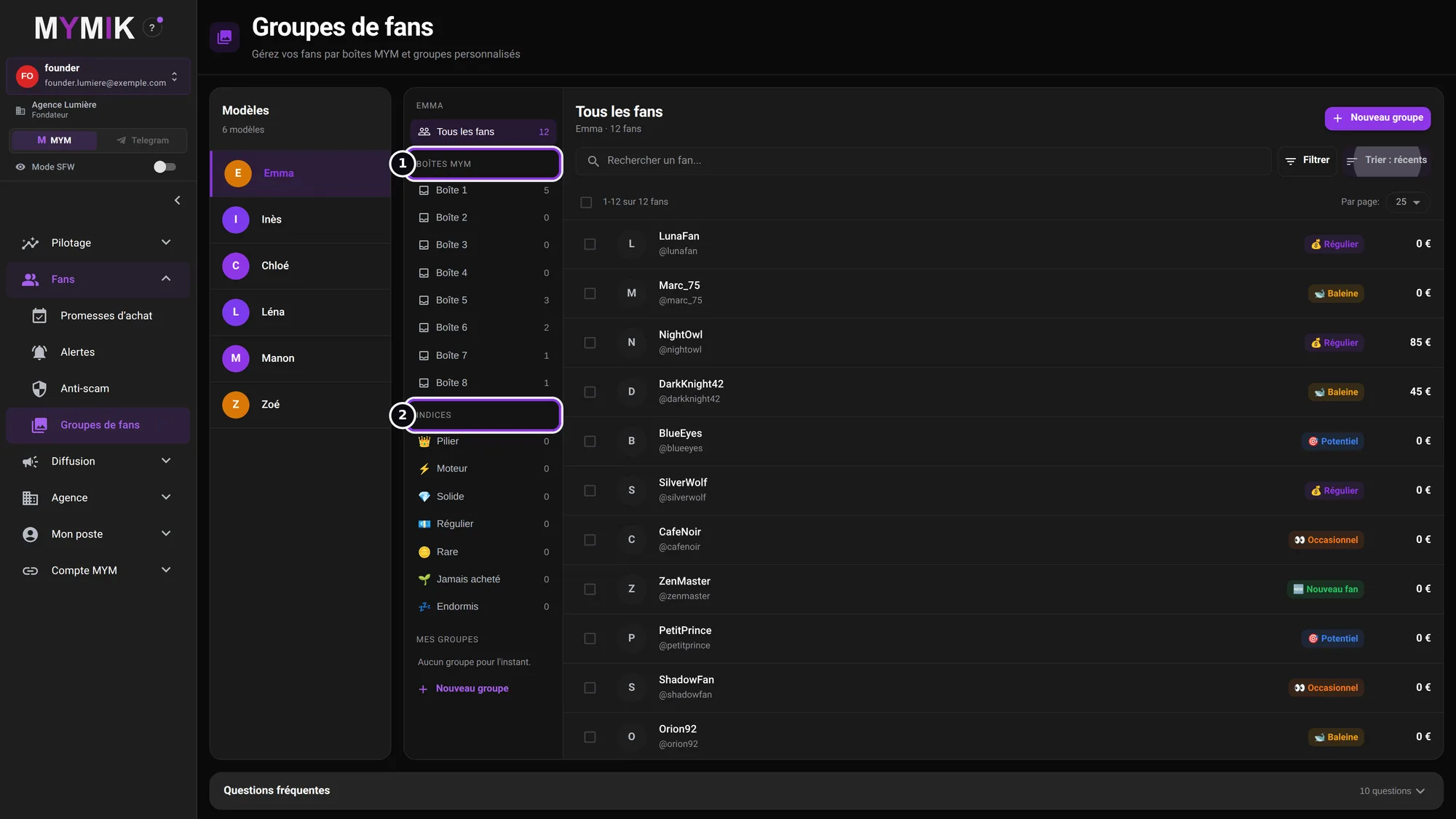 The boxes and indices in the left column.
“Boîtes indisponibles” (boxes unavailable): their number is not confirmed or the pins have not been read; no box is guessed. The index counters in this screenshot are at zero (test data).
2. Sort fans into groups
Create a group, add fans, remove some.
1. Create a group: « Nouveau groupe »
Click Nouveau groupe (left column, or above the list), give it a name ❶ and choose the scope ❷: Pour ce modèle uniquement (“For this model only”: the group appears only for this creator) or Pour tous les modèles de l’agence (“For all the agency’s models”: it appears for every creator, with its own members). Click Créer (“Create”) ❸. Fans already ticked at that moment are added at once.
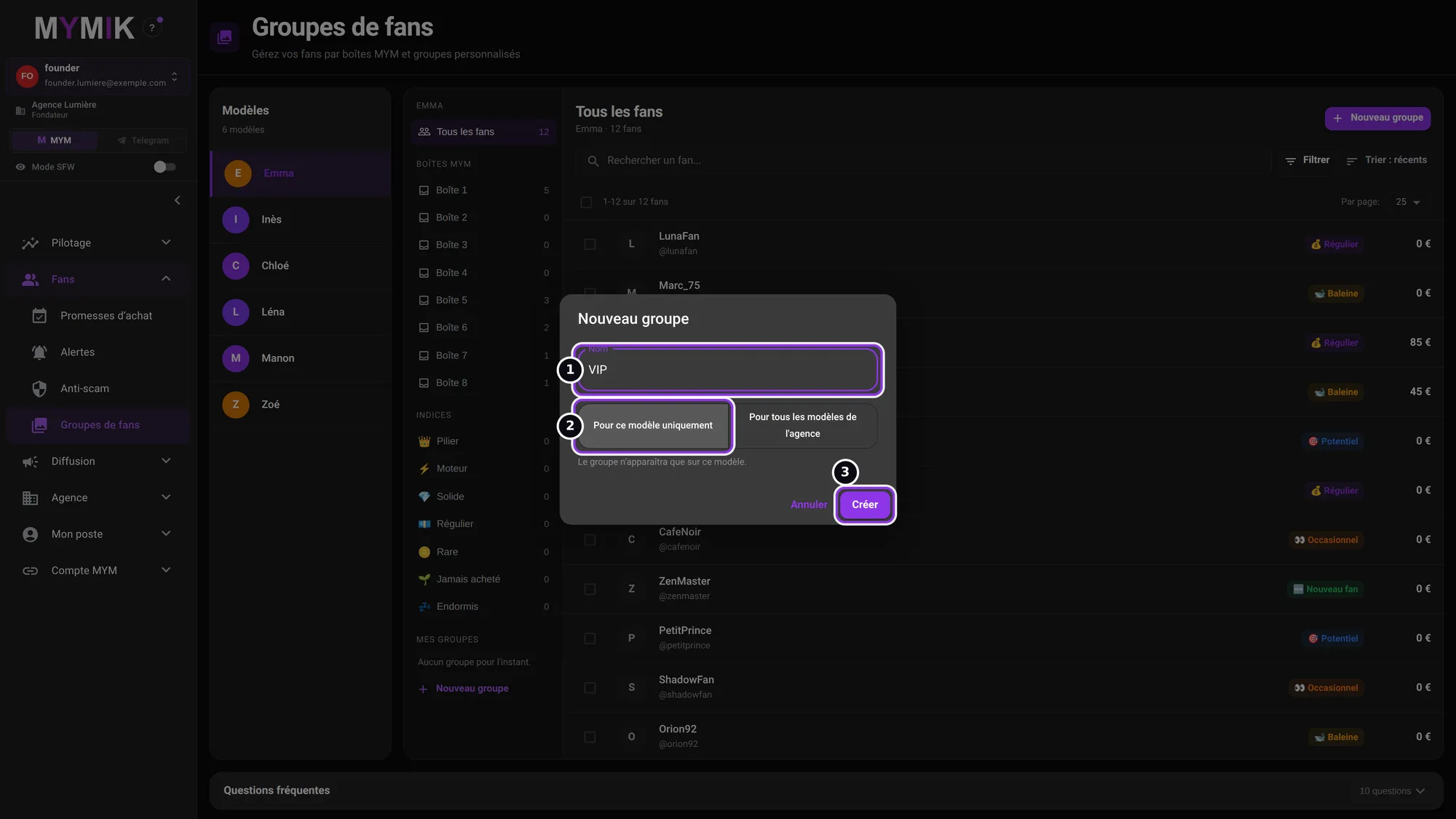 The “VIP” group, reserved for Emma.
2. Tick fans, then « Ajouter à un groupe »
In Tous les fans, tick the fans: a bar appears at the bottom, “2 sélectionnés” (2 selected). Click Ajouter à un groupe ❶. You can also drag the fans onto the group in the left column.
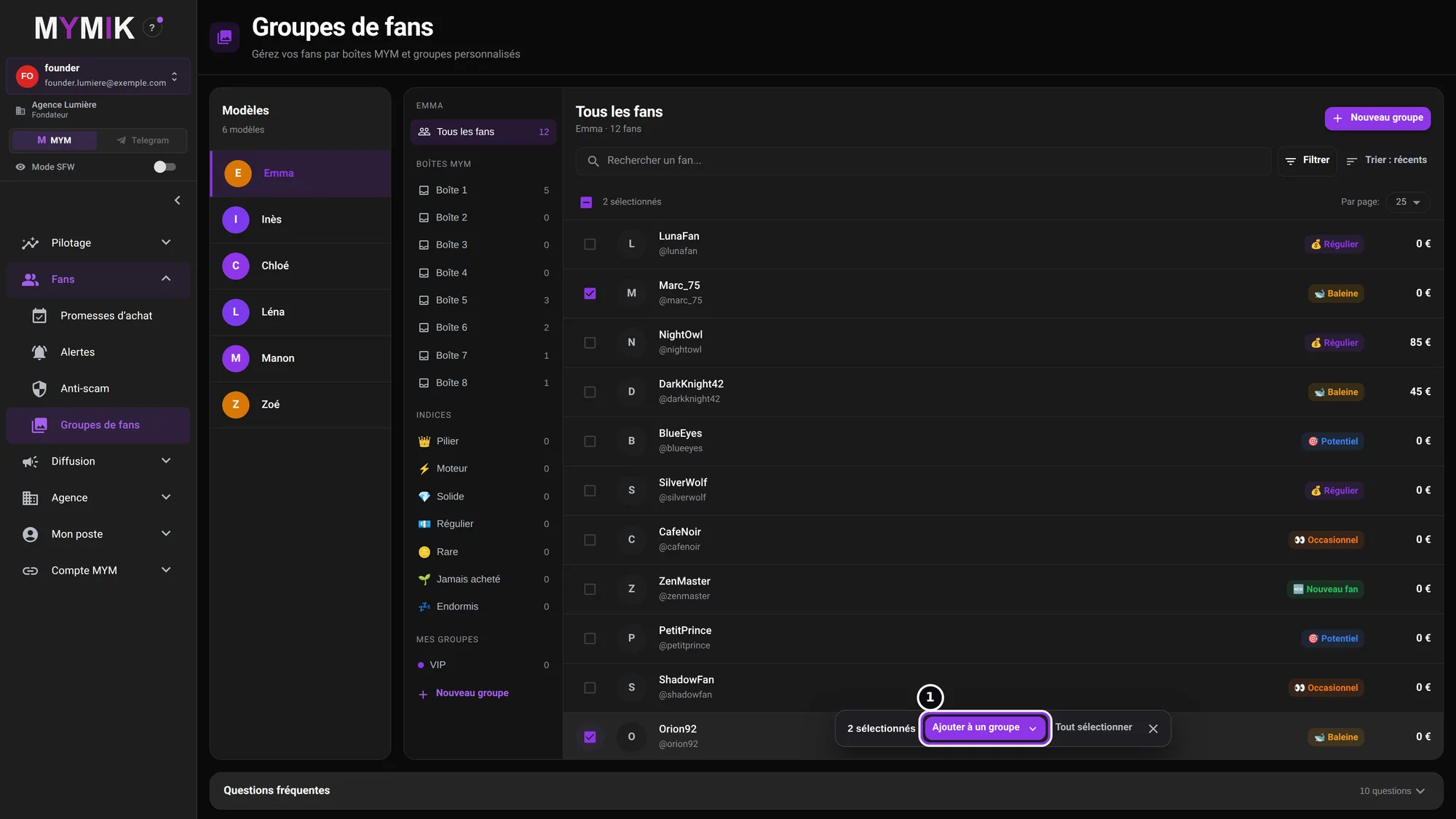 Two fans ticked.
3. Choose the group
The “Ajouter 2 fans à” (“Add 2 fans to”) menu lists your groups with their number of members. Click the group ❶ (or Nouveau groupe… to create one on the fly).
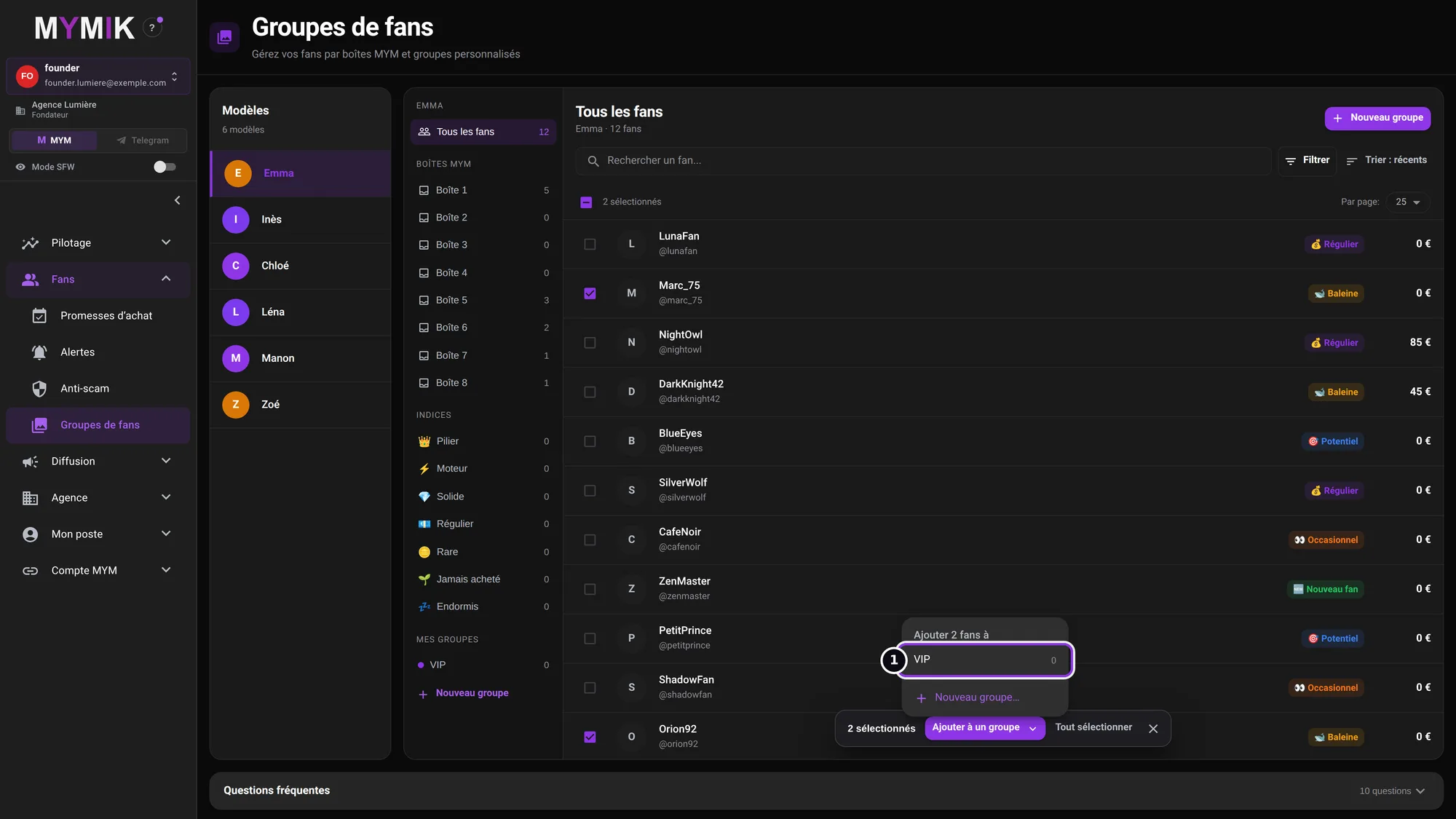 The “VIP” group is still empty (0).
4. Open the group, remove a fan
Click the group in Mes groupes ❶: its members appear, each with the “VIP” chip. To remove one, tick it then Retirer du groupe (“Remove from the group”) ❷; Annuler (“Undo”) stays available for 8 seconds. The fan is not deleted, he only leaves the group. Ajouter des fans (“Add fans”) at the top of the list adds more.
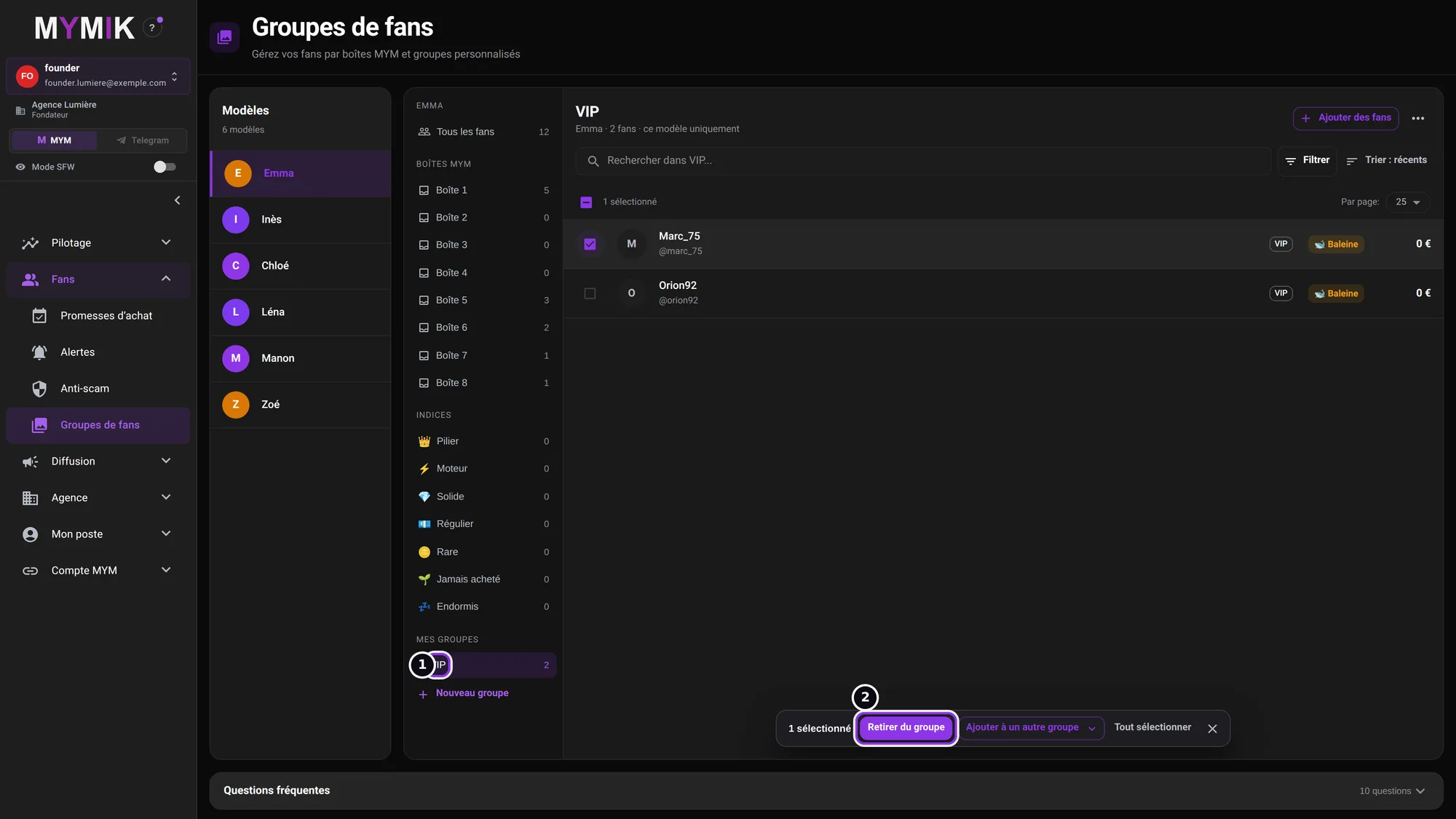 The “VIP” group: two fans, one ticked.
Deleting a group
(the group’s “⋯” menu) makes it disappear with its members; if it is shared, it disappears for all creators. If it served as an exclusion (Mass DM, AI follow-ups), its fans become recipients again. The fans themselves are not deleted.
3. Troubleshooting
Symptom shown → cause → what to do. Quoted messages are those of the screen.
| What you see | Cause | What to do |
|---|---|---|
| « Sélectionnez un modèle » (select a model) | No creator is chosen in the left-hand list. | Click the creator you want. |
| A fan is missing from the list | A filter is active, or the fan belongs to another creator. | Click « Effacer »; check the chosen creator. |
| A group has members but the list is empty | Its fans are not in the creator’s fan list: the screen says so instead of “Ce groupe est vide”. | The group keeps its members; check the chosen creator. |
| A fan’s type is wrong or missing | The type is set in Messagerie Pro, not on this page. | Open the fan’s conversation, “Informations du fan” panel, « Type de Fan » field. |
| « Boîtes indisponibles » (boxes unavailable) | The number of fans per box is not confirmed, or the pins were not read. | Refresh the page; if it lasts, write to us. |
Still stuck?
Write to us in private at @MymikAppBot with your agency, the creator and the exact text displayed. The MYMIK team
MYMIK guide no. 7, version of 10/11/2026.
Last updated on
Guide 6 · Messagerie Pro for chatters: conversation, fan card, paid offers, boxes
The screen where a chatter spends the day: a creator’s list of fans, the conversation, the composer and the fan card. This guide shows each area, what it does and what it does not do.
Guide 8 · Team and access: invite, choose roles, assign creators
Who sees what in your agency? You invite each person by e-mail, give them a role, assign their creators, and keep a record of what they do.