Guide 6 · Messagerie Pro for chatters: conversation, fan card, paid offers, boxes
The screen where a chatter spends the day: a creator’s list of fans, the conversation, the composer and the fan card. This guide shows each area, what it does and what it does not do.
How to read this guide
The screens are the real MYMIK screens on the web, with a fictional agency (“Agence Lumière”), fictional creators (including Emma) and fans with made-up nicknames: no real data. The numbered black dot and the purple outline show where to click or look; the same number is used in the text. The names of fans and chatters are made up.
Language of the screens
The MYMIK interface is not translated yet: the screens stay in French. For each step, the text gives the exact French label shown on screen, followed by its English meaning.
The order to remember
- Open Mon poste › Messagerie Pro (“My desk › Messagerie Pro”), tick your creators, then Ouvrir la messagerie (“Open the messaging”).
- Pick a fan in the list (Non lus “Unread” / Tous “All” tabs, sort and Filtres “Filters”).
- Read the conversation, write in the composer, attach a media or a script; nothing goes out before “Envoyer” (Send).
- Complete the fan card on the right: first name, short note, type, and read its stats and offers.
0. Before you start
What to know in one minute.
Who, where
- Messagerie Pro is in the left menu, under Mon poste. A chatter only sees the creators assigned to them (see guide 8).
- This guide covers MYM accounts. Uncove and Telegram accounts have their own screens.
A golden rule
- Nothing goes out before “Envoyer”. Typing in the composer, choosing a script or opening « Envoyer des médias » sends nothing.
- The text in progress is kept if you switch to another fan and come back.
What the screen does not do
It does not send messages for you, does not answer automatically and does not promise a figure: the fan’s statistics only cover what MYMIK has read of the conversation.
1. Open the messaging
Your creators, the list of fans, the filters.
1. Mon poste › Messagerie Pro: choose your creators
Open Mon poste, then Messagerie Pro. The Mes créatrices (“My creators”) screen ❶ opens: tick each creator you follow ❷ (or Tout sélectionner, “Select all”), then Ouvrir la messagerie (N) ❸. You can come back to this choice at any time with the « Choisir mes créatrices » (“Choose my creators”) icon in the accounts column.
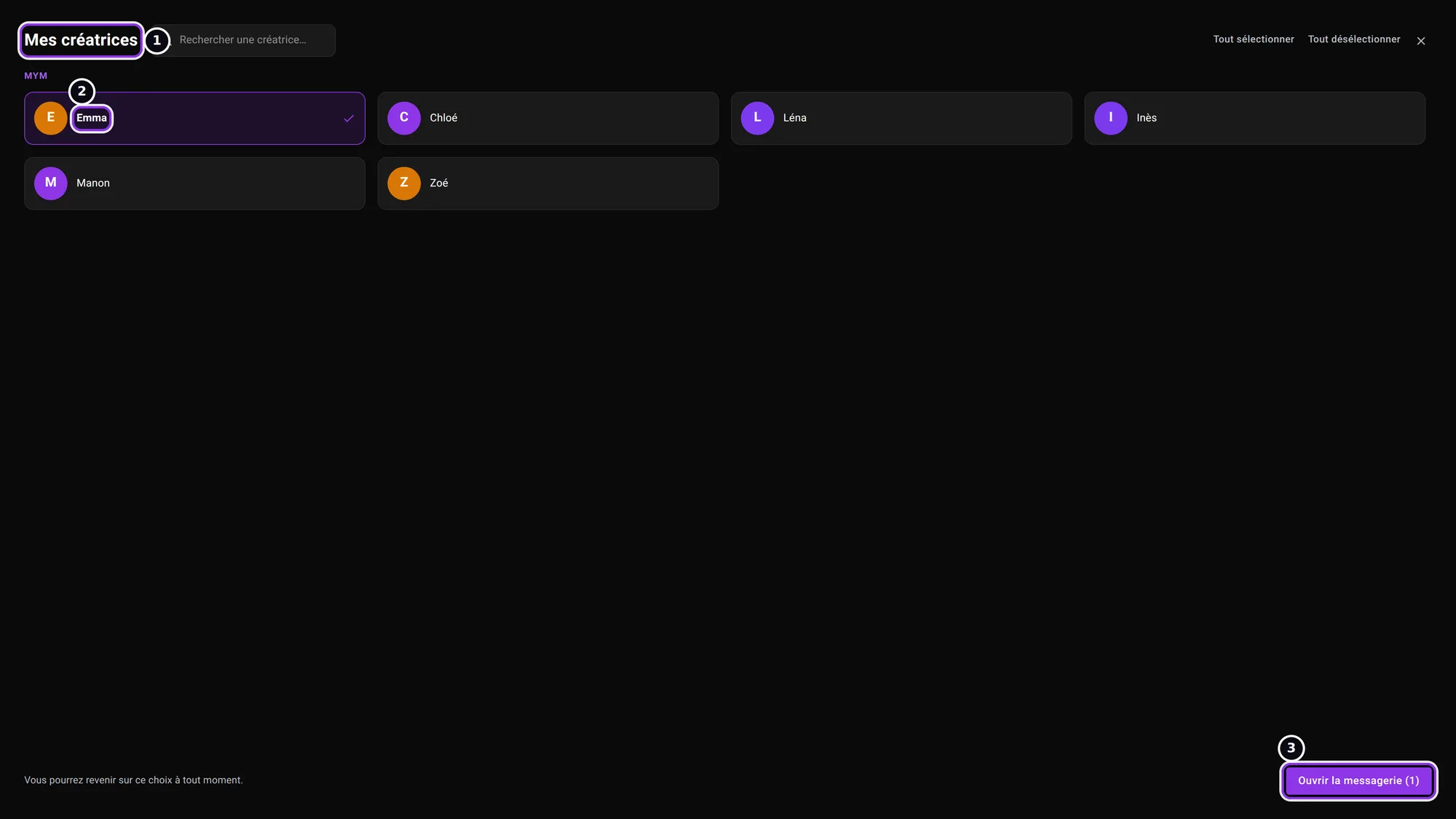 One creator ticked: the button reads “Ouvrir la messagerie (1)”.
2. Spot the areas of the screen
At the top, the row of tabs ❶: Messages brings you back to your conversations; Mon profil, Revenus, Outils and Réglages open the MYM pages of the chosen creator, Mym Cloud her media, Pushs and Mass DM their screens. The COMPTES (“Accounts”) column ❷ lists your creators: click one to see her conversations. In the middle, the Messages list; each row ❸ gives the fan’s nickname, a type badge (💰 Régulier “Regular”, 🐋 Baleine “Whale”, 🆕 Nouveau fan “New fan”…), the short note and a purple dot if a message is unread. As long as no fan is open, the right-hand area stays empty.
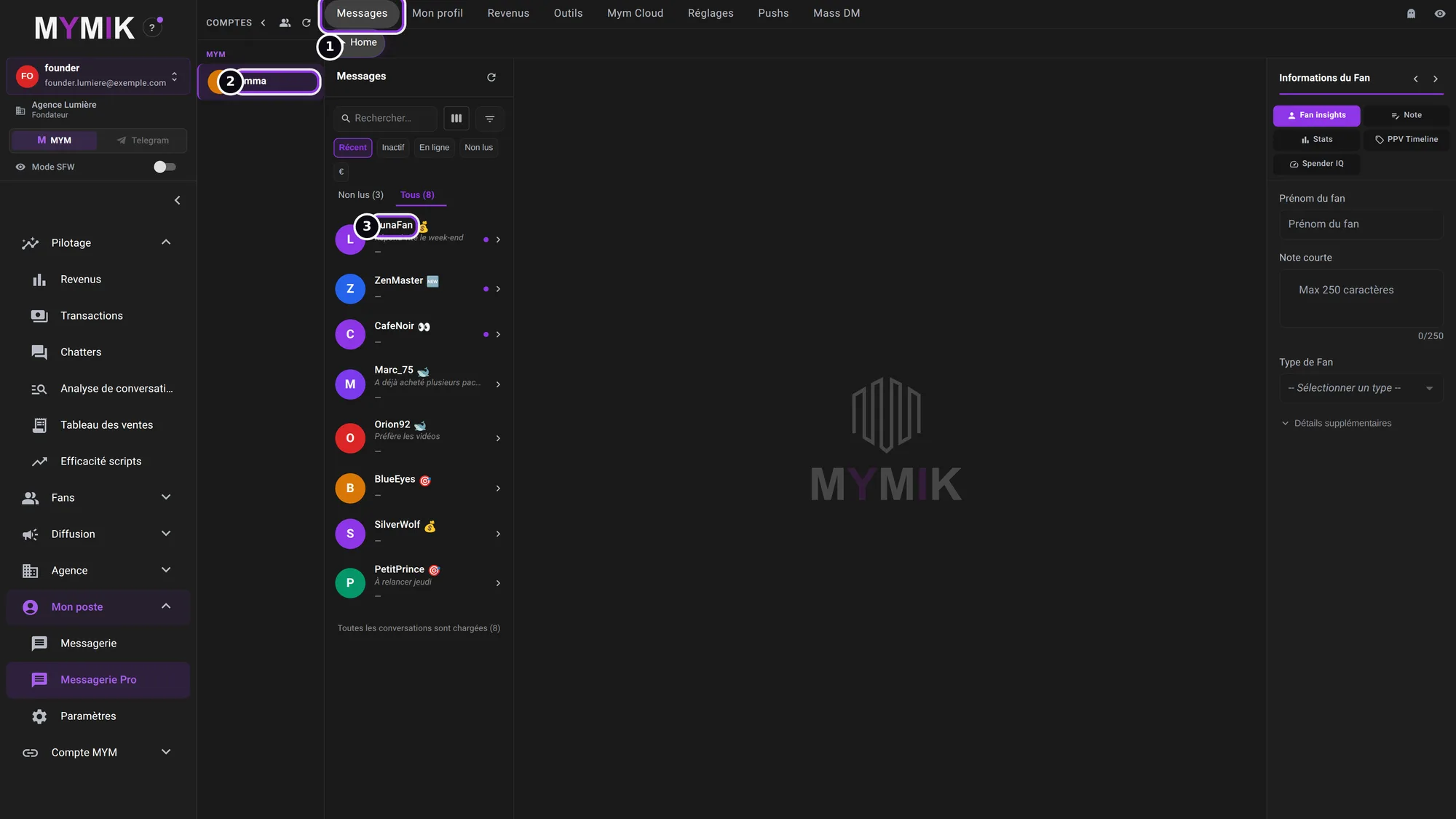 Emma, 8 sample conversations. The foot of the list says “Toutes les conversations sont chargées (8)” (all conversations are loaded).
3. Sort, search, filter
Above the list: a Rechercher… (“Search”) bar (2 to 64 characters), the sort tabs Récent (recent), Inactif (inactive), En ligne (online), Non lus (unread) and € (revenue; fans with no known amount go last), then Non lus (N) / Tous (N). The Filtres et tri (“Filters and sort”) icon opens the Filtres window: Nouveaux abonnés (12 dernières heures) (“New subscribers, last 12 hours”) ❶, En ligne uniquement (online only), Certifiés uniquement (certified only), a Type de Fan (fan type) ❷ (Baleine, Régulier, Potentiel, Occasionnel, Perte de temps, Nouveau fan…) and Conversations prises (conversations taken). Afficher (“Show”) ❸ applies; Réinitialiser (“Reset”) clears everything.
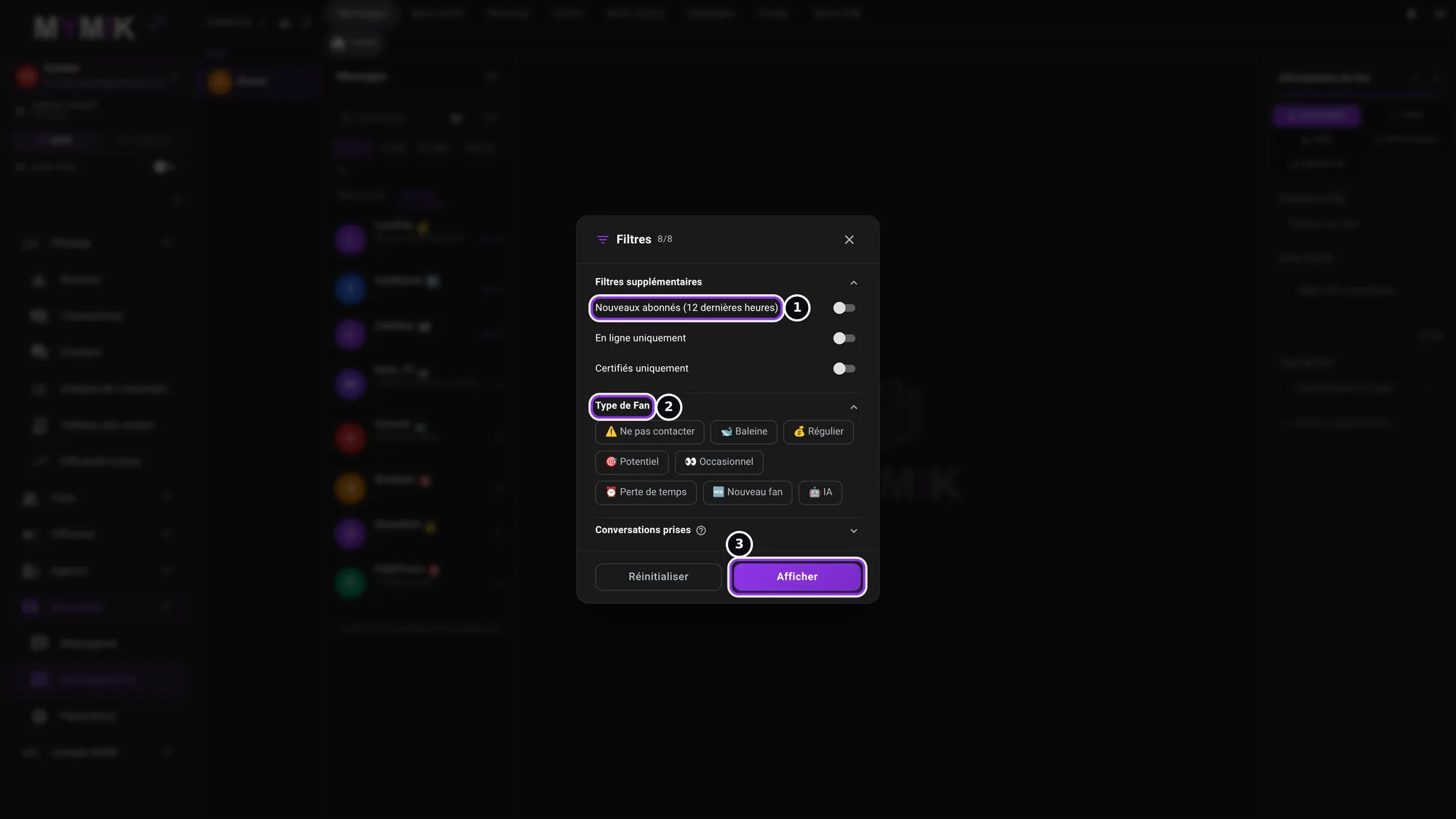 The « Filtres » window: no filter is active until you click “Afficher”.
2. Read and answer
The conversation, the paid offers, the composer, the scripts, the media.
1. Open a conversation
Click a fan in the list: the conversation opens in the middle and the fan card on the right. Ctrl-click (⌘-click on Mac) or middle-click opens it in a new tab, without leaving the one you are reading. The fan’s messages are on the left; the creator’s are on the right, and the name of the chatter who wrote them is shown below ❶: that is how you know who answered. A paid offer carries its price and status, here En attente d’acceptation (“Waiting for acceptance”) ❷. The Charger les messages précédents (“Load earlier messages”) button goes further back in the history.
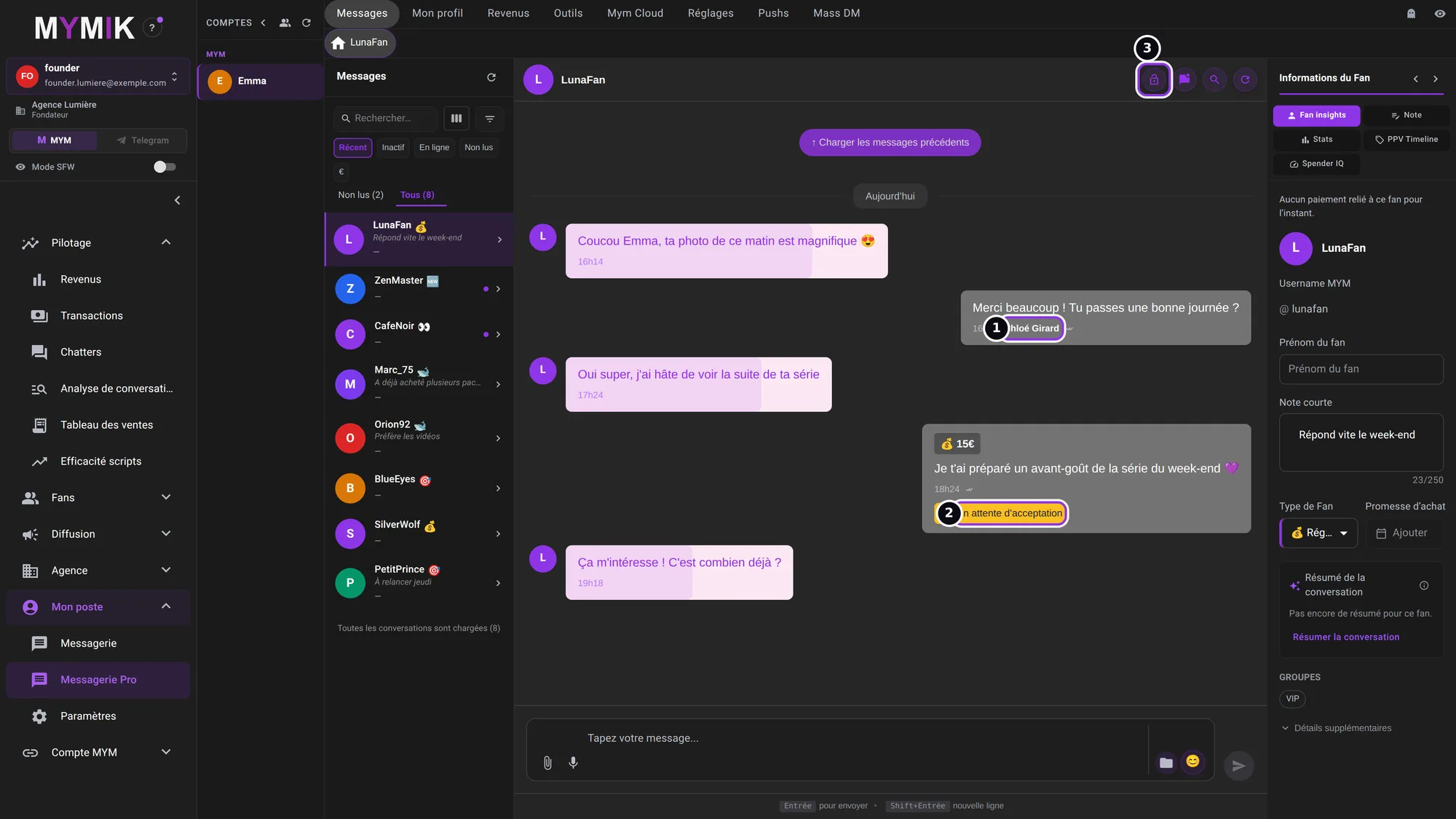 A €15 offer sent an hour ago, not yet accepted; the fan’s last message is waiting for an answer.
2. Accepted offers and tips
When the fan pays an offer, its card turns to Accepté (“Accepted”) ❶ (green). A tip received appears in the thread with the TIP label and its amount ❷. A refused or expired offer is not counted as sold (see the PPV Timeline tab, step 12).
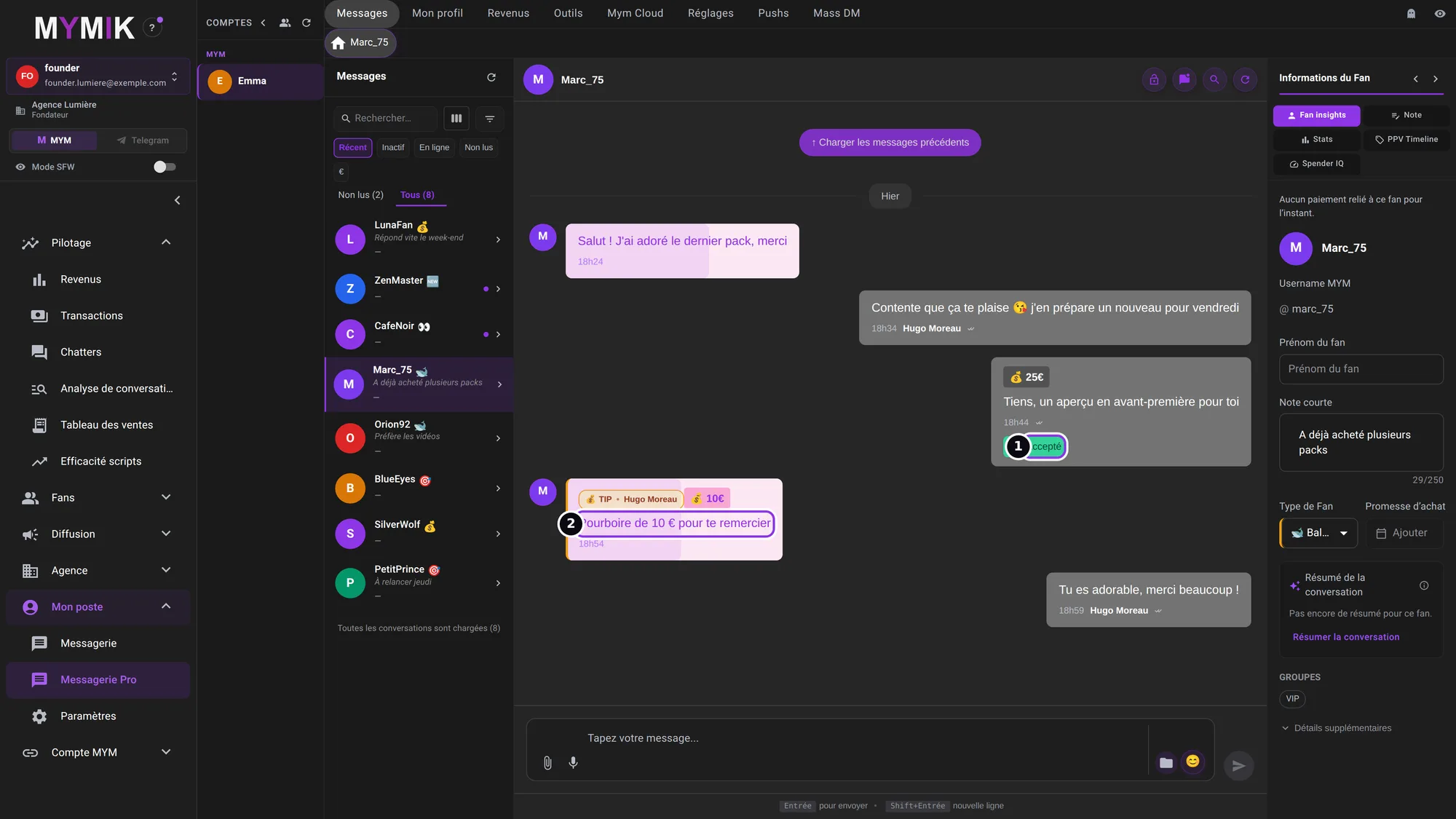 A €25 offer accepted, then a €10 tip.
3. The composer
At the bottom, type in Tapez votre message… (“Type your message…”) ❸. Entrée (Enter) sends, Shift+Entrée adds a new line. On the left, Joindre un média (“Attach a media”) ❶ opens the « Envoyer des médias » window (step 8); further along, Note vocale (voice note), Sélectionner un script (“Select a script”) ❷, the emojis and the Envoyer (Send) button. In this screenshot the message is typed but not sent.
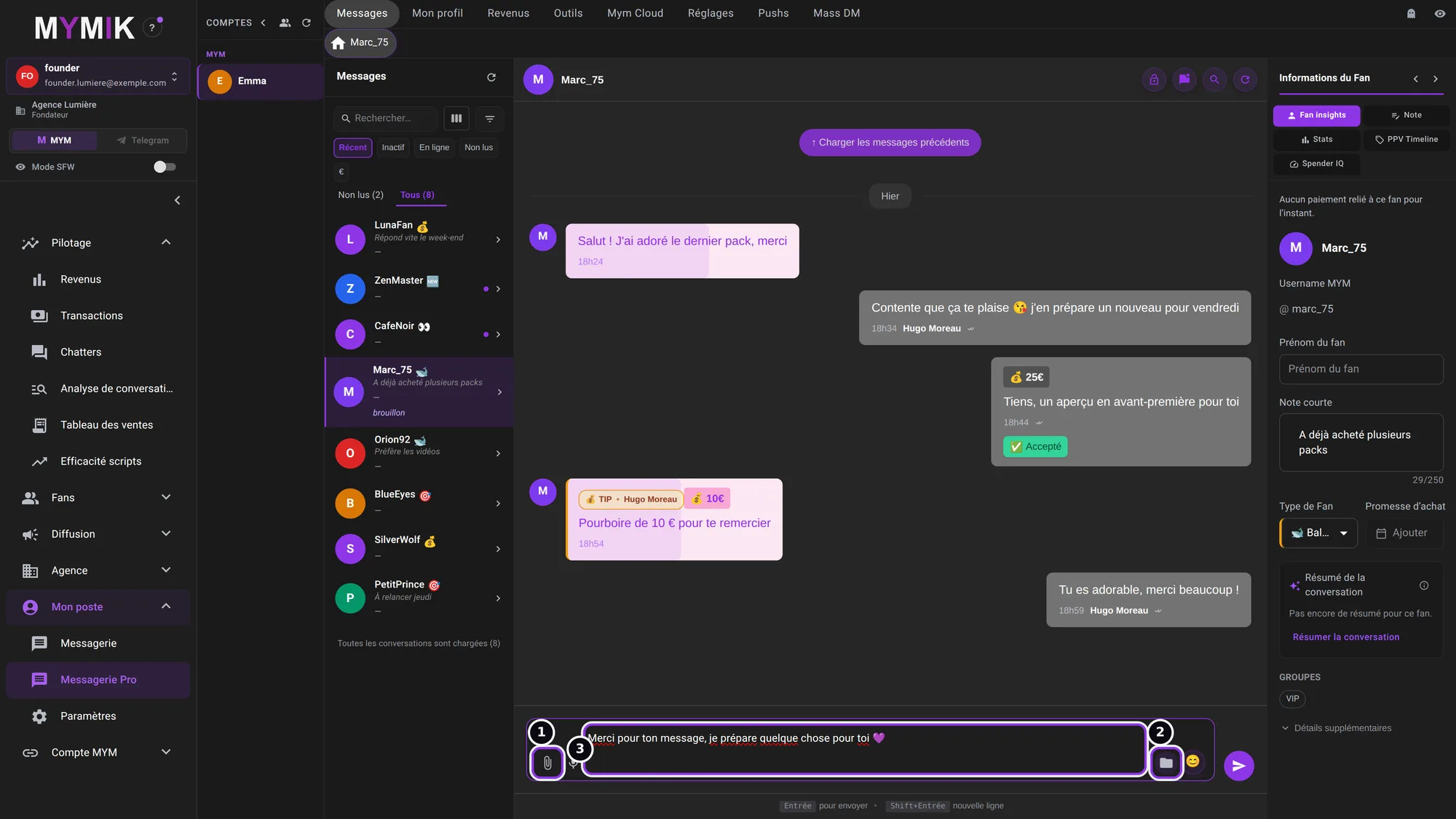 A message being typed, never sent.
4. Scripts, sorted for this fan
Sélectionner un script opens « Sélectionner un message » (“Select a message”). The header ❶ says how many scripts this fan has never received (“4 scripts sur 4 jamais reçus”). Under MES SCRIPTS (“My scripts”), the list sorts your scripts for this fan: Jamais envoyés (never sent) ❷ first, then Proposés pas reçus (offered, not received), Entamés (started) and Terminés (finished), collapsed. Each script shows its steps and their prices. The step you choose lands in the composer: read it again, nothing goes out before Envoyer. To create or sort scripts: see guide 9.
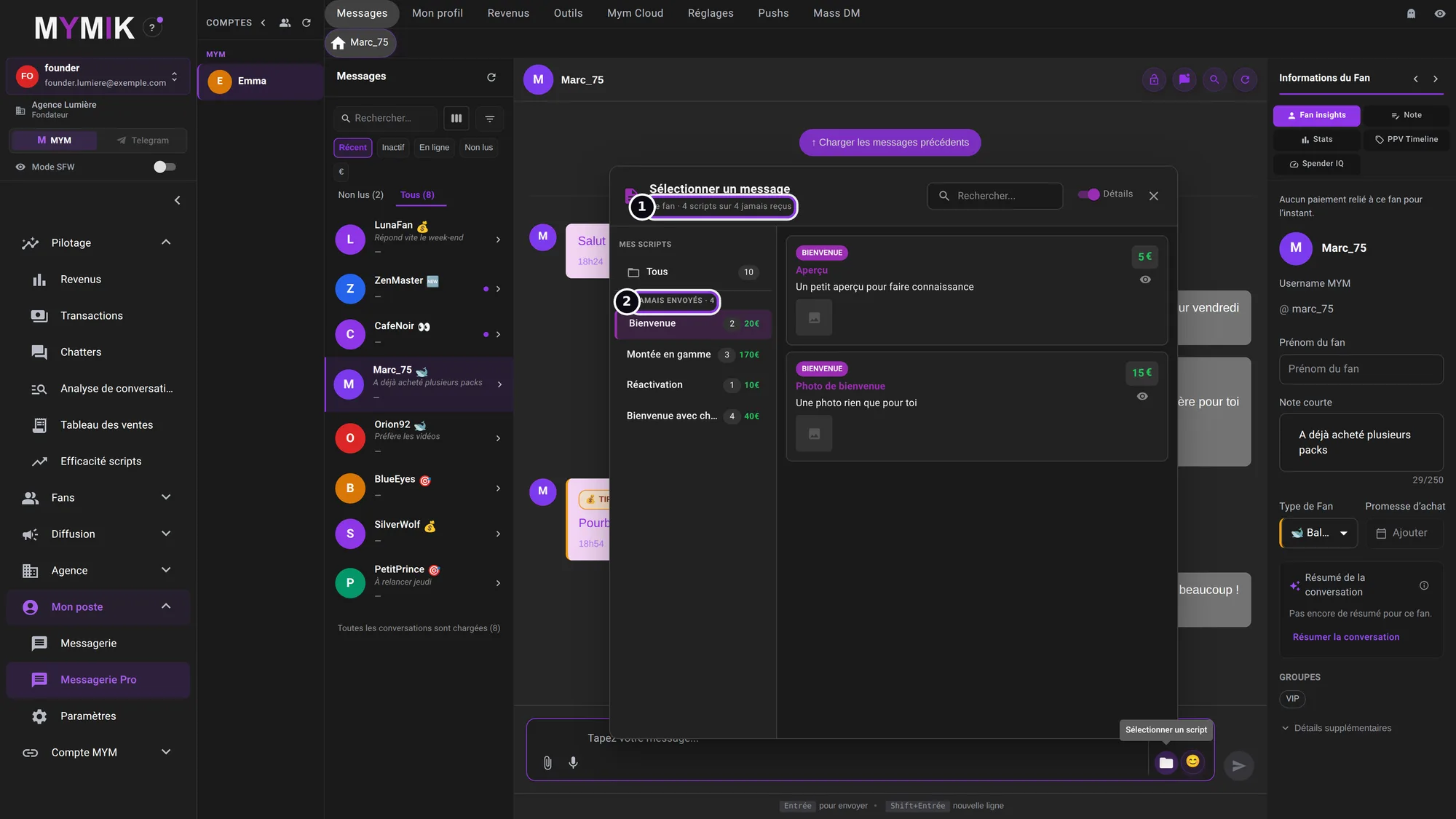 Four scripts this fan has never received, with their starting price.
5. Send a media, free or paid
Joindre un média opens Envoyer des médias — Emma (“Send media — Emma”). Write the message description (compulsory, 500 characters at most) ❶, click Sélectionner des médias (“Select media”) ❷ (1 to 5 of the creator’s media), then set the Prix (€) (“Price”) ❸: type an amount or a shortcut (€0, 10, 20, 50, 100, 200). If a person other than the creator appears in the content, tick the consent attestation. The Envoyer button stays greyed out until the window is complete. In this screenshot nothing is filled in and nothing is sent.
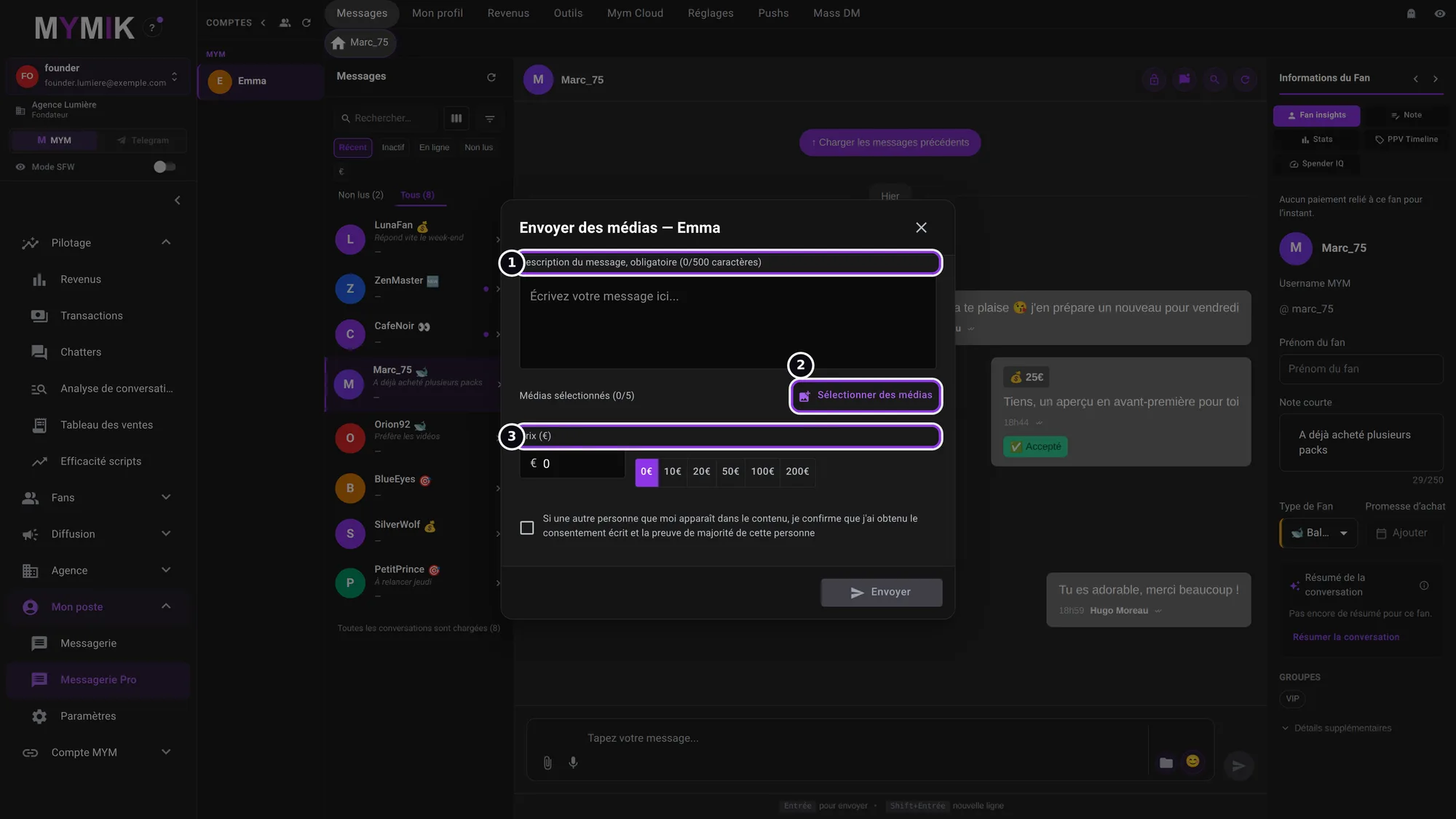 The window is only opened.
3. The fan card
Take a conversation, take notes, read the fan’s figures.
1. Take a conversation, mark it unread, search in it
At the top of the conversation, the action icons. Prendre cette conversation (“Take this conversation”) ❶: a padlock with your name is shown to the whole team, on this creator. It locks nothing: it just avoids two people answering. Marquer comme non lu (“Mark as unread”) ❷: the conversation goes back to unread at MYM, its dot returns to the list and it moves up. Rechercher dans la conversation (“Search in the conversation”) ❸ (Ctrl+F, ⌘F on Mac) searches the thread. A Recharger la conversation (supprime le cache) (“Reload the conversation (deletes the cache)”) icon clears what the workstation kept of this thread and reads it again.
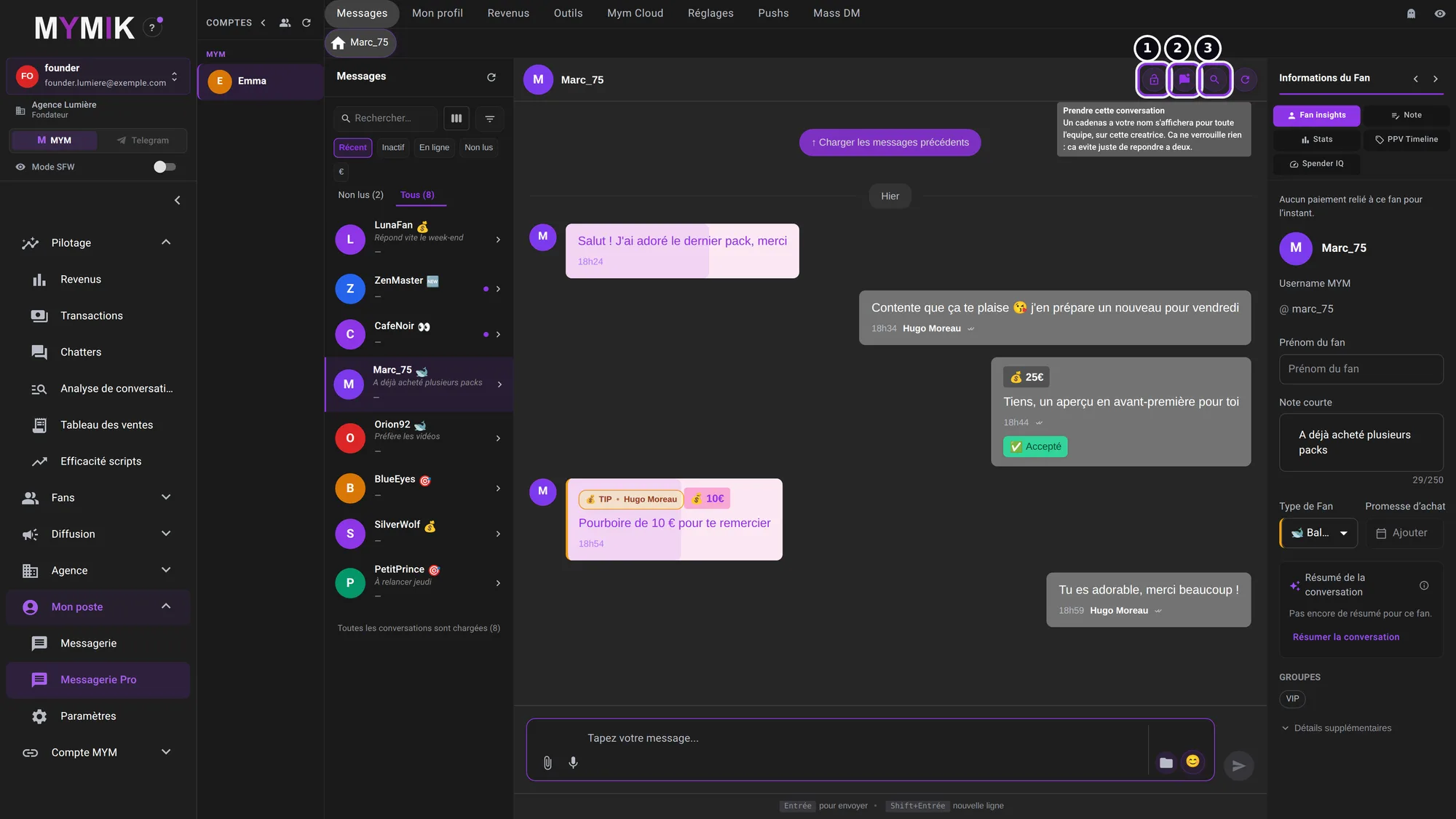 The tooltip of « Prendre cette conversation ».
2. Fan insights: first name, short note, type
On the right, Informations du Fan (“Fan information”) has five tabs: Fan insights, Note, Stats, PPV Timeline and Spender IQ. Fan insights shows the fan’s MYM nickname, then three fields you fill in: Prénom du fan (“Fan’s first name”) ❶ (it replaces the nickname on the fan’s tab), Note courte (“Short note”) ❷ (250 characters at most; it is then read under the name in the list) and Type de Fan (“Fan type”) ❸. Everything saves by itself, about a second after you type: there is no “Save” button. Further down: Promesse d’achat (“Purchase promise”, « Ajouter » a date), Groupes (“Groups”, see guide 7) and Détails supplémentaires (“Additional details”: nickname, country, traffic source, birth date). The Note tab keeps a longer free note (5,000 characters).
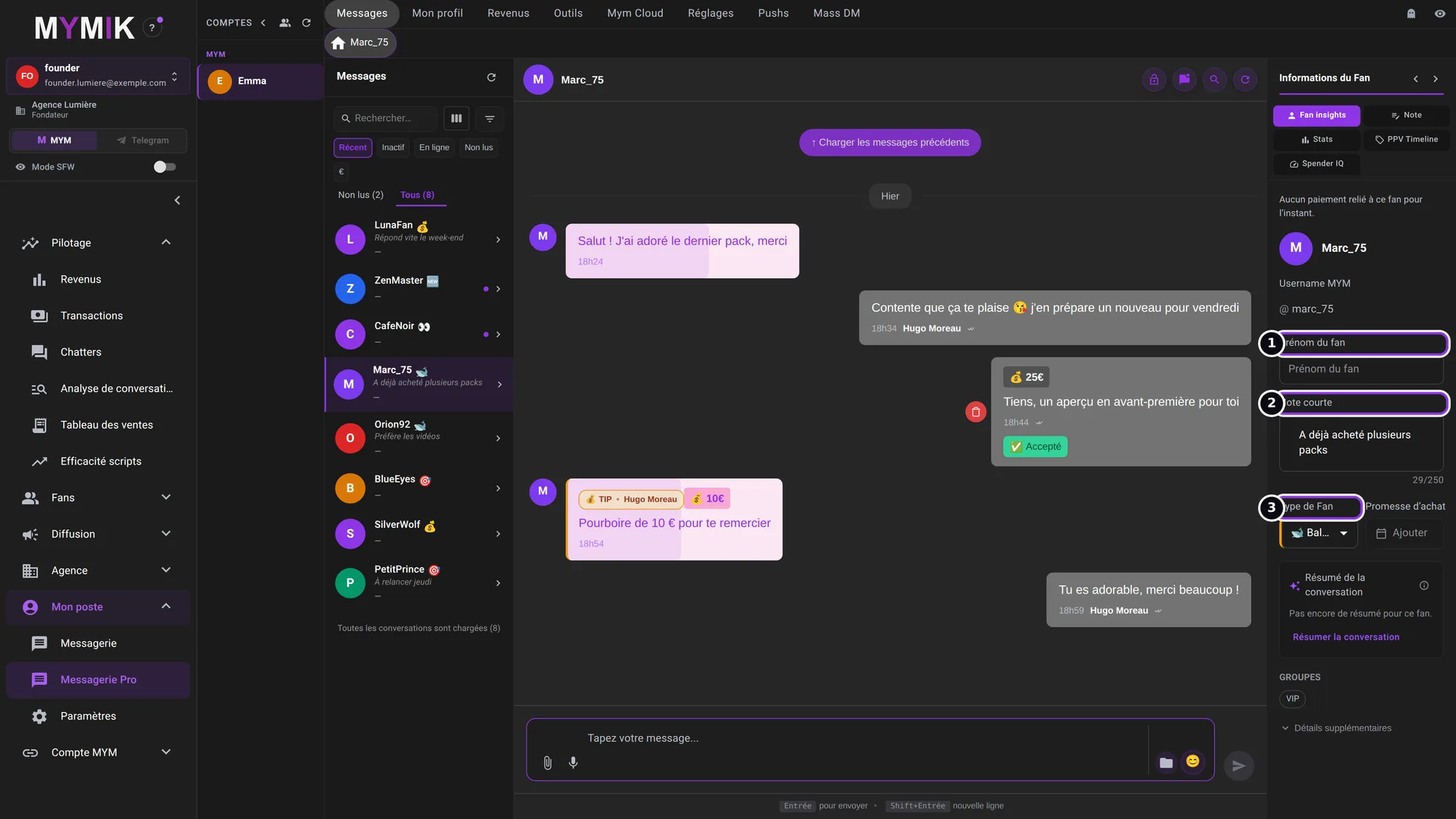 Marc_75’s card: short note, “Baleine” type and “VIP” group.
3. Stats: what this fan received and bought
The Stats tab ❶ summarises the conversation: Messages, Médias Proposés (“Media offered”) ❷, Médias Acceptés (accepted), Médias en Attente (waiting), Ventes chatteurs (chatter sales), Brut chatteurs (€) (chatter gross), Taux de réussite (success rate), Non accepté (€) (not accepted) and Prix moyen (€) (average price). The foot says how many messages and since when the calculation covers (“Calculé sur 5 messages depuis le 09/11”). These are gross figures, computed from what MYMIK has read; they do not replace the sales table (guide 4).
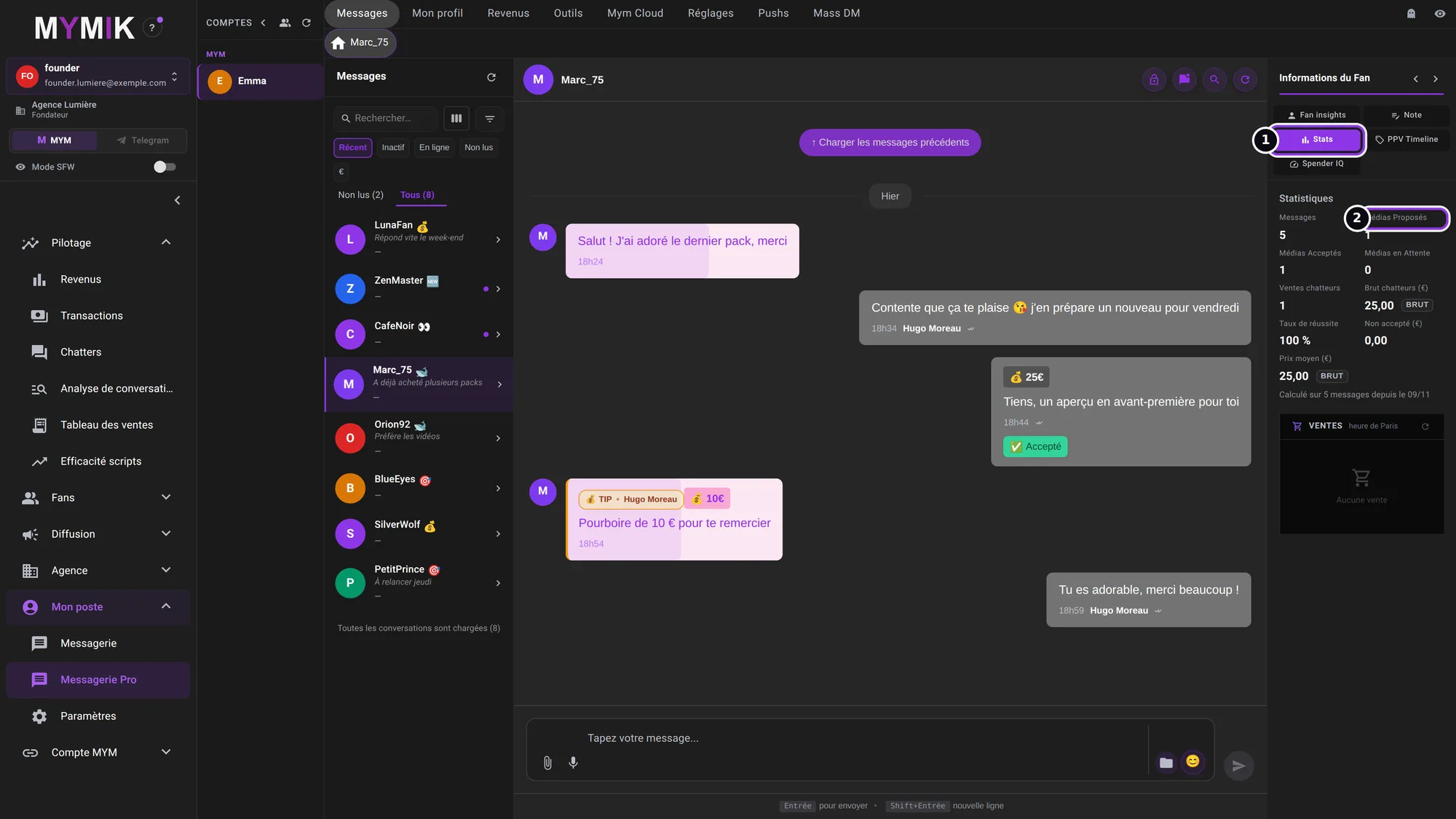 Sample figures for Marc_75.
4. PPV Timeline: what was offered, what remains
PPV Timeline ❶ lists everything offered to this fan, paid or not, across all periods: at the top, accepted offers out of offered ones, the highest and lowest price. Reste à proposer à ce fan (“Left to offer this fan”) ❷ counts the scripts this fan never received; a refused, expired or pending offer does not count: the script remains to be offered. Each card gives the price, date, media, status and chatter; Voir dans la conversation (“See in the conversation”) ❸ takes you back to the message.
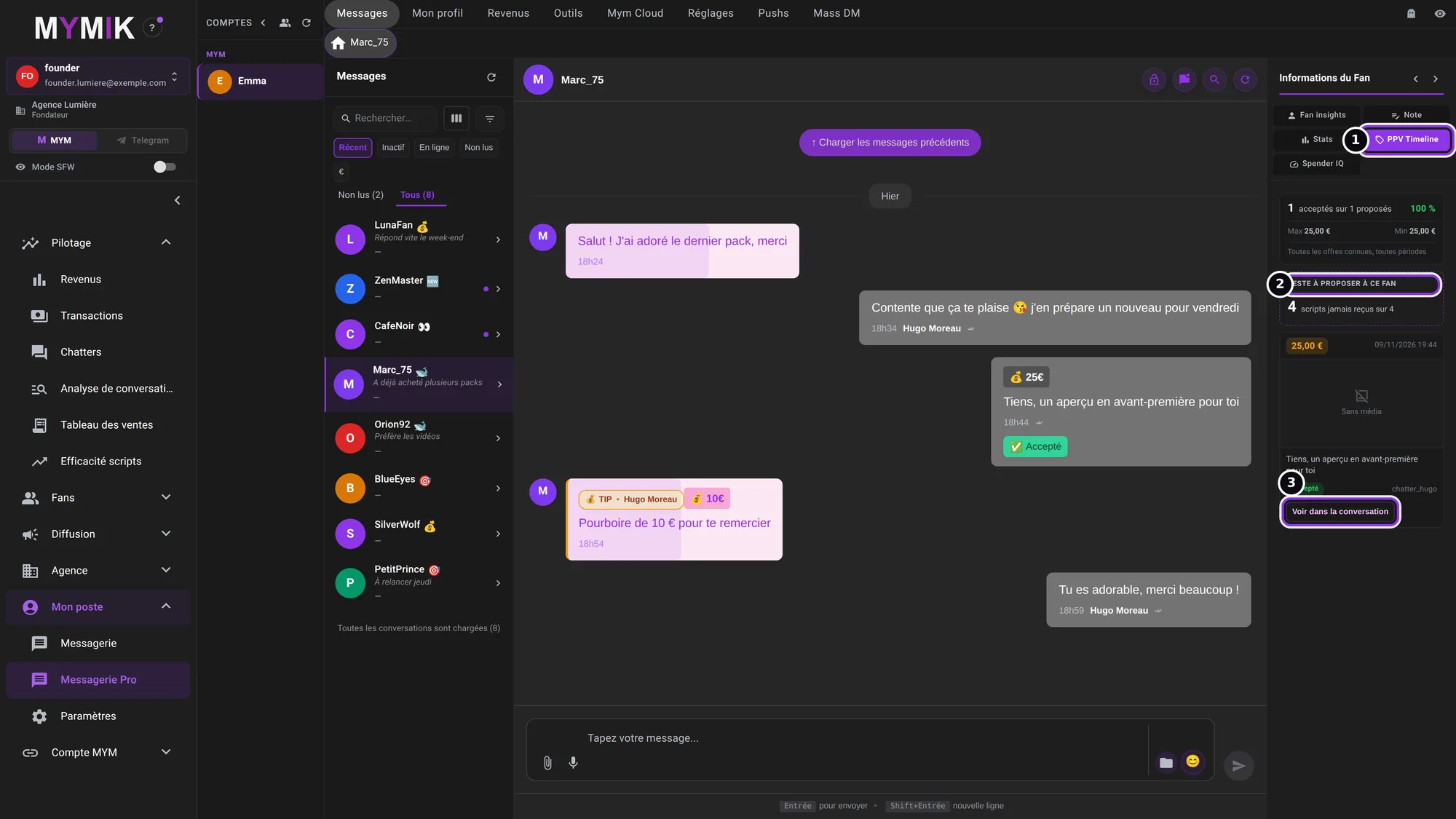 One €25 offer accepted out of one offered.
5. Spender IQ: where this fan stands
Spender IQ ❶ ranks a fan from 0 to 100 for the creator: 0 = never bought, 1-24 Rare, 25-49 Régulier (regular), 50-74 Solide (solid), 75-89 Moteur (driver), 90-100 Pilier (pillar) (Spender IQ en bref “in short” ❷). It is recalculated every night from the amount spent and the number of purchases over the last 365 days. A fan “not yet ranked” means: no linked purchase, or an agency too small for a ranking (fewer than 50 buyers).
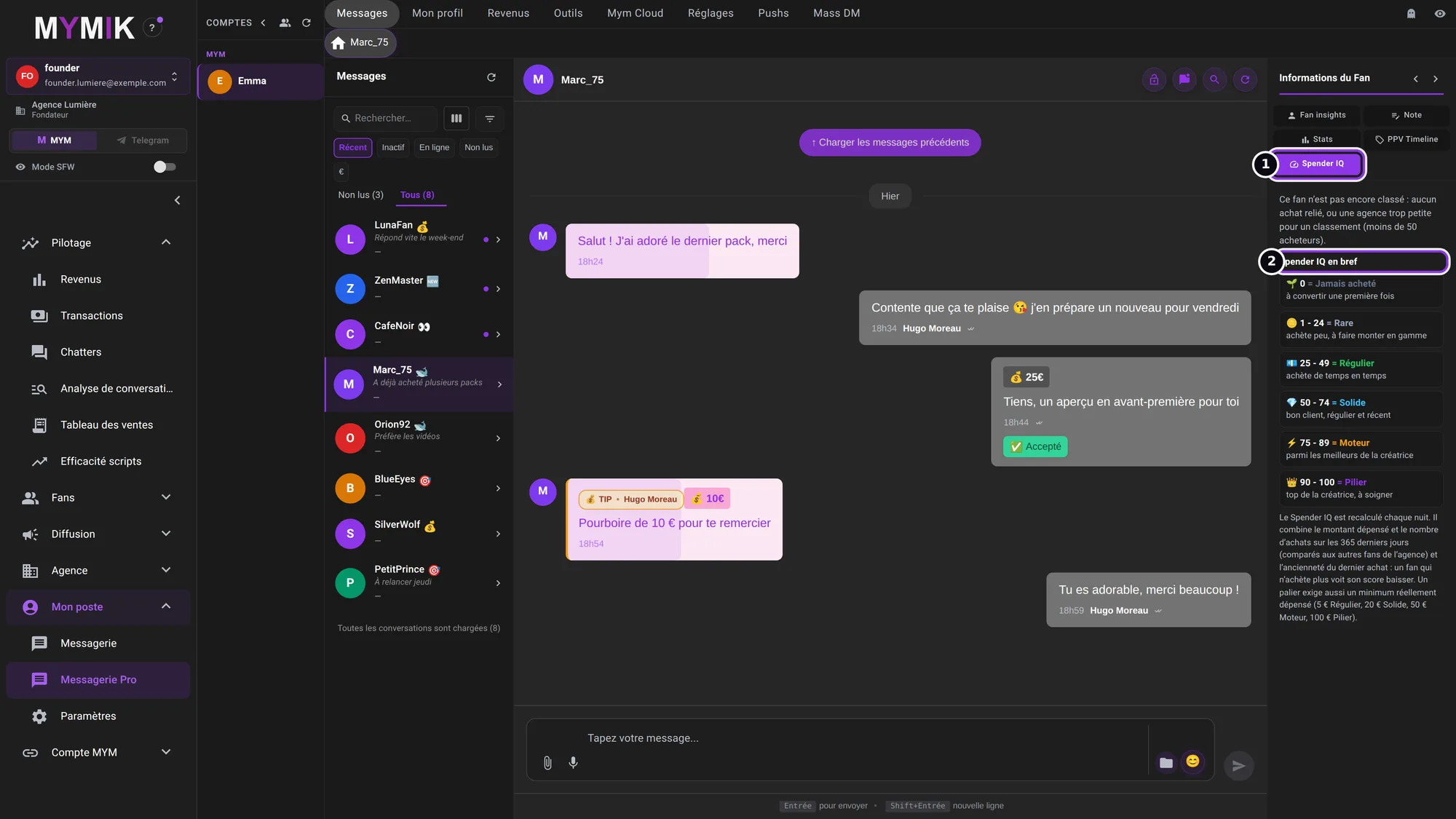 This fan is not yet ranked in the fictional agency (fewer than 50 buyers).
4. The boxes (Sous-inbox)
Share the conversations between chatters.
1. Turn on the sous-inbox and choose your boxes
The Sous-inbox icon ❶, above the list, opens a small panel. Its switch spreads a creator’s conversations across numbered boxes. The Nombre de boîtes (“Number of boxes”) ❷ applies to the whole agency on that creator: changing it updates all chatters, right away. Each person then picks theirs under Mes boîtes (“My boxes”) ❸ (“Toutes” = all, or one or more boxes from 1 to N). When the split is on, a small number badge on the fan’s avatar shows its box; a manager can also pin a conversation to a given box (the tooltip then says “Boîte N · épinglée”).
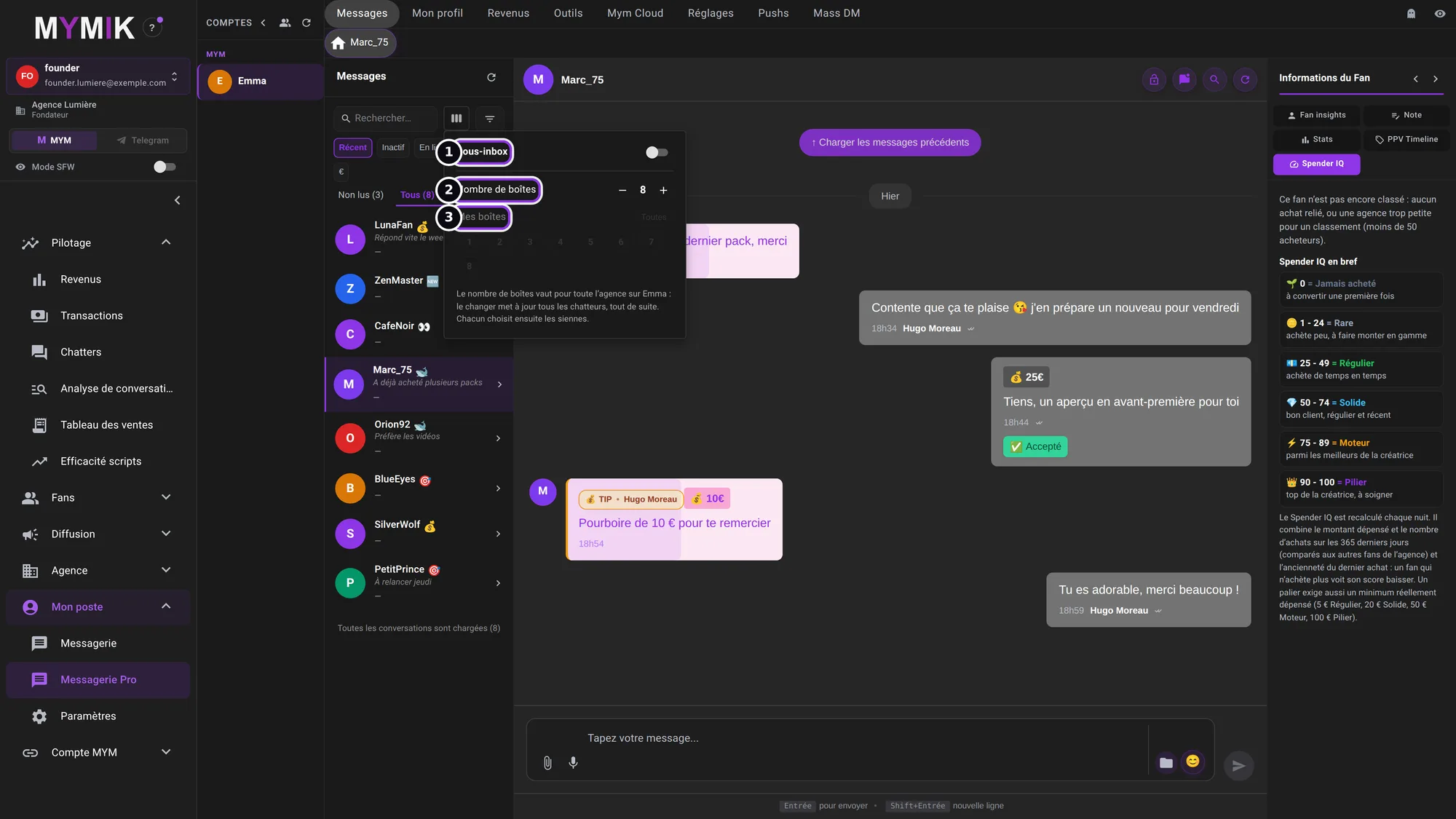 The « Sous-inbox » panel, switch off, 8 boxes.
5. Troubleshooting
Symptom shown → cause → what to do. Quoted messages are those of the screen.
| What you see | Cause | What to do |
|---|---|---|
| « Aucune conversation » although the creator has some | A creator is not ticked in « Mes créatrices », or a filter is active. | Click the « Choisir mes créatrices » icon, then « Réinitialiser » in Filtres. |
| I do not see Messagerie Pro in the menu | Your role does not give access to this page, or no creator is assigned to you. | Ask your manager to check your access (guide 8). If in doubt, write to us. |
| A fan does not appear in the list | He is in another box, or a filter (type, “En ligne uniquement”) hides him, or the list is not fully loaded. | Set « Mes boîtes » to « Toutes », reset the filters, or type his nickname in « Rechercher… » (at least 2 characters). |
| The thread is incomplete at the top | MYMIK has only read the recent messages. | Click « Charger les messages précédents ». |
| The first name or short note was not saved | The card saves by itself about a second after typing: there is no button. | Wait a second before switching fan, then go back to the fan to check. If the field is empty, type it again; if it keeps happening, write to us. |
Still stuck?
Write to us in private at @MymikAppBot with your agency, the creator and the exact text displayed. The MYMIK team
MYMIK guide no. 6, version of 10/11/2026.
Last updated on
Guide 5 · Smart Push: a sentence written for each fan, reviewed before sending
Every fan who has already written to you gets a sentence written for them. You prepare, you review, then you send: nothing goes out before you have reviewed it.
Guide 7 · Find and sort your fans: groups, types, search
A creator can have hundreds of fans. You find them by nickname, filter them by buyer type, sort them into groups (“VIP”, “Snap”…) and see their MYM box.