Guide 2 · Move from the desktop app to the web before 3 December
Your address, your login, your agencies, your accounts: what changes when the desktop app stops on 3 December 2026, and what stays the same.
How to read this guide
The screens are the real MYMIK screens on the web, with a fictional agency (“Agence Lumière”) and a fictional creator (Emma): no real data. The numbered black dot and the purple outline show where to click or look; the same number is used in the text.
Language of the screens
The MYMIK interface is not translated yet: the screens stay in French. For each step, the text gives the exact French label shown on screen, followed by its English meaning.
The order to remember
- Open
app.mymik.frin Chrome and sign in with the same login as in the app. - If you work for several agencies, pick one, then switch agency from the left menu.
- A browser holds only one account at a time: one Chrome profile per account.
- Nothing to install, nothing to update by hand:
F5is enough. - The desktop app stops on 3 December 2026.
0. Before you start
Two minutes to understand everything before opening the browser.
What you need
- Your usual MYMIK login (e-mail or username, and password): it is the same as in the desktop app.
- The Chrome browser (or Edge), on a computer.
What you do not have to do
- Nothing to install.
- No new account to create.
- No update to run.
Date to remember
The desktop app stops on 3 December 2026. Try the web now, while the app is still there as a fallback.
What changes, at a glance
| In the desktop app | On the web |
|---|---|
| An app to install and update | An address to open: app.mymik.fr. A new version applies the next time the page loads. |
| The “Comptes” selector to move from one account to another | One browser = one account: one Chrome profile per account. |
| Some MYM pages shown inside the app | Conversations, revenues and statistics are shown by MYMIK itself. The pages of the « Compte MYM » group show the real MYM page, in Chrome or Edge on a computer: see “The MYM pages”. |
| App shortcuts | Chrome’s own (F5 to reload). |
1. Sign in on app.mymik.fr
Same account, new address.
1. Open app.mymik.fr and sign in
In Chrome, open app.mymik.fr. Type your e-mail or username (« Email ou nom d’utilisateur ») ❶ and your password (« Mot de passe ») ❷ (hidden; the eye icon shows it), then click « Se connecter » (“Sign in”) ❸. It is the same login as in the desktop app.
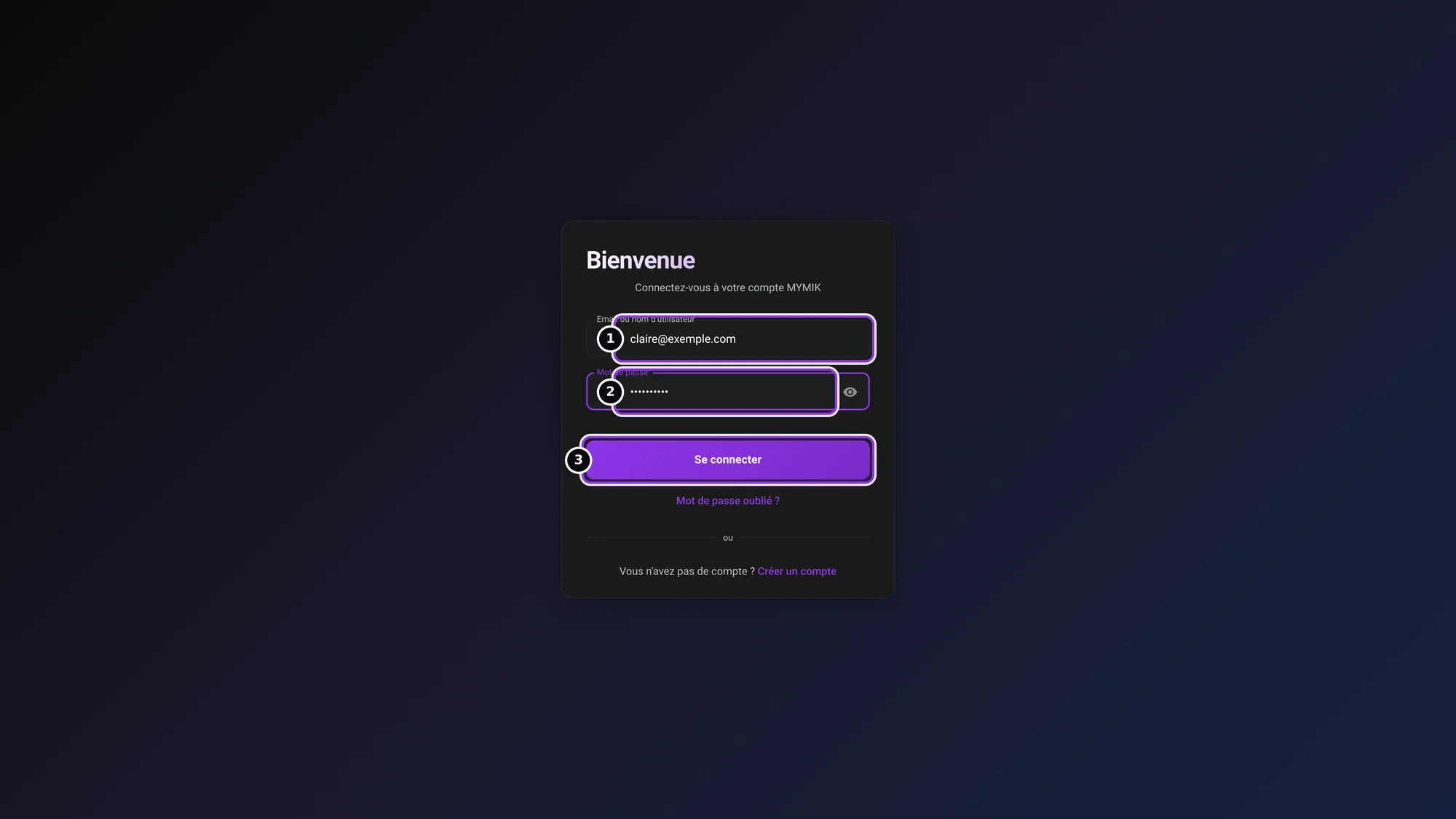 Sign-in screen (fictional login, hidden password). « Mot de passe oublié ? » (“Forgot your password?”) is just below the button.
A « Continuer avec Google » (“Continue with Google”) button?
Depending on the page set-up, the screen may offer this sign-in as well. If you have never used it, stay with your usual login.
2. If you have several agencies, pick one
An account attached to several agencies first goes through the « Choisir une agence » (“Choose an agency”) screen. Click the agency you want to work in ❶; your role in that agency is shown on the right (here « Fondateur », “Founder”). With a single agency this screen does not appear.
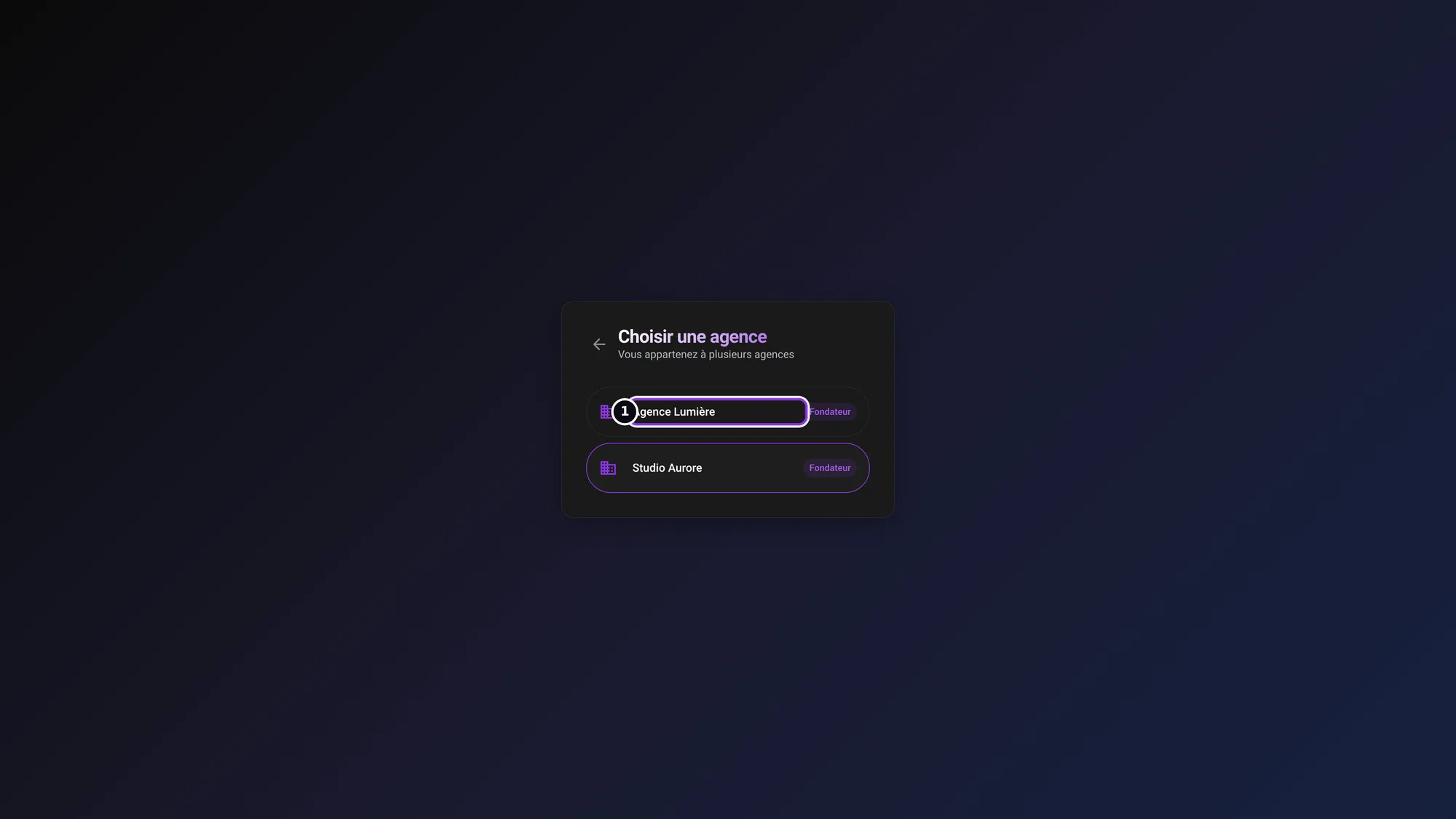 « Choisir une agence » (“Choose an agency”): two fictional agencies, with the role in each.
3. Find your bearings
You land on the dashboard. At the top left, your account block shows your name and your agency ❶. Below it, the menu ❷ groups the same sections as in the app (« Pilotage », « Fans », « Diffusion », « Agence », « Mon poste », « Compte MYM »…): what you did in the app is done in the same place.
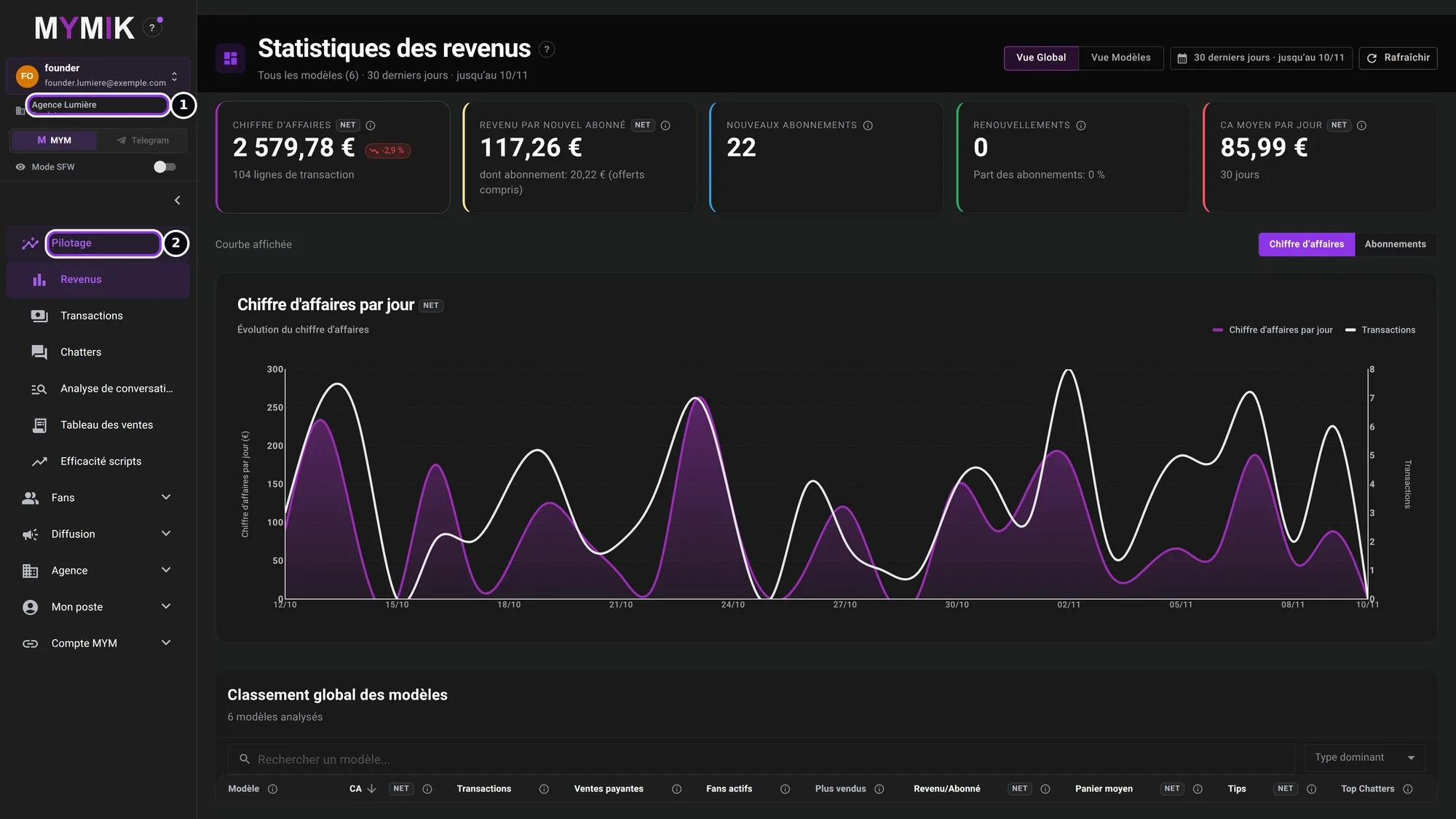 Dashboard of a fictional agency: the account block and the agency at the top left, the menu below.
2. Switch agency
One sign-in for all your agencies.
1. Click your account, at the top of the menu
If you work for several agencies with the same account, you do not need several accounts. Click your account block at the top of the left menu ❶: the « Agences » (“Agencies”) list opens, with the current agency ticked.
2. Choose the other agency
Click the other agency ❷: the screen reloads in that agency, with the role you have there.
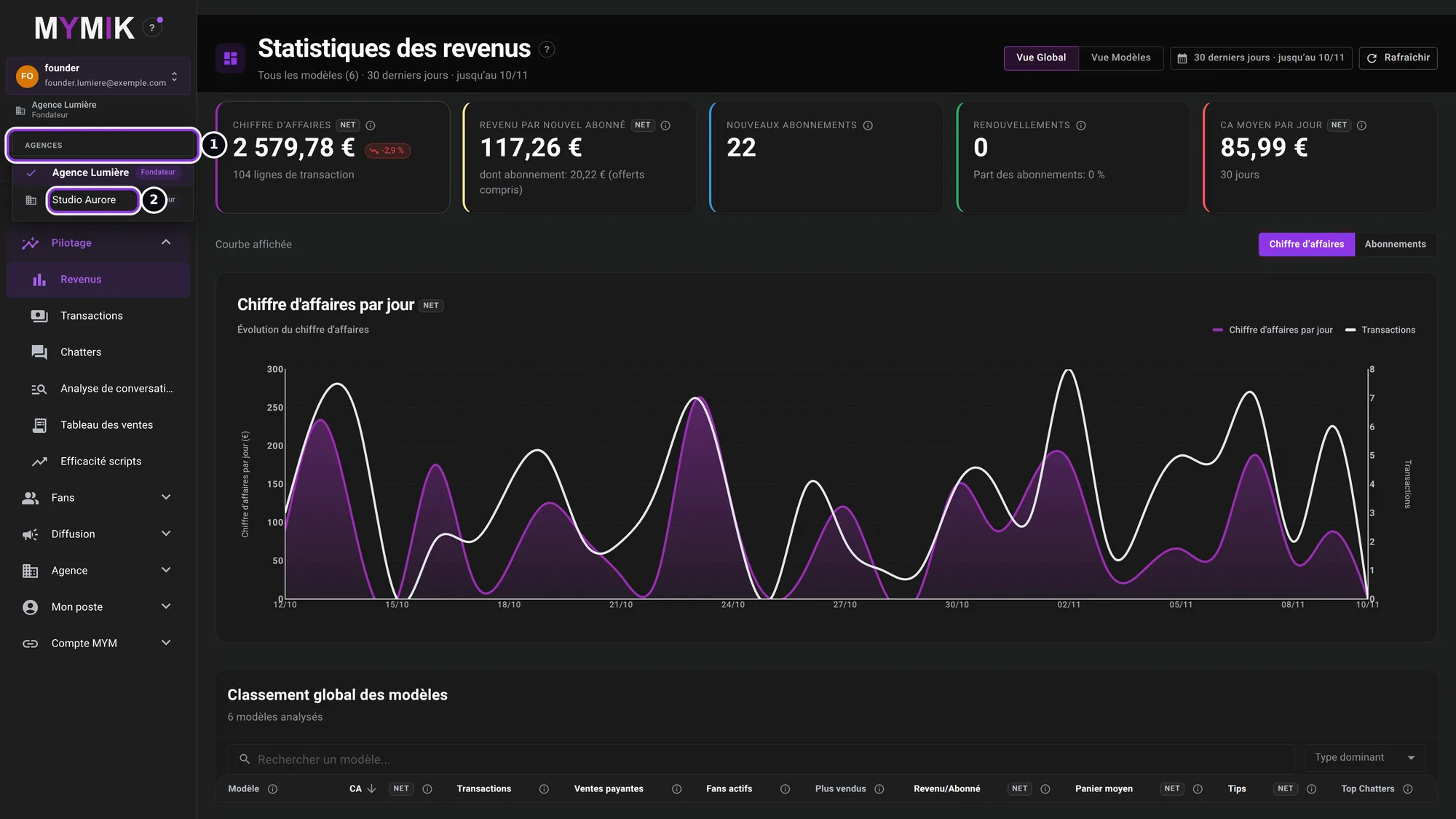 The « Agences » list: the current agency is ticked; the other agency is just below.
An agency is missing from the list?
Your account is not attached to it. Ask the person who manages the agency to invite you: MYMIK does not add you by itself.
3. Several accounts on the same computer
One browser = one account.
In the desktop app, the « Comptes » (“Accounts”) selector let you move from one MYMIK account to another in the same window. On the web, a browser holds only one account at a time. If you use two different accounts (not two agencies with the same account: see the previous section), create one Chrome profile per account: Chrome keeps a separate sign-in for each profile.
1. Add a profile in Chrome
In Chrome, click the profile icon at the top right, then Add. Give the profile a name (for instance the account name): Chrome opens a new window.
2. Sign in to the second account in that window
In the new window, open app.mymik.fr and sign in with the second account (step 1 of the “Sign in” section).
3. Move between accounts by switching window
Each profile has its own window and stays signed in on its own. To change account, go to the other window: there is no selector to use any more.
No screenshot in this section
The Chrome screens (profile, “Add”) are not part of MYMIK and their labels may vary with the Chrome version.
4. The MYM pages
The real MYM page, in Chrome or Edge on a computer.
In the app, some pages of the MYM site were shown inside MYMIK. The same goes for the web: the six pages « Profil MYM », « Revenus MYM », « Notifications MYM », « Outils MYM », « My Friends » and « Réglages MYM » show the real MYM page of the creator, inside MYMIK. Conversations, revenues and fan figures are still shown by MYMIK itself.
1. Open the « Compte MYM » (“MYM account”) group of the menu
The « Compte MYM » group ❶ gathers the pages specific to the selected creator: « Profil MYM », « Revenus MYM », « Outils MYM », « My Friends », « Réglages MYM », « Notifications MYM », « Mym Cloud », « Catalogue MOD ». Pick the creator in the left-hand column of the page.
2. Use Chrome or Edge on a computer
The real MYM page does not show in Safari, nor on iPhone or iPad. In those browsers, « Profil MYM », « Revenus MYM » and « Notifications MYM » switch to a simplified MYMIK screen, announced by « La page MYM ne s’est pas affichée dans ce navigateur : voici l’écran simplifié. » (“The MYM page did not show in this browser: here is the simplified screen.”); « Outils MYM », « My Friends » and « Réglages MYM » show « Ouvrez MYMIK dans Chrome ou Edge sur ordinateur pour l’utiliser. » (“Open MYMIK in Chrome or Edge on a computer to use it.”)
3. If a message shows instead of the page
In Chrome or Edge, if the MYM page did not load, a box ❷ says so and tells you what to do. Here: « La page Outils de MYM ne s’est pas affichée. Rechargez la page ; si elle ne s’affiche toujours pas, contactez le support MYMIK. » (“The MYM Tools page did not show. Reload the page; if it still does not show, contact MYMIK support.”) Press F5; if the message comes back, write to us with the page and creator names (see troubleshooting).
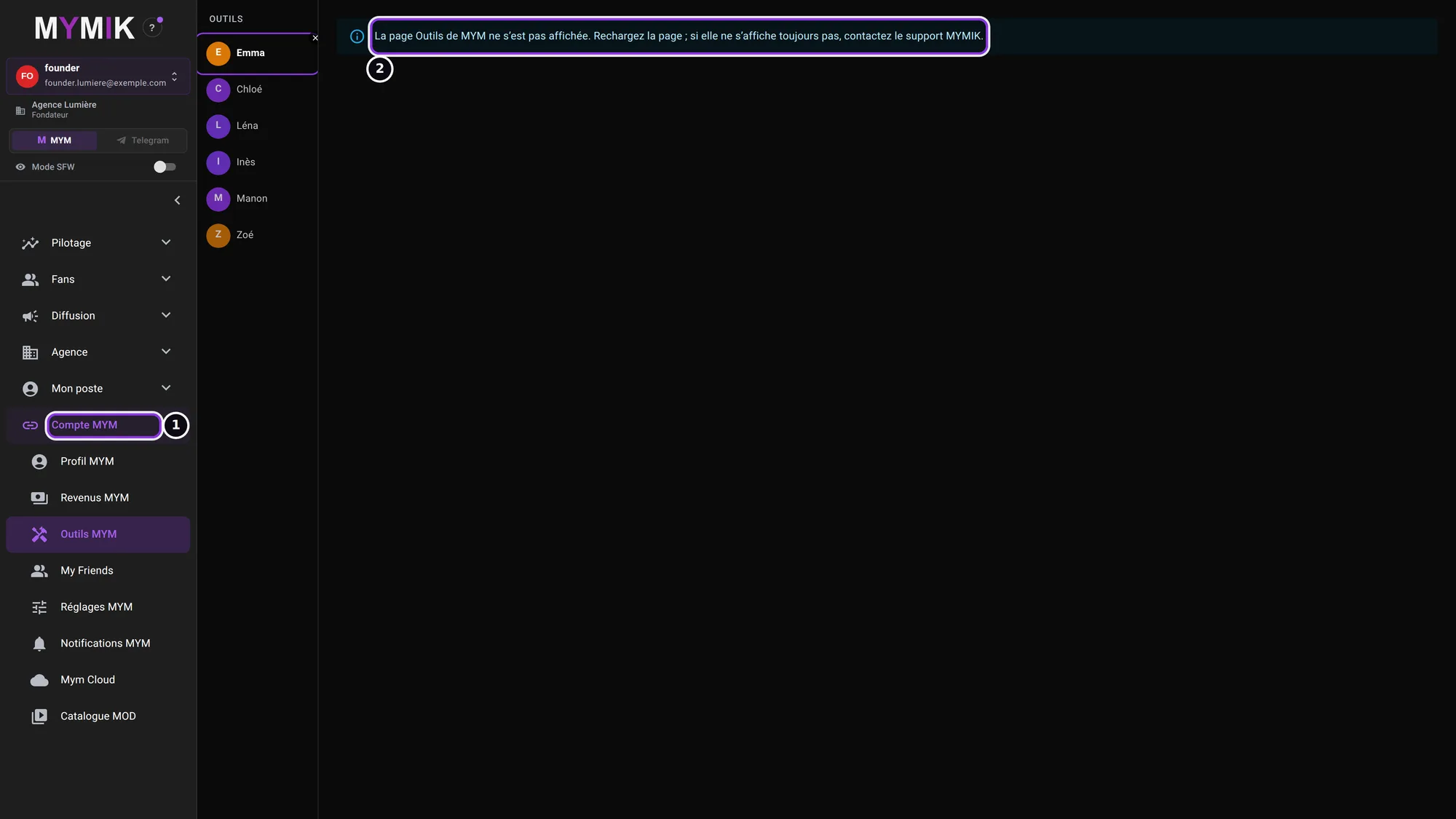 The « Compte MYM » group unfolded, and the message shown when the MYM Tools page did not load (test screen: fictional agency and creator, the real MYM page cannot show there).
A page not open yet for a creator?
« Profil MYM », « Revenus MYM » or « Notifications MYM » can show « … n’est pas encore ouvert sur le web pour cette créatrice. Demandez au support MYMIK de l’ouvrir. » (“… is not open on the web yet for this creator. Ask MYMIK support to open it.”) Write to us with the page and creator names.
5. Updates, shortcuts and plan until 3 December
Nothing to install: just reload the page.
1. Update: reload the page
There is nothing to install any more. A new version of MYMIK on the web applies the next time the page loads: press F5 (or Ctrl + R; Cmd + R on a Mac).
2. Shortcuts: they are Chrome’s
The app’s shortcuts belonged to its window; on the web they are Chrome’s: reload the page with F5, open a tab with Ctrl + T.
3. Your plan until 3 December
| When | What |
|---|---|
| This week | Each team member opens app.mymik.fr and signs in once. |
| By 19/11 | Work a whole day on the web; create the Chrome profiles you need. |
| By 26/11 | Go through your creators’ « Compte MYM » pages in Chrome or Edge; tell us which ones show a message instead of the MYM page. |
| At the latest on 02/12 | Last day to write to us before the stop. |
| 03/12/2026 | The desktop app stops. Everything is done on app.mymik.fr. |
This plan is a suggestion
for organising yourselves, not a product rule: only the 3 December date is firm.
6. Troubleshooting
Symptom shown → cause → what to do. Quoted messages are those of the screen.
| What you see | Cause | What to do |
|---|---|---|
| « Identifiants incorrects. Veuillez réessayer. » (“Wrong login. Please try again.”) | E-mail, username or password mistyped. | Check them (the eye icon shows the password). Otherwise click « Mot de passe oublié ? » below the button. |
| The « Choisir une agence » screen shows at every sign-in | Your account is attached to several agencies. | This is normal: pick today’s agency. To change later, click your account at the top of the menu. |
| An agency is missing from the « Agences » list | Your account is not attached to it. | Ask the agency manager to invite you. |
| « La page Outils de MYM ne s’affiche pas dans Safari, ni sur iPhone ou iPad. Ouvrez MYMIK dans Chrome ou Edge sur ordinateur pour l’utiliser. » (same for My Friends, Réglages) | The real MYM page never shows in Safari, nor on iPhone or iPad. | Open app.mymik.fr in Chrome or Edge, on a computer. |
| « La page MYM ne s’est pas affichée dans ce navigateur : voici l’écran simplifié. » (Profil MYM, Revenus MYM, Notifications MYM) | The real MYM page did not show (Safari, iPhone, iPad, or a failed load): MYMIK shows its simplified screen. | The simplified screen remains usable. For the real page: Chrome or Edge on a computer, then F5. |
| « La page Outils de MYM ne s’est pas affichée. Rechargez la page ; si elle ne s’affiche toujours pas, contactez le support MYMIK. » (same for My Friends, Réglages) | The MYM page did not load. | Press F5. If the message comes back, write to us with the page and creator names. |
| « Le Profil MYM n’est pas encore ouvert sur le web pour cette créatrice. Demandez au support MYMIK de l’ouvrir. » (same for Revenus MYM, Notifications MYM) | The page is not open on the web yet for this creator. | Write to us with the page and creator names so that we open it. |
| I still see the old display | Your page has not loaded the new version. | Press F5. |
| Two accounts in the same browser | A browser holds one account at a time. | One Chrome profile per account (section 3). |
Still stuck?
Write to us on @MymikAppBot with your agency, the page concerned and the exact text displayed. Never send a password in a message. The MYMIK team
MYMIK guide no. 2, version of 10/11/2026.
Last updated on
Guide 1 · Connect and reconnect an MYM creator
Add a creator, connect her with the e-mail and password of her MYM account, reconnect her when her password has changed, and understand MYM’s refusals.
Guide 3 · Mass DM and paid push: which to choose, to whom, how to send it
Two ways to send a message to many fans. The Mass DM goes into the conversations, with recipients and a sending you set; the push goes through MYM, with its own limits. This guide helps you choose, then shows each screen.