Guide 4 · Find your sales and attribute them to chatters
Four Pilotage screens answer four questions: how much did the agency sell, what is the list of sales, who sold what, and what each chatter does. This guide says where to read each figure and what it measures.
How to read this guide
The screens are the real MYMIK screens on the web, with a fictional agency (“Agence Lumière”), fictional creators (including Emma) and fans with made-up nicknames: no real data. The numbered black dot and the purple outline show where to click or look; the same number is used in the text.
Language of the screens
The MYMIK interface is not translated yet: the screens stay in French. For each step, the text gives the exact French label shown on screen, followed by its English meaning.
The order to remember
- Pilotage › Revenus: the period’s revenue, per creator.
- Pilotage › Transactions: the list of all sales, with filters and a breakdown by type.
- Pilotage › Tableau des ventes (“Sales table”): who sold what, chatter by chatter.
- Pilotage › Chatters: each chatter’s activity; Revenus MYM: the money actually collected.
0. Before you start
What to know in one minute.
Which screen for which question
- Revenus: “how much did we make over 30 days?” (net, per creator).
- Transactions: “find a sale” (by date, creator, type, fan, amount).
- Tableau des ventes: “which chatter sent this offer?”.
- Chatters: “what does each chatter do?”.
Who sees what
- Revenus, Transactions and Tableau des ventes: founder, HR, managers; Transactions also opens to external managers and chatters.
- Each person’s menus follow the rights set in « Accès et rôles » (guide 8).
The screens do not count the same thing
A “net” total (Transactions, Revenus), a “gross” total seen in the conversation (Tableau des ventes) and the money collected at MYM (Revenus MYM) cannot be compared line by line. This guide announces no figure: read the one on your screen, with the label (“NET” or “BRUT”) that goes with it. The figures in the screenshots are fictional.
1. Revenue and the list of sales
Revenus, then Transactions.
1. Pilotage › Revenus: the overview
Open Pilotage, then Revenus. The title ❶ recalls the period (« 30 derniers jours », last 30 days) and scope (« Tous les modèles », all models). At the top ❷: revenue (net), revenue per new subscriber, new subscriptions, renewals, average revenue per day. Below, the daily curve and the global ranking of models ❸. Vue Modèles (“Models view”) switches to a creator-by-creator reading.
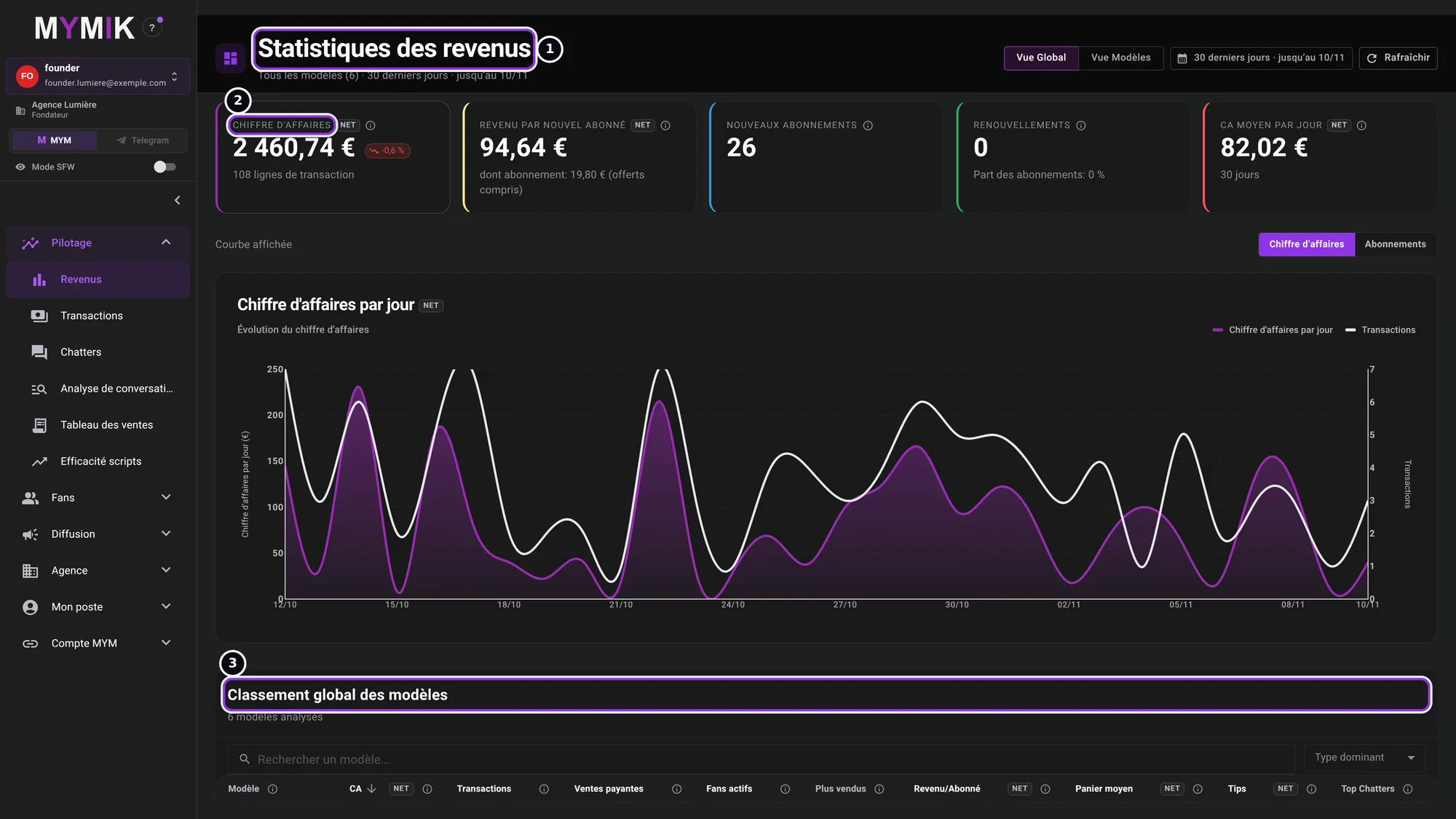 Revenue statistics (test data).
2. Pilotage › Transactions: find a sale
At the top right, the net of the selection ❶ and the number of transactions. The period buttons ❷ (“Today”, “7 d”, “30 d”, “Month”, “All”) or the date fields, Créatrices, Types, Fan ID and min/max amounts narrow the list; Appliquer (“Apply”) confirms, Réinitialiser (“Reset”) clears. Répartition (“Breakdown”) ❸ gives, per sale type, the volume and the net; the volume also counts free subscriptions. Below, the table: date, model, fan, type, amount, net, currency, status.
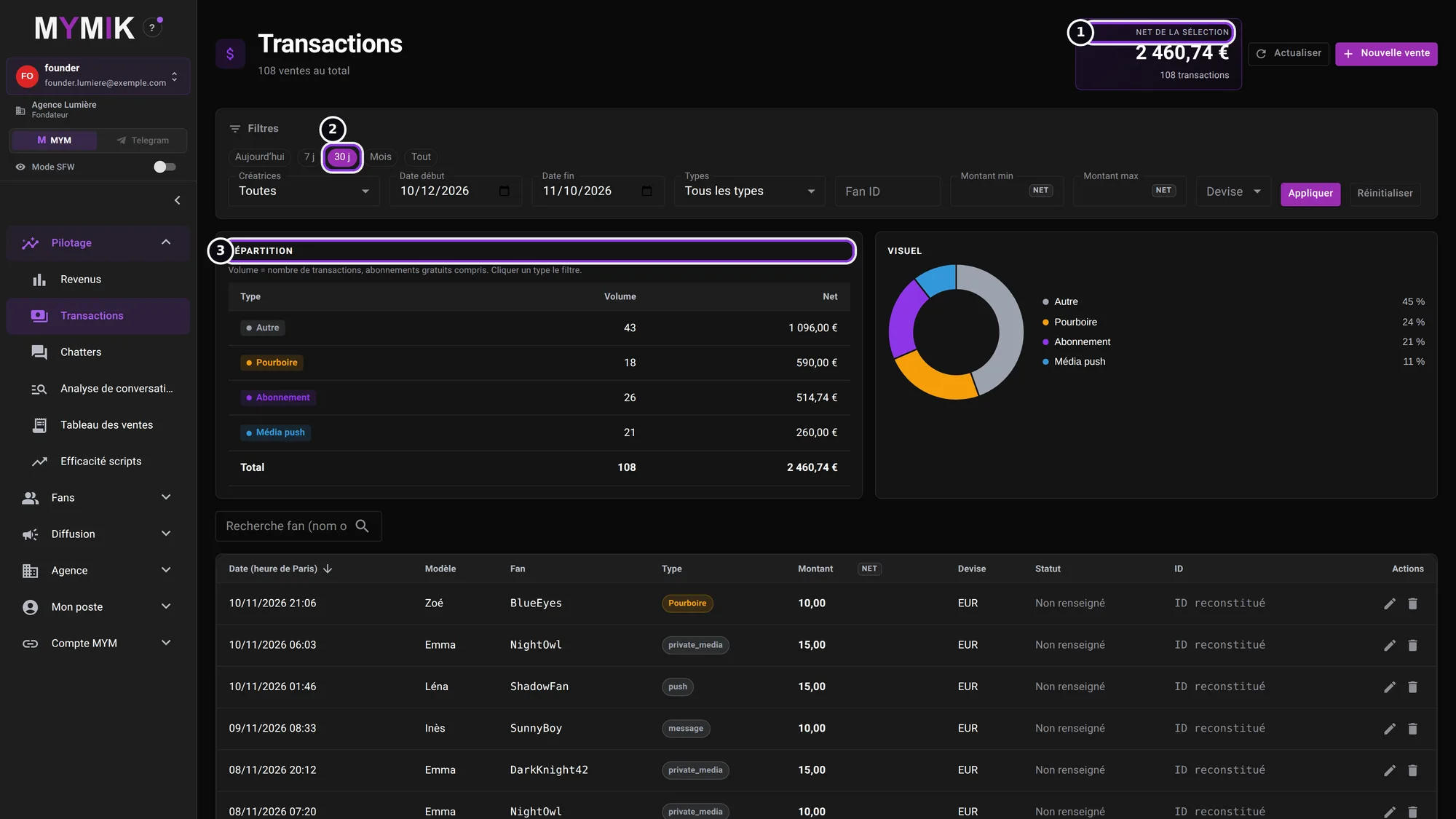 All sales of the period: 108 test transactions.
3. One click on a type filters the list
In Répartition, click a type ❷ (« Pourboire » tip, « Abonnement » subscription, « Média push »…): the list keeps only that type and the net of the selection ❶ is recalculated.
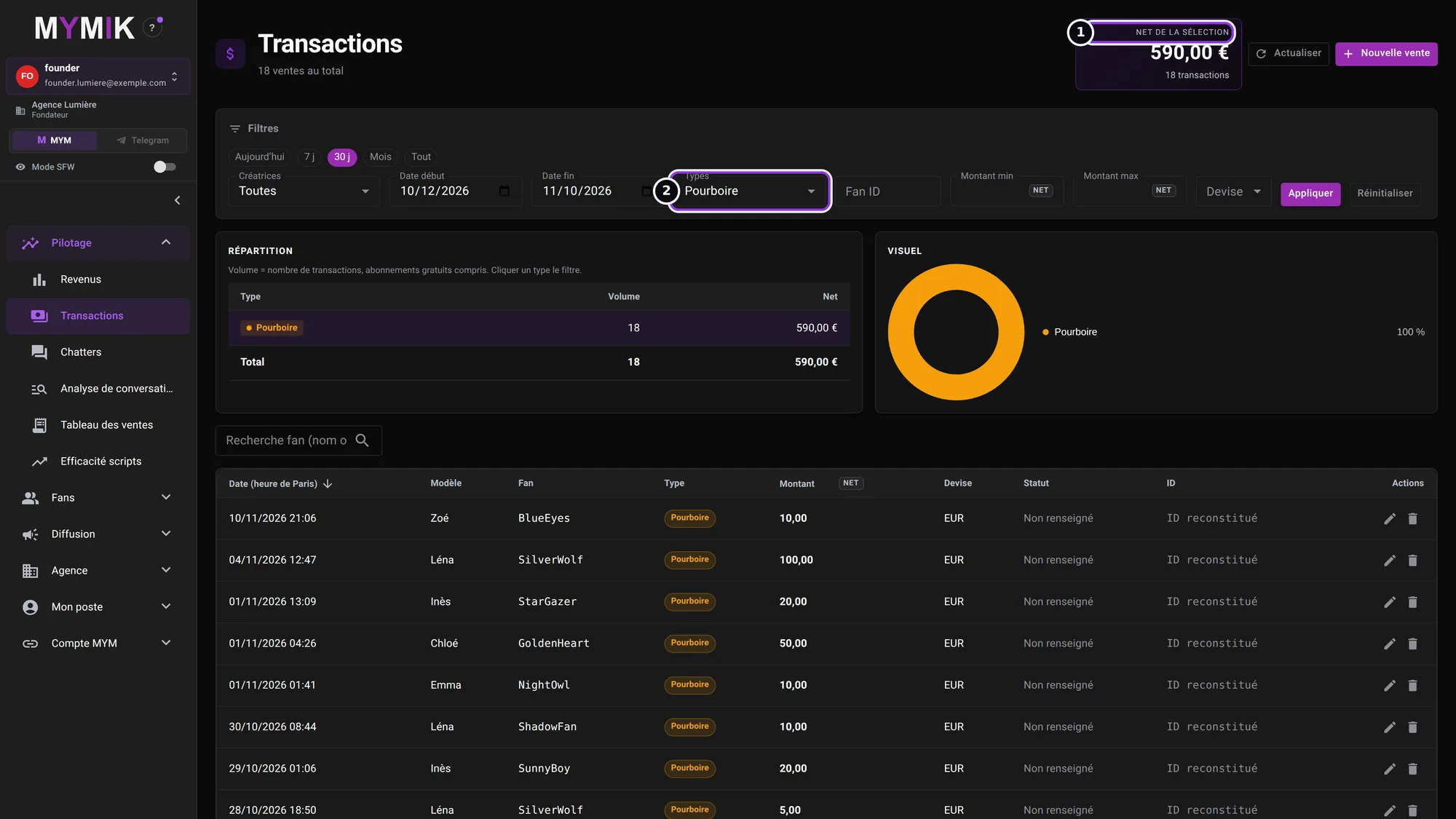 Tips only.
The Nouvelle vente (“New sale”) button adds a sale entered by hand. The “Modifier” (edit) and “Supprimer” (delete) icons on a row change the sale: to find a sale, stay on the filters.
2. Who sold what
Sales table and chatter statistics.
1. Pilotage › Tableau des ventes
The screen ❶ lists “the private media sent by chatters and the tips found in conversations”. The period totals ❷ give the number of sends, accepted, accepted gross, proposed gross and tips. In the table, the Chatteur column ❸ says who is behind the row; Ouvrir (“Open”) opens the fan’s conversation. The filters: dates, creator, chatter, type (« Tout », « Média Privé », « Pourboires »), status (« Accepté », « Refusé », « Reçu ») and search in the message.
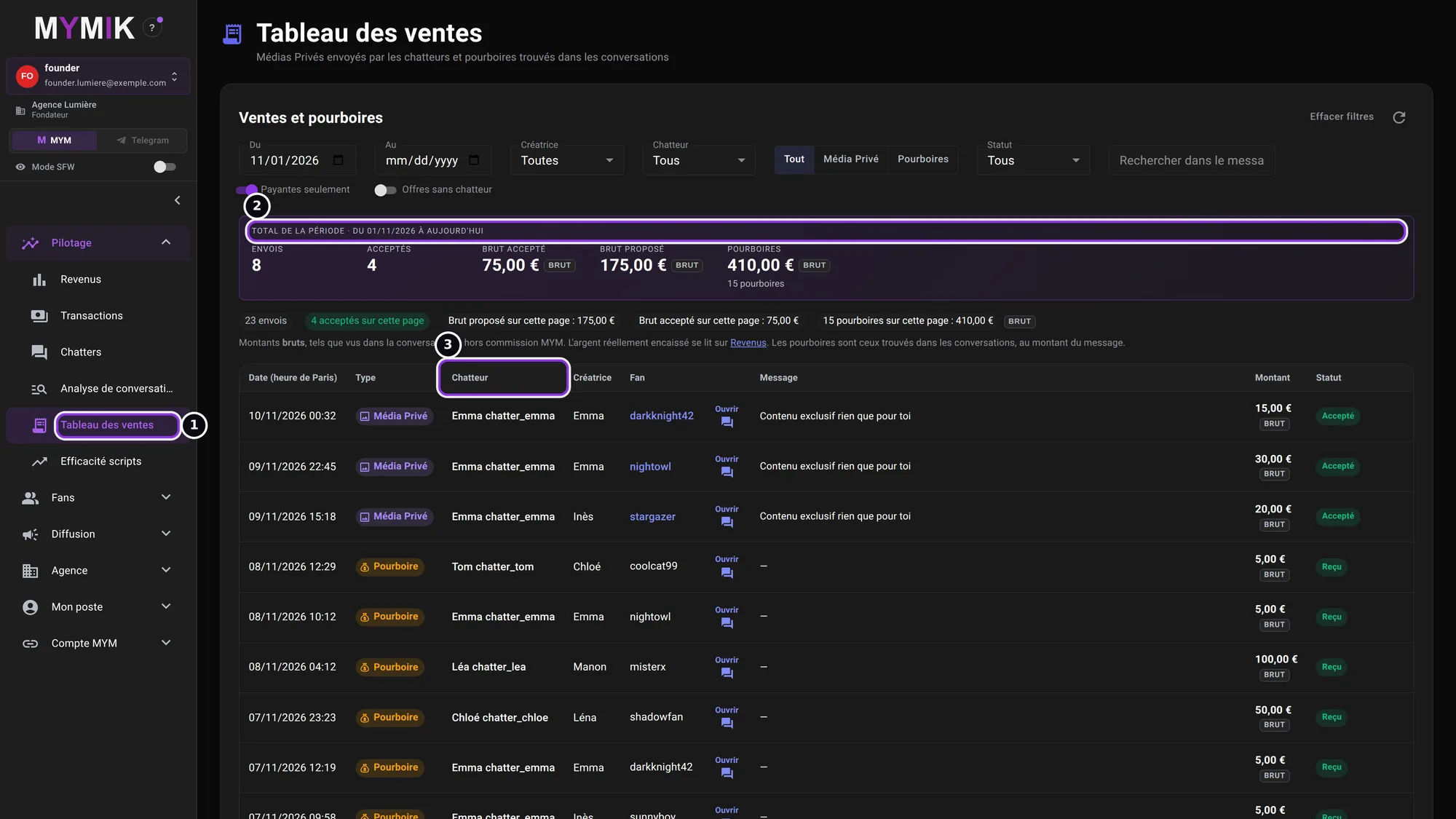 Private media and tips of the period, with their (fictional) chatter.
2. Offers without a chatter
The Offres sans chatteur (“Offers without a chatter”) switch ❶ shows the offers no chatter sent. Its tooltip says why: “Offers back-filled at onboarding or observed in conversation: MYM does not say who sent them, they belong to nobody.” These offers are therefore not attributed to a chatter. The note ❷ recalls that the amounts are gross, “as seen in the conversation — before MYM’s commission”, and that “the money actually collected is read on Revenus”.
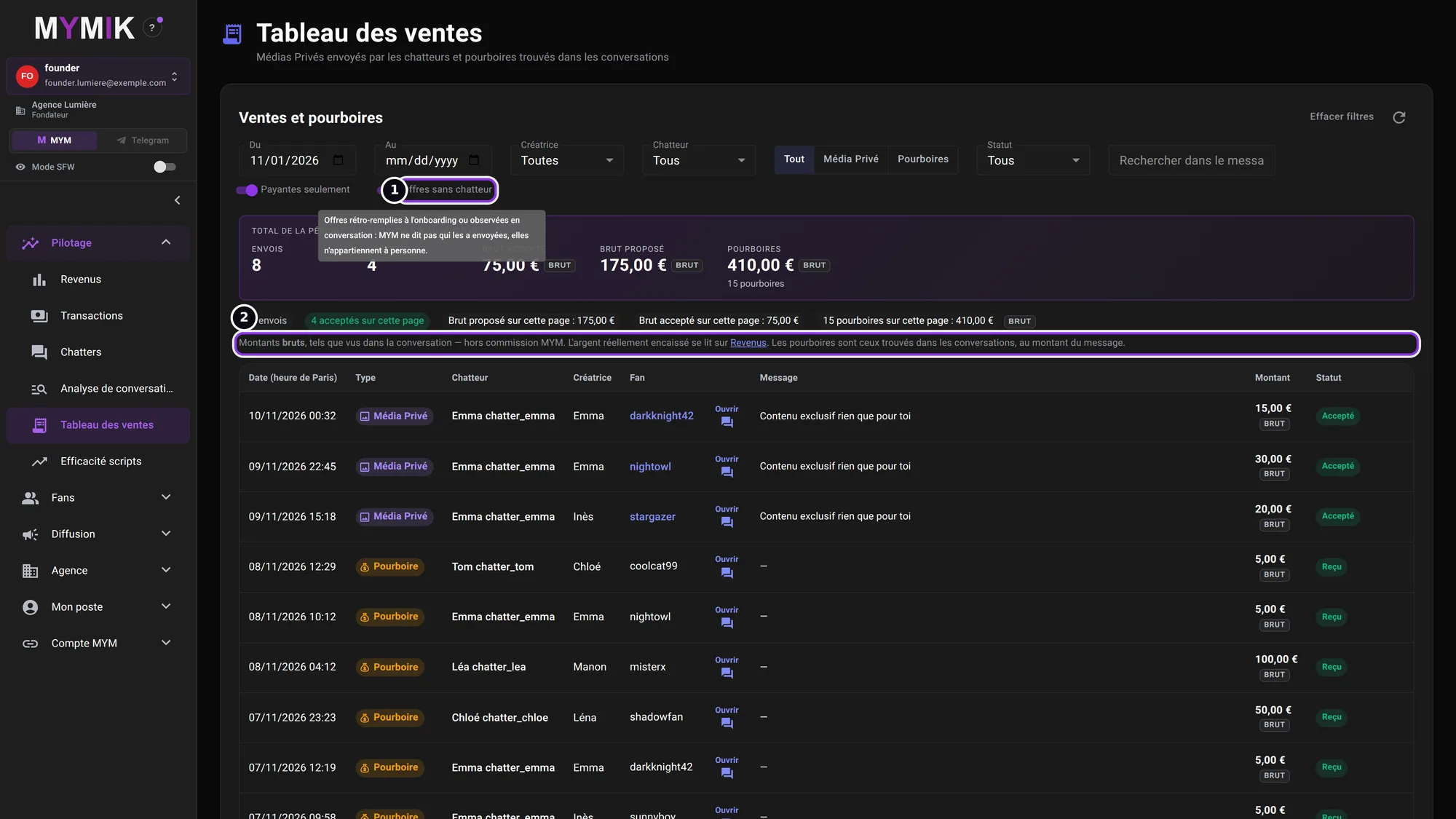 The tooltip of « Offres sans chatteur ».
Attribution
A row’s chatter is the one from the conversation where the offer or tip was seen. A sale made outside a followed conversation (for example an offer from before you joined MYMIK) can have no chatter: that is normal, and this guide does not promise that a total is fully attributed.
3. Pilotage › Chatters: what each chatter does
The title ❶ recalls the scope (« Tous les chatteurs », all chatters, « 30 derniers jours »). At the top ❷: “Tips found in conversations”, with the share “attributed to a chatter” and “without chatter”. Below, the curves: messages, PPVs sent, unique fans, PPV revenue (gross), unlock rate, tips. The Paie de l’équipe (“Team pay”) button leads to another screen.
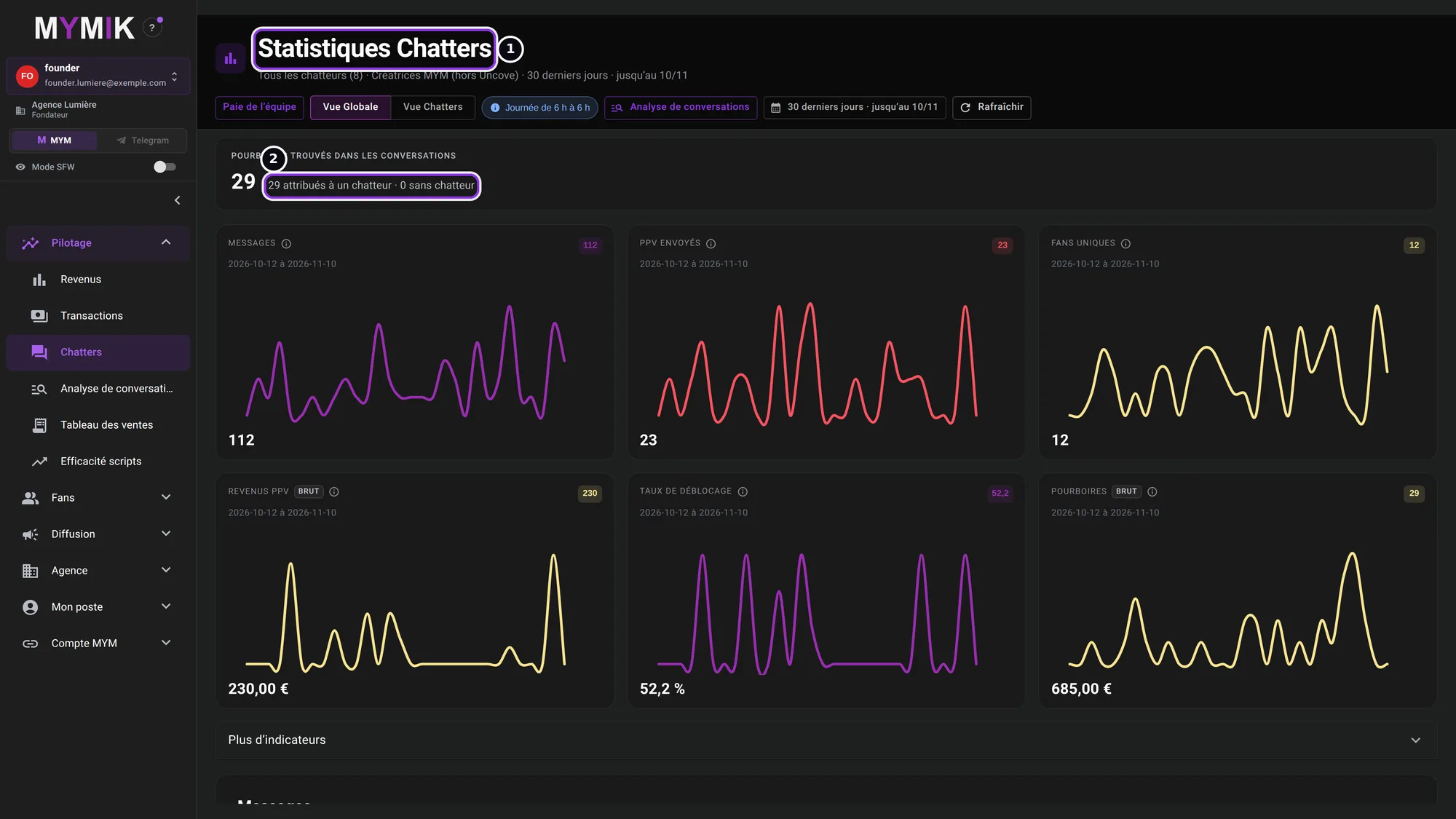 Chatter statistics (test data).
4. Choose which chatters are shown
Vue Chatters (“Chatters view”) ❶ opens the “All chatters” list: tick the ones to compare, then Afficher tous les chatteurs (“Show all chatters”), or choose a few. The curves are limited to the selection.
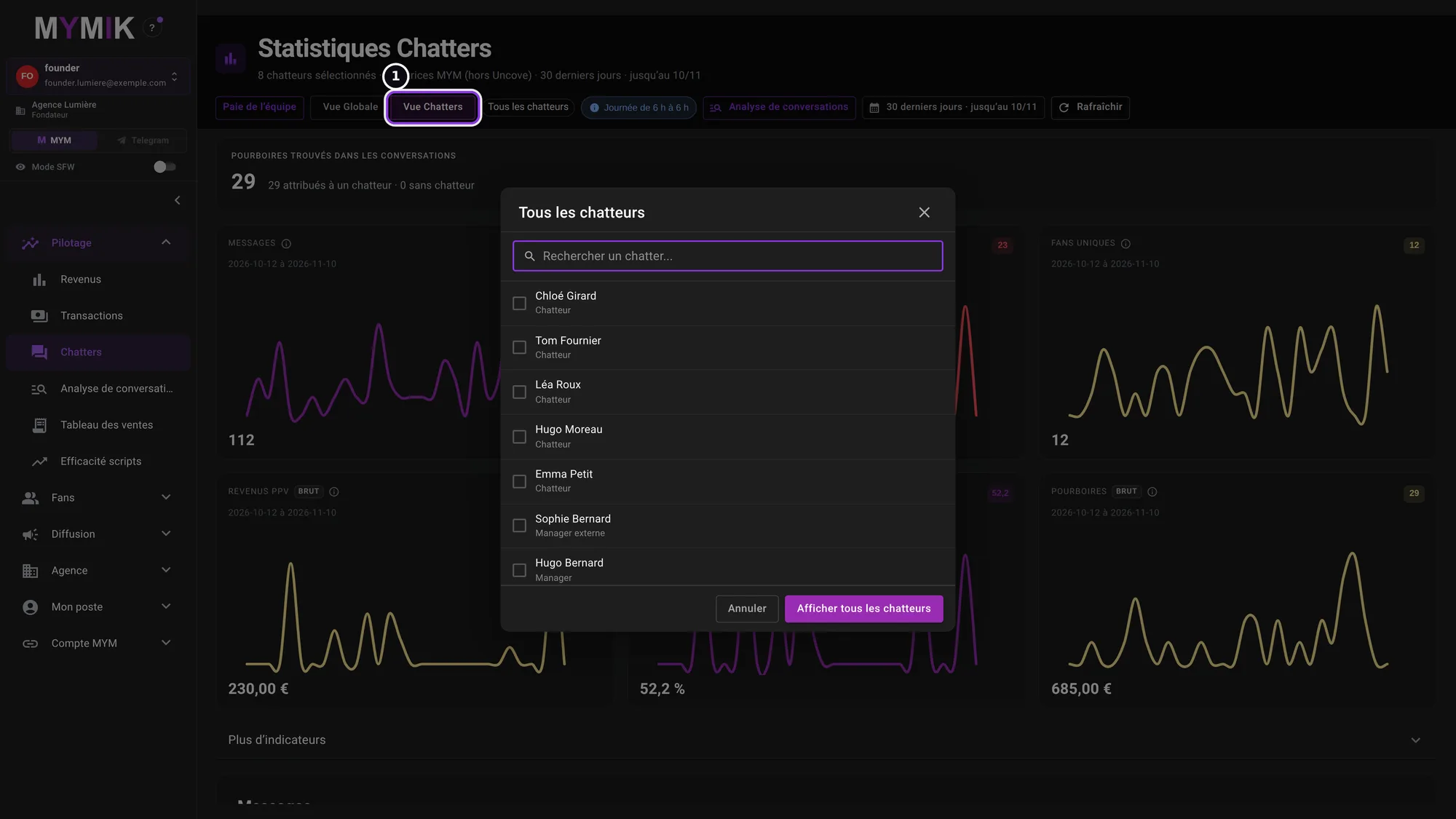 The list of (fictional) chatters.
And the money actually collected?
It is read in Compte MYM › Revenus MYM: MYM’s own revenue page for the chosen creator, read live. If it shows “La session MYM de cette créatrice a expiré. Reconnectez la créatrice depuis la page Créateurs.” (the creator’s MYM session has expired), follow guide 1.
3. Troubleshooting
Symptom shown → cause → what to do. Quoted messages are those of the screen.
| What you see | Cause | What to do |
|---|---|---|
| Two screens give two different totals | They do not count the same thing: net (Transactions, Revenus), gross seen in conversation (Tableau des ventes), collected (Revenus MYM). | Compare the “NET” / “BRUT” labels and each screen’s period. |
| A sale has no chatter | MYM does not say who sent the offer (offer back-filled at onboarding, or observed in conversation). | Switch on « Offres sans chatteur » to see them; they belong to nobody. |
| A sale in « Transactions » is missing from the Tableau des ventes | The Tableau des ventes lists only private media and tips seen in conversations; Transactions also lists subscriptions and other types. | Filter Transactions by type to compare. |
| Tableau des ventes: « Payantes seulement » | This switch is on by default: free offers are hidden. | Switch it off to see everything. |
| Revenus MYM: « La session MYM de cette créatrice a expiré » | MYM no longer accepts the creator’s session. | Reconnect the creator (guide 1). |
| I cannot open Revenus or Tableau des ventes | Your role does not have access to these pages. | Ask the owner (« Accès et rôles », guide 8). |
Still stuck?
Write to us in private at @MymikAppBot with your agency, the creator and the exact text displayed. The MYMIK team
MYMIK guide no. 4, version of 10/11/2026.
Last updated on
Guide 3 · Mass DM and paid push: which to choose, to whom, how to send it
Two ways to send a message to many fans. The Mass DM goes into the conversations, with recipients and a sending you set; the push goes through MYM, with its own limits. This guide helps you choose, then shows each screen.
Guide 5 · Smart Push: a sentence written for each fan, reviewed before sending
Every fan who has already written to you gets a sentence written for them. You prepare, you review, then you send: nothing goes out before you have reviewed it.