Guide 9 · Scripts: create, organise, see what goes out
A script is a series of messages (with their media and price) that the chatter sends in order. You create them once per creator, reuse them, and see which ones work.
How to read this guide
The screens are the real MYMIK screens on the web, with a fictional agency (“Agence Lumière”), fictional creators (including Emma) and fans with made-up nicknames: no real data. The numbered black dot and the purple outline show where to click or look; the same number is used in the text.
Language of the screens
The MYMIK interface is not translated yet: the screens stay in French. For each step, the text gives the exact French label shown on screen, followed by its English meaning.
The order to remember
- In Diffusion › Scripts, pick the creator, then Nouveau Script (“New script”): give it a name.
- Add its messages with Nouveau Pack (“New pack”): name, description, price, media.
- Check the Aperçu du parcours (“journey preview”), copy the script to other creators if needed.
- Follow the sends in Pilotage › Efficacité scripts (“Script effectiveness”).
0. Before you start
What to know in one minute.
Words to know
- Script: a series of messages for one creator, sent in order.
- Pack: one message of the script, with its text, media and price.
- Embranchement (branch): a point where the chatter picks a path depending on the fan’s answer (guide 10).
Who, where
- The Scripts page is open to the founder, HR, managers, external managers, chatters and creators.
- The statistics (Efficacité scripts) are reserved for the founder, HR and managers.
- The chatter sends a script from a fan’s conversation.
A script belongs to one creator
The selector at the top of the page (here “Emma”) changes the list shown. To reuse a script for another creator, copy it (section 2, step 4).
1. Create a script and its messages
A name, then one pack per message.
1. Open Diffusion › Scripts and pick the creator
In the left menu, open Diffusion, then Scripts ❶. Check the creator at the top ❷: the SCRIPTS column lists her scripts, with their counters (sends, revenue, rate). Nouveau Script ❸ creates one.
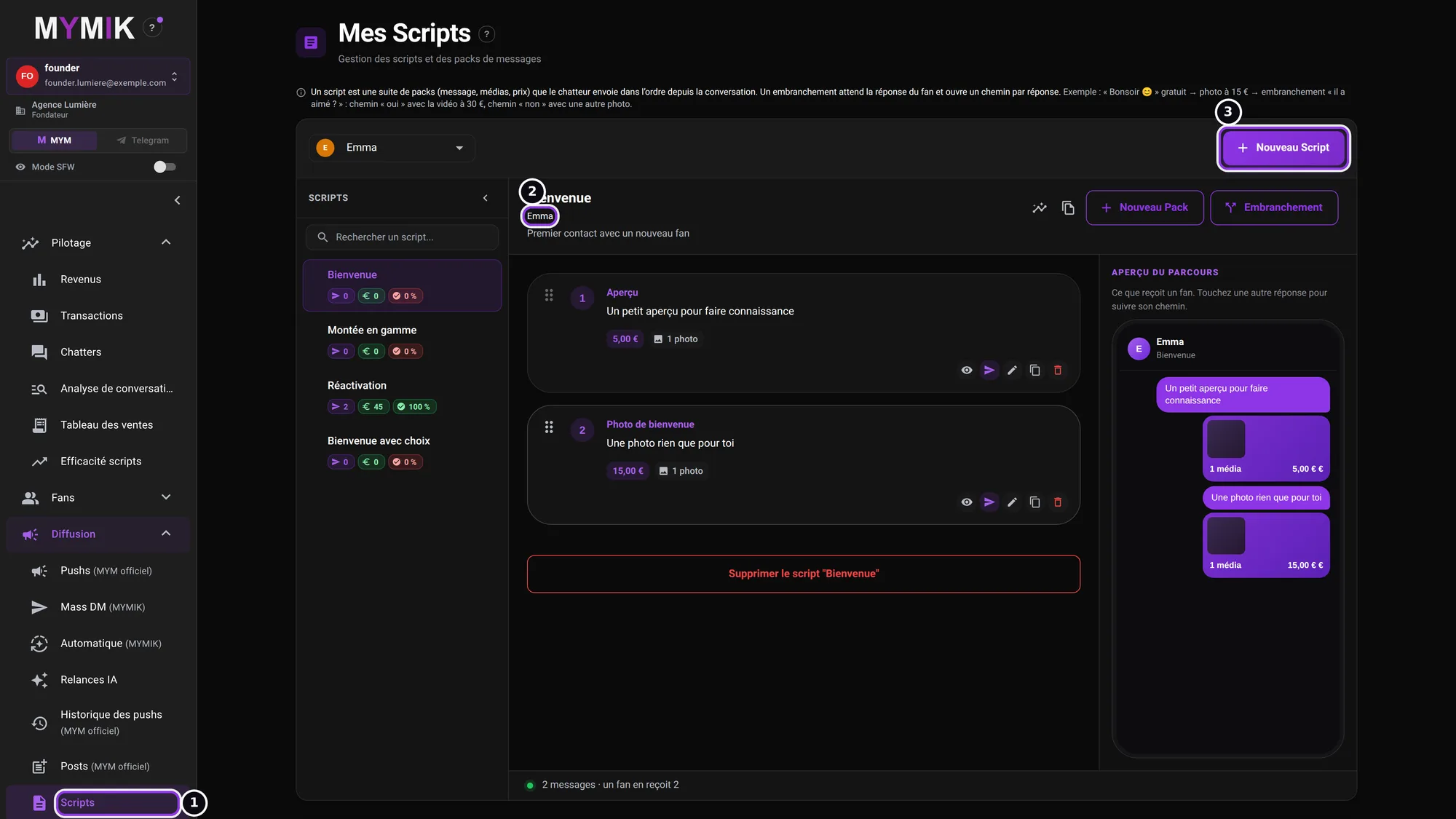 Emma’s (fictional) Scripts page: four sample scripts.
2. Name the script
The window recalls the creator concerned ❶. Enter a descriptive name (« Nom du script ») ❷ to find it easily, then click Créer le script (“Create the script”) ❸.
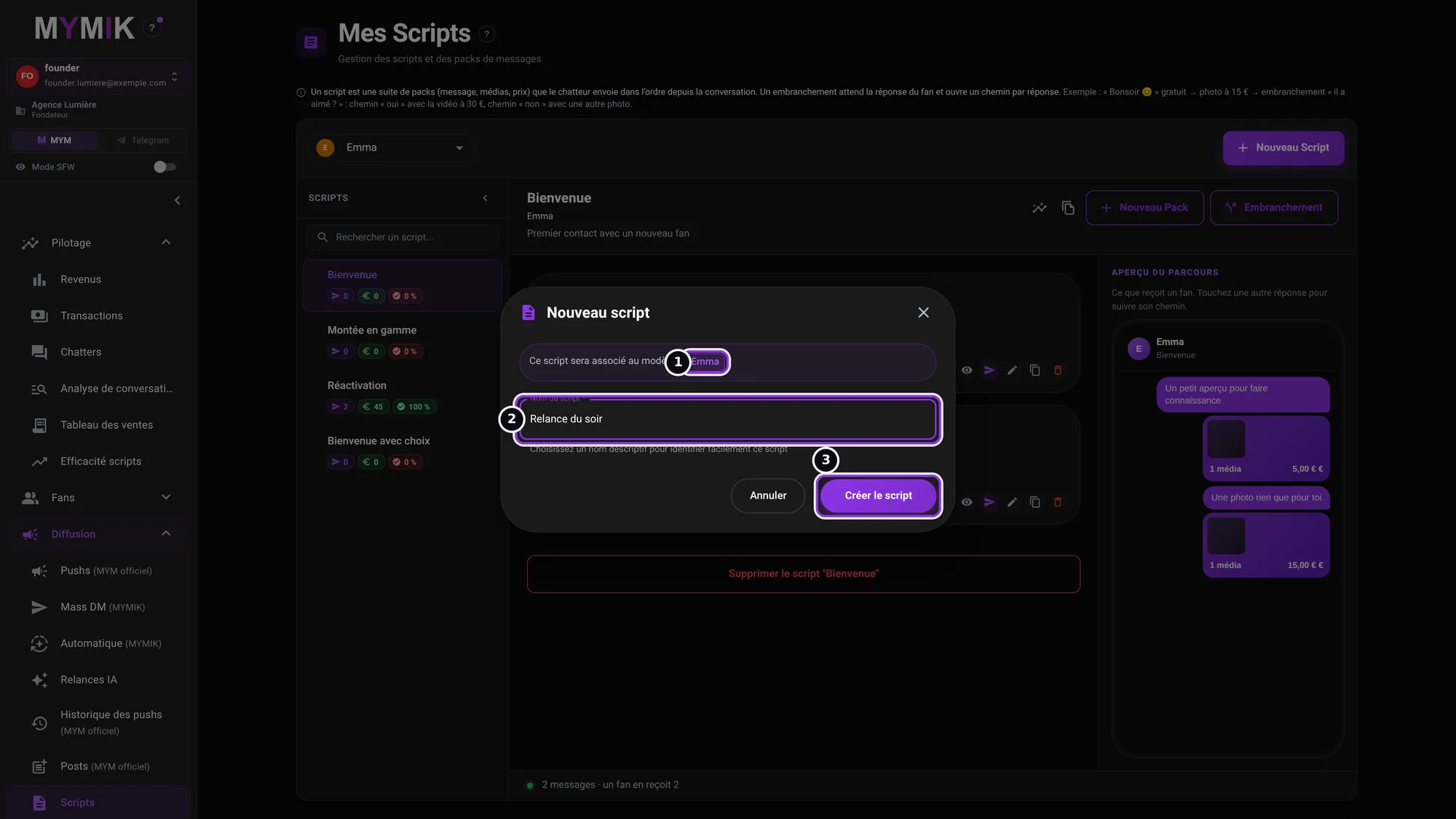 The name « Relance du soir » is typed; the script is not created for this screenshot.
3. Open the script: its messages appear in order
Click a script in the list: its name and creator appear at the top ❶. Each pack ❸ is numbered in sending order, with its text, price and number of photos. Nouveau Pack ❷ adds a message at the end.
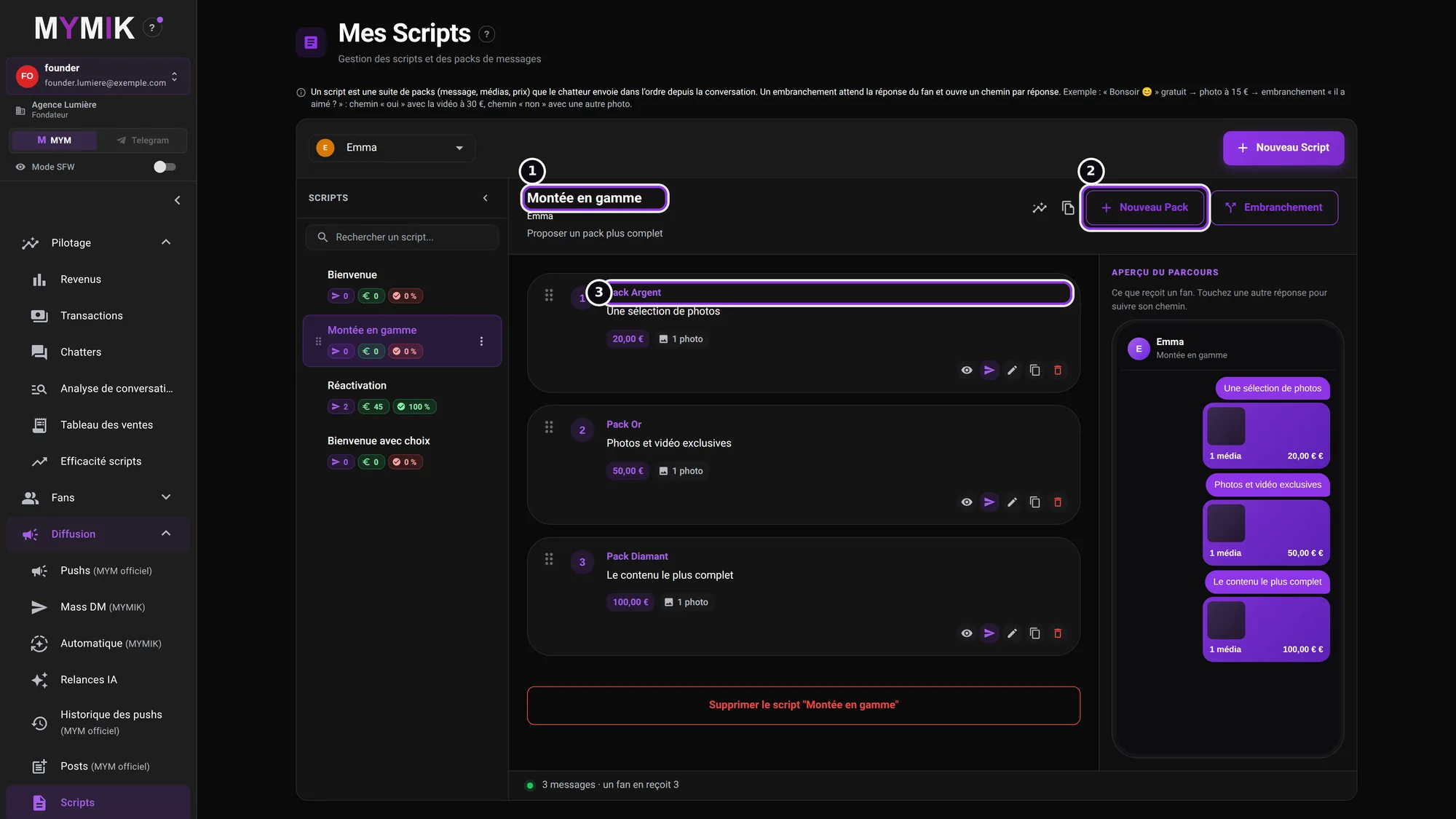 The « Montée en gamme » script: three packs, from €20 to €100.
4. Fill in the pack: name, description, price
The window has two steps. Informations: the pack name (« Nom du pack ») ❶, its description (the text of the message) and its price (« Prix ») ❷ to unlock it. Relance automatique (“Automatic follow-up”) ❸ is optional: empty, the message waits for the chatter’s click; otherwise it goes out by itself that many seconds after the previous one. Click Suivant (“Next”).
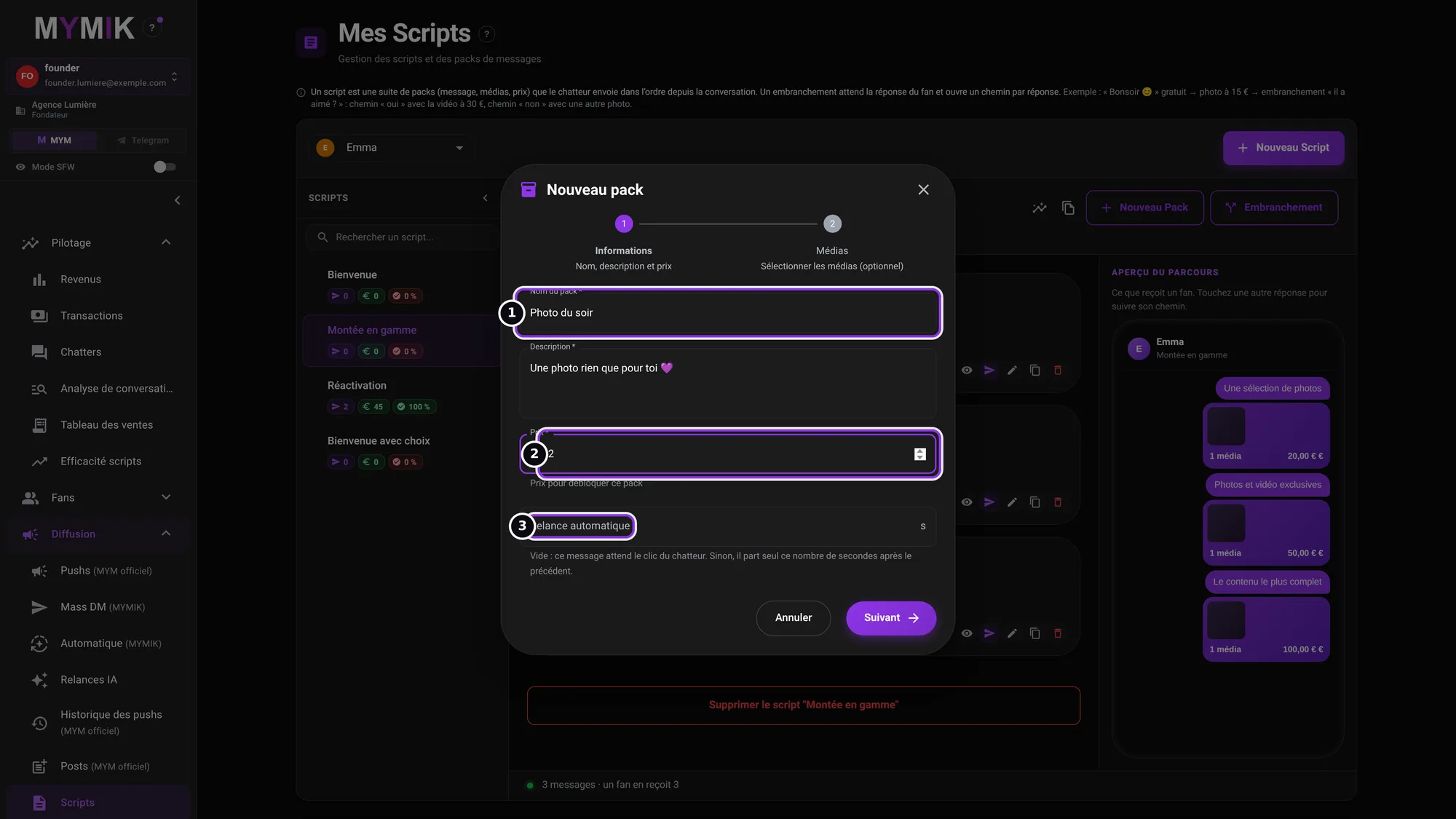 A « Photo du soir » pack at €12 (nothing is saved for this screenshot).
5. Add the media, then « Créer le pack »
The second step, Médias (“Media”) ❶, is optional: click the area to choose photos and videos. Retour (“Back”) returns to the information; Créer le pack (“Create the pack”) adds it to the script.
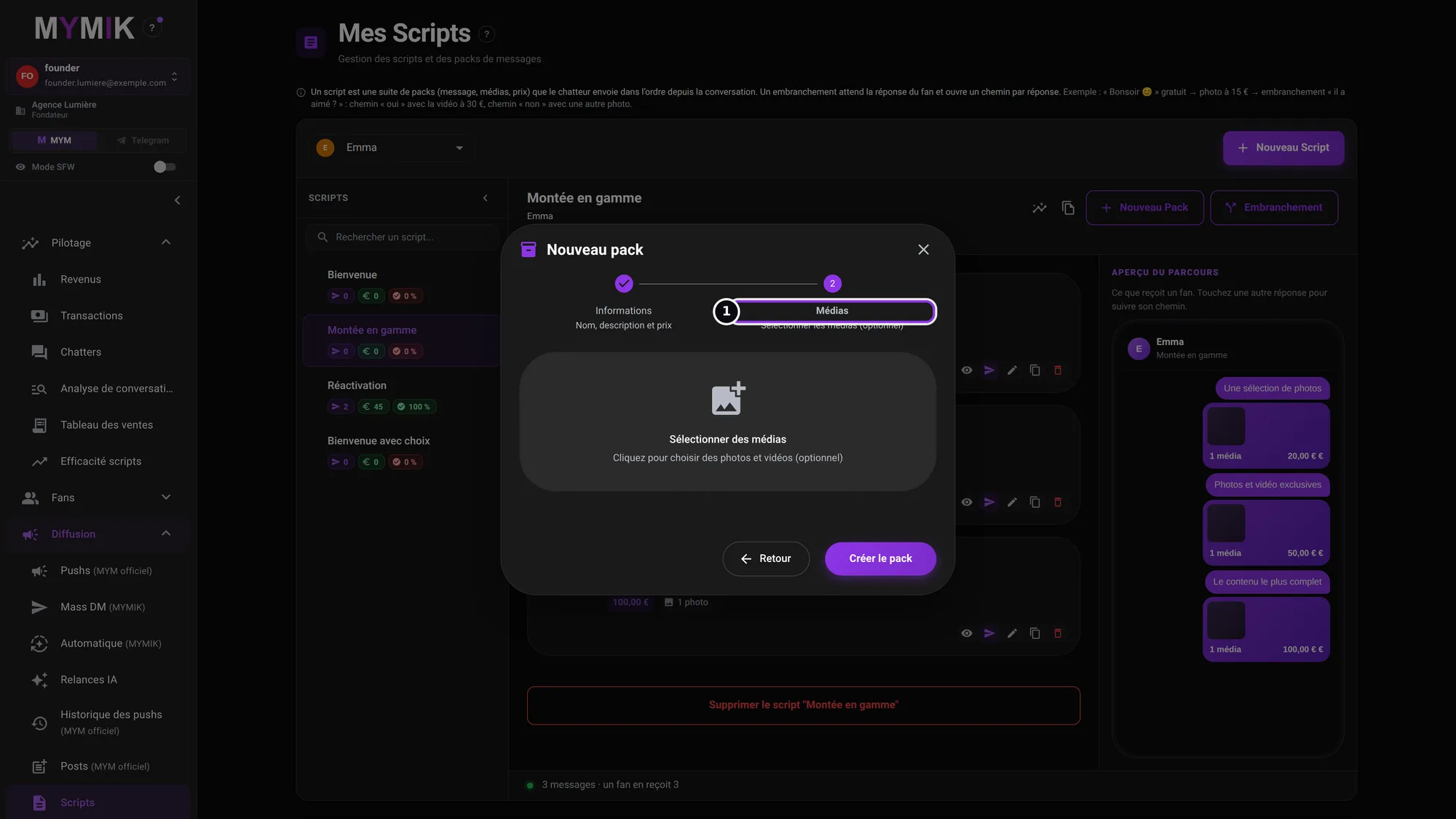 The « Médias » step: no media chosen here.
2. Review, edit and reuse
The actions on a pack, the preview and copying.
1. The actions on each pack
On a pack’s row ❶, five actions: Aperçu (preview, the eye), Copier le message (copy the message), Editer (edit), Dupliquer (duplicate) and Supprimer (delete). The handle to the left of the number lets you drag the pack ❷ to change the sending order.
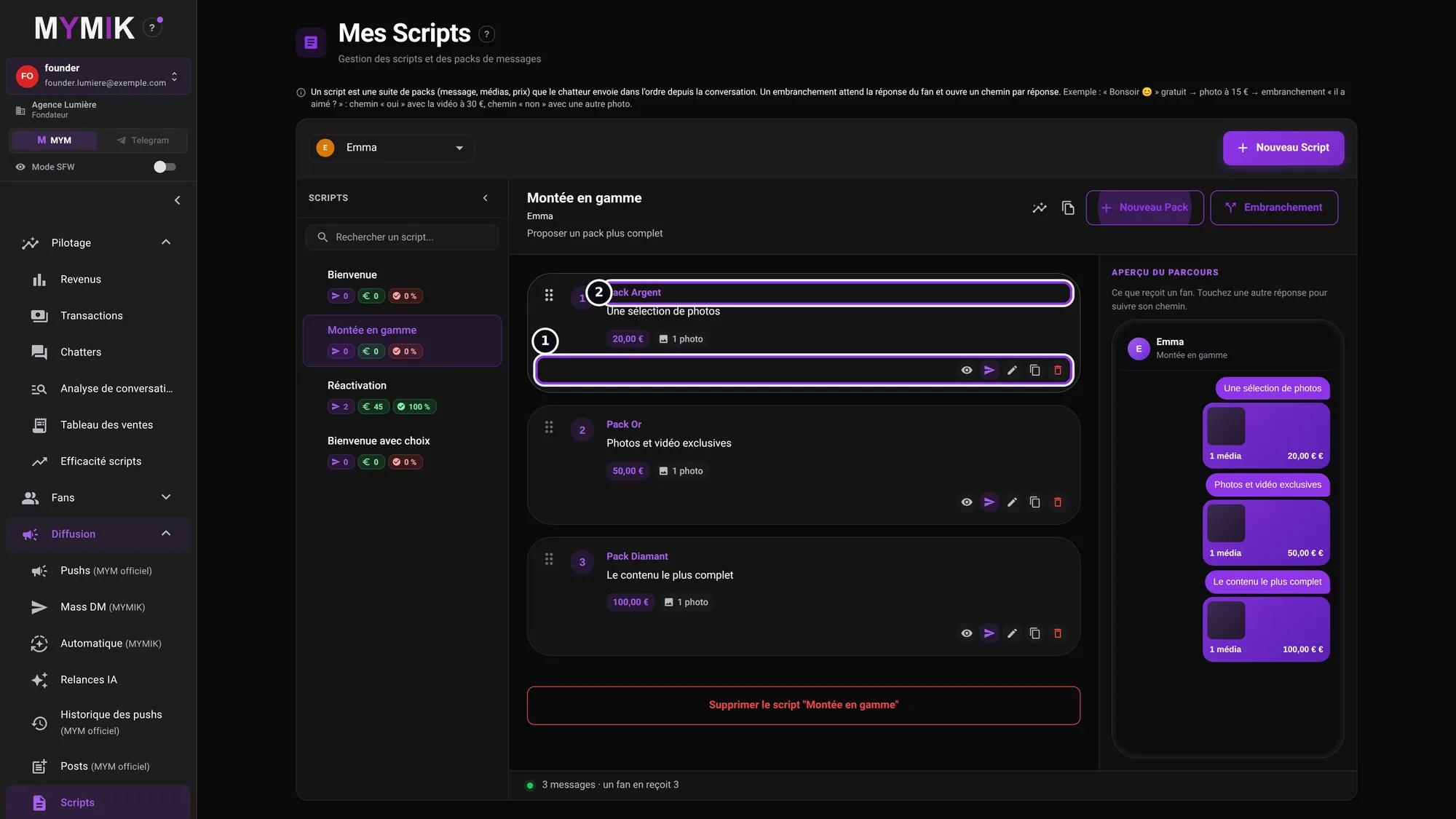 The icons on the first row: preview, copy the message, edit, duplicate, delete.
2. The Aperçu du parcours, on the right
The Aperçu du parcours (“journey preview”) panel ❶ shows what a fan receives, message after message, as in a conversation: text, number of media, price. Check it before putting a script into use.
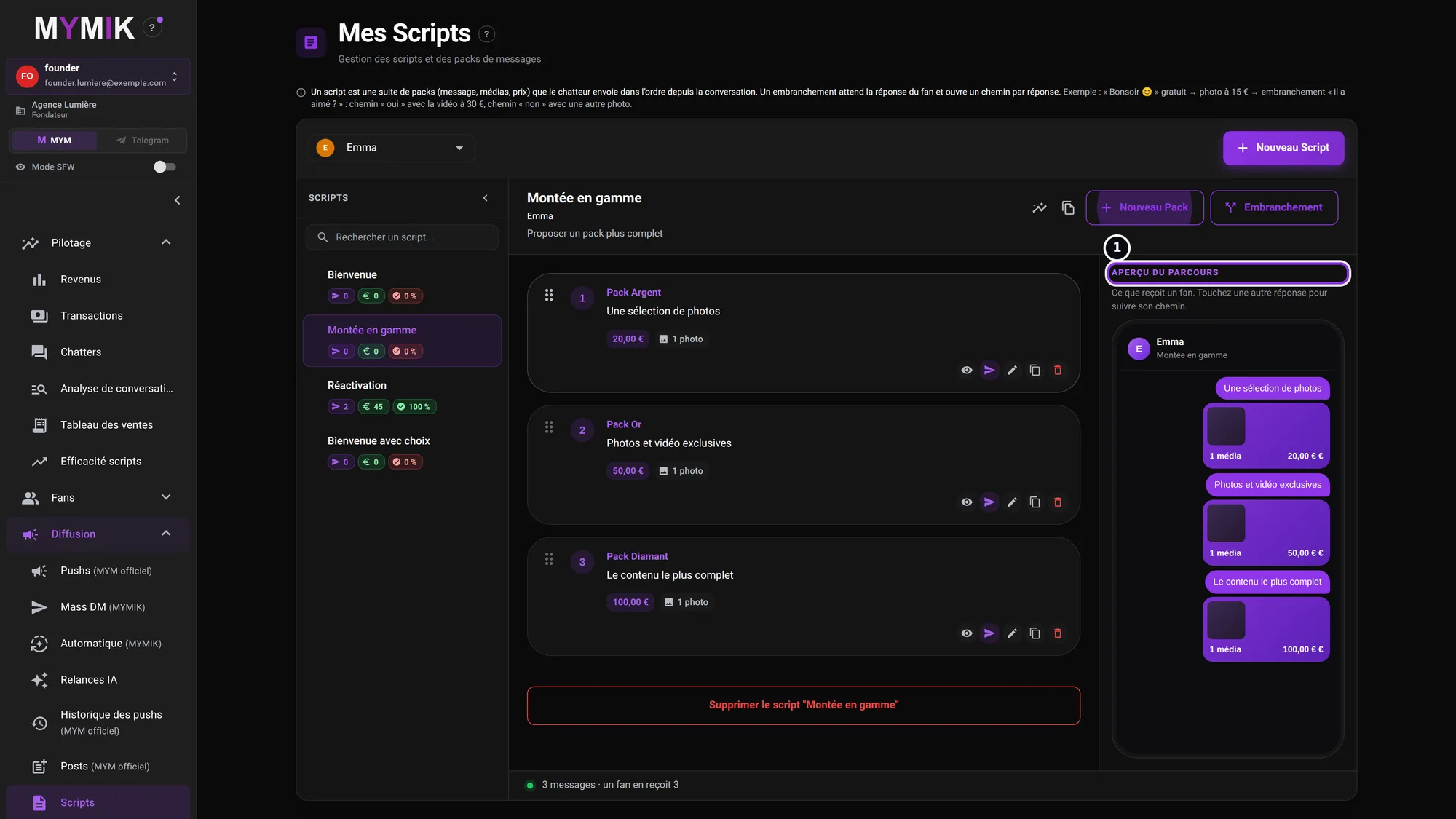 The preview of the « Montée en gamme » script: three messages.
3. At the top of the script: statistics and copy
Two icons next to Nouveau Pack: Voir les stats détaillées (“See detailed stats”) ❶ opens the Script effectiveness page; Copier vers d’autres modèles (“Copy to other models”) ❷ takes the script over to other creators.
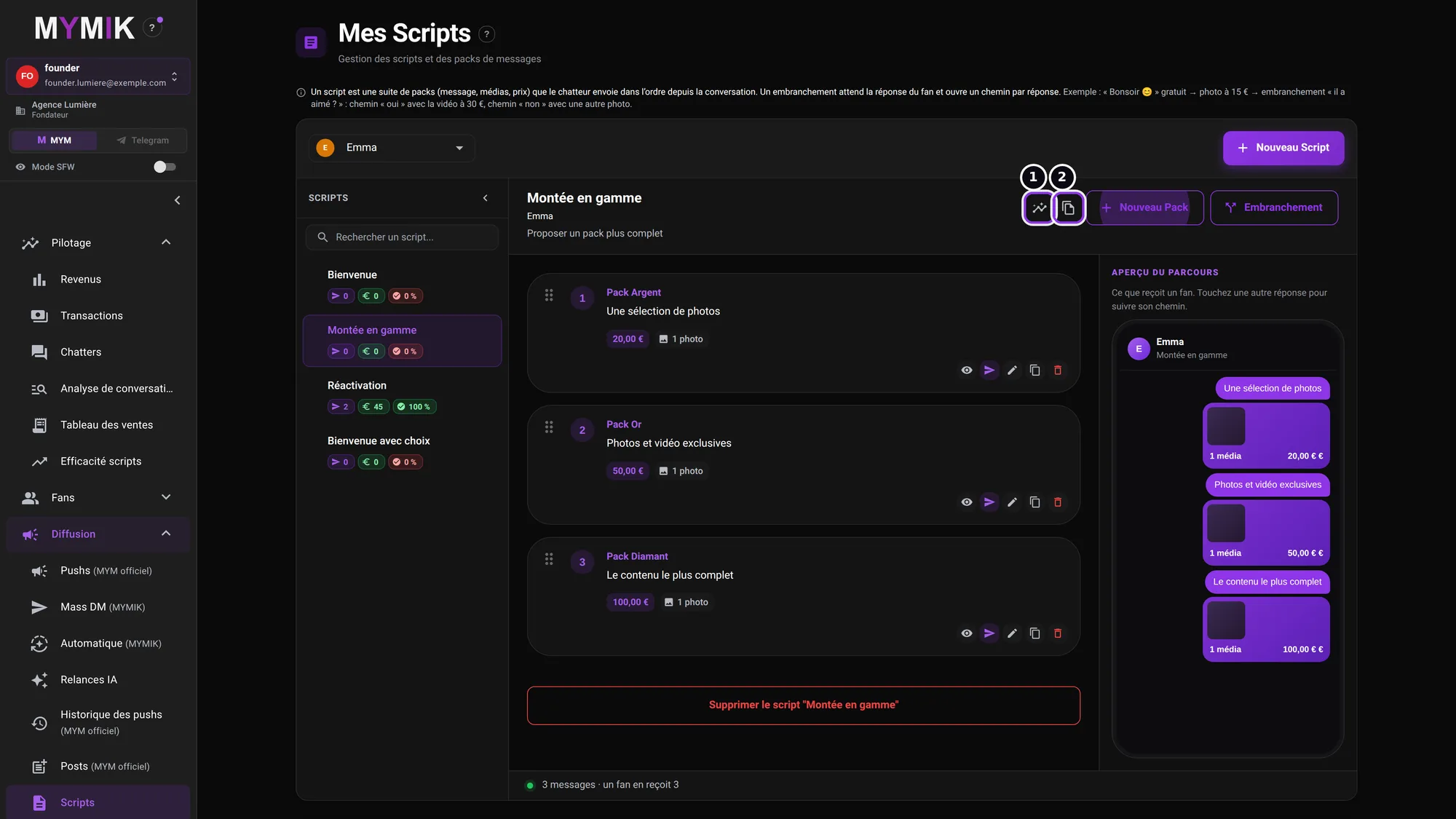 The two icons to the left of « Nouveau Pack ».
4. Copy the script to other creators
Tick the destination creators ❶ (or Tout sélectionner, “Select all”), then Copier (“Copy”). Careful: the media belong to the source creator’s gallery and are not copied; the copied steps must be completed with the destination’s media.
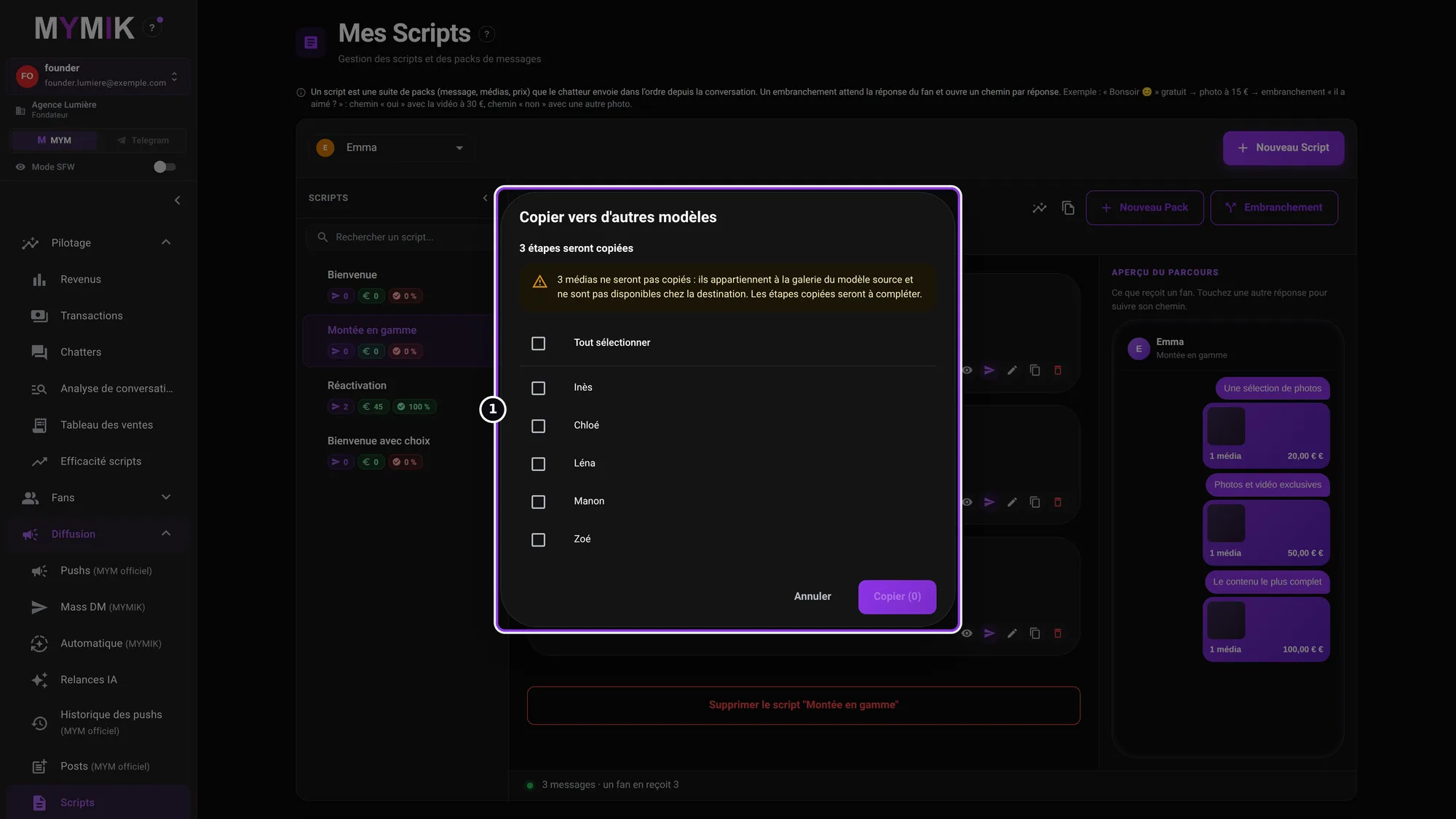 The « Copier vers d’autres modèles » window (nothing is copied for this screenshot).
3. See what goes out
The counters and the Script effectiveness page.
1. Pilotage › Efficacité scripts: one row per script and creator
The title ❶ says how many scripts are counted, how many are active, how many “never used” (« jamais utilisés »). The table gives, per script and creator: Packs, Envois (sends), Chiffre d’affaires (revenue) ❷, Taux (rate) ❸, last use and status. The « Tous / Actifs / Jamais utilisés » filters, period, creator and chatter refine the reading; « Exporter en CSV » exports the table.
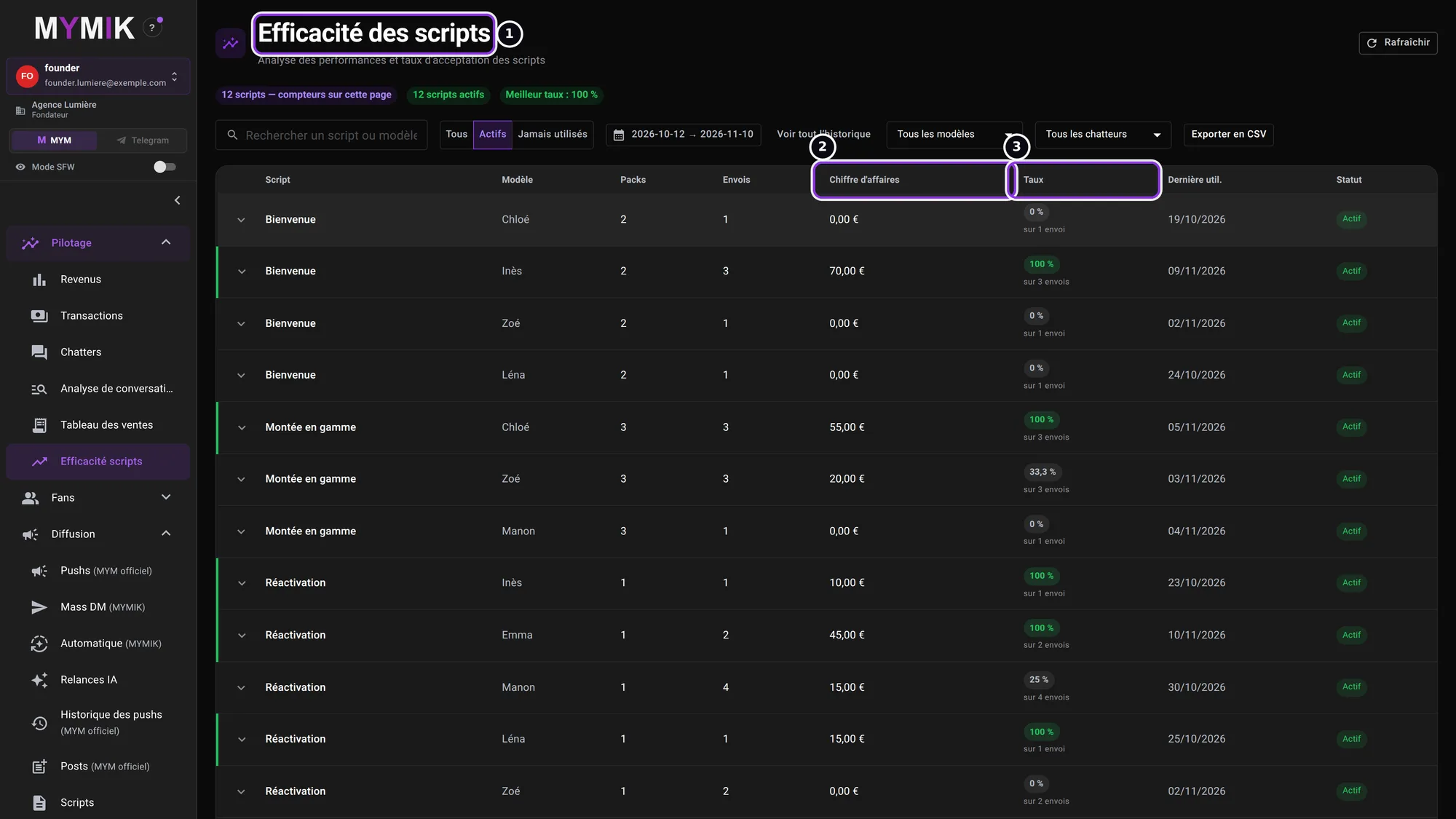 Script effectiveness, fictional test data.
Read the revenue as the screen says it
: it is the sending price of accepted steps, before MYM’s commission — not an amount collected. The figures in this screenshot are fictional.
What the chatter sees
The chatter does not open this page to send: they pick the script in the fan’s conversation and send the packs in order. The send counters in the SCRIPTS column (sends, revenue, rate) fill up as they do.
4. The sheet to give the creator
What she needs to prepare, on one page.
For each message (a pack)
- The text of the message, in your voice, short.
- The photos or videos that go with it (optional: a pack can be a plain message).
- The price to unlock it (€0 if free).
- Its place in the order: which message comes first, which after.
To make it work well
- Start with a free message, then raise the price step by step.
- A script = a short story: 3 to 5 messages are enough.
- If what follows depends on the fan’s answer, say so: the team will make it a branch (guide 10).
- Review the Aperçu du parcours (“journey preview”) with the team before it goes out to fans.
You can print this page or pass it on as is: it contains no data from your agency.
5. Troubleshooting
Symptom shown → cause → what to do. Quoted messages are those of the screen.
| What you see | Cause | What to do |
|---|---|---|
| No « Scripts » entry in the menu | Your role does not have access to the page. | Ask the owner to open it in « Accès et rôles ». |
| The script list is empty | The creator selected at the top has no script yet. | Switch creator, or click « Nouveau Script ». |
| « Nouveau Script » creates nothing | The script name is empty. | Enter a name, then « Créer le script ». |
| « Suivant » stays greyed out in the pack | The name or the description is missing: « Renseignez le nom et la description pour continuer ». | Fill in both fields. |
| Media are missing after a copy | Media are not copied from one creator to another. | Open the copied script and complete its packs. |
| A script shows « Jamais utilisé » | No chatter has sent it over the period. | Widen the period (« Voir tout l’historique ») or remind the team. |
Still stuck?
Write to us in private at @MymikAppBot with your agency, the creator and the exact text displayed. The MYMIK team
MYMIK guide no. 9, version of 10/11/2026.
Last updated on
Guide 8 · Team and access: invite, choose roles, assign creators
Who sees what in your agency? You invite each person by e-mail, give them a role, assign their creators, and keep a record of what they do.
Guide 10 · Script branches: 2 to 8 paths depending on the fan’s answer
A script is not always a straight line. A branch waits for the fan’s answer, then the chatter takes the matching path: “yes”, “no”, “hesitating”…