Guide 14 · Publications Studio: schedule MYM posts and stories
The Publications Studio sends MYM feed posts and stories out on your days and at your times, even with the application closed. You create a campaign, you activate it, then you follow what goes out.
How to read this guide
The screens are the real MYMIK screens on the web, with a fictional agency (“Agence Lumière”), fictional creators (including Emma) and fans with made-up nicknames: no real data. The numbered black dot and the purple outline show where to click or look; the same number is used in the text. The times in the screenshots come from the example (slots at 12:00, 18:00 and 19:30): your dates will be your own.
Language of the screens
The MYMIK interface is not translated yet: the screens stay in French. For each step, the text gives the exact French label shown on screen, followed by its English meaning.
The order to remember
- In Diffusion › Publications, pick the creator, then Nouvelle campagne (“New campaign”).
- Step 1 Contenu (“Content”): Post du feed (“Feed post”) or Story, media from the creator’s MYM Cloud, and for a post the caption and the consent.
- Step 2 Programmation (“Scheduling”): one or more slots every week, in a time zone.
- Step 3 Vérification (“Review”): a name, the warnings, then Créer en pause (“Create paused”).
- Activer (“Activate”) the campaign, then follow the Calendrier (“Calendar”), the Campagnes (“Campaigns”) and the File et historique (“Queue and history”).
0. Before you start
What to know in one minute.
What the Studio does
- A campaign = one creator, one type of publication (feed post or story), a pool of media taken from her MYM Cloud, slots that come back every week and, for a post, a caption.
- From 1 to 10 slots: every day or one given day of the week, at the chosen time, in a time zone.
- The MYMIK server publishes on time, even when the application is closed.
- A campaign starts paused: nothing goes out until you activate it.
- Story maintenant (“Story now”) publishes a photo right away, without a campaign.
What it does not do
- It does not edit or archive a campaign from the screen: to change a campaign, pause it and create a new one.
- A slot comes back every week: no single calendar date. A one-off post is made in the Posts screen.
- No video story (photos only) and no private content: “Public” for a post, “Tout le monde” (“Everyone”) for a story.
- No “See on MYM” link and no mobile view.
Who can do what
The Founder, HR and Managers create, activate, pause, cancel and publish a story. The Chatter and the External manager can only look: they see the campaigns of their creators, with no writing button (section 8).
No “Publications” in your menu?
The Studio depends on an agency setting. Go to section 8.
1. Open the Studio
The menu entry, the header and the three tabs.
1. Diffusion › Publications
In the left menu, open Diffusion, then Publications ❶, right under Posts. At the top right, pick the creator: every campaign belongs to one creator. The Nouvelle publication (“New publication”) and Nouvelle campagne (“New campaign”) buttons ❸ are for management only. Three tabs: Calendrier (“Calendar”) ❷ (the week), Campagnes (“Campaigns”: the list and the state of each campaign) and File et historique (“Queue and history”: what will go out, what has gone out). The Tous (“All”), Posts and Stories filters apply to the three tabs.
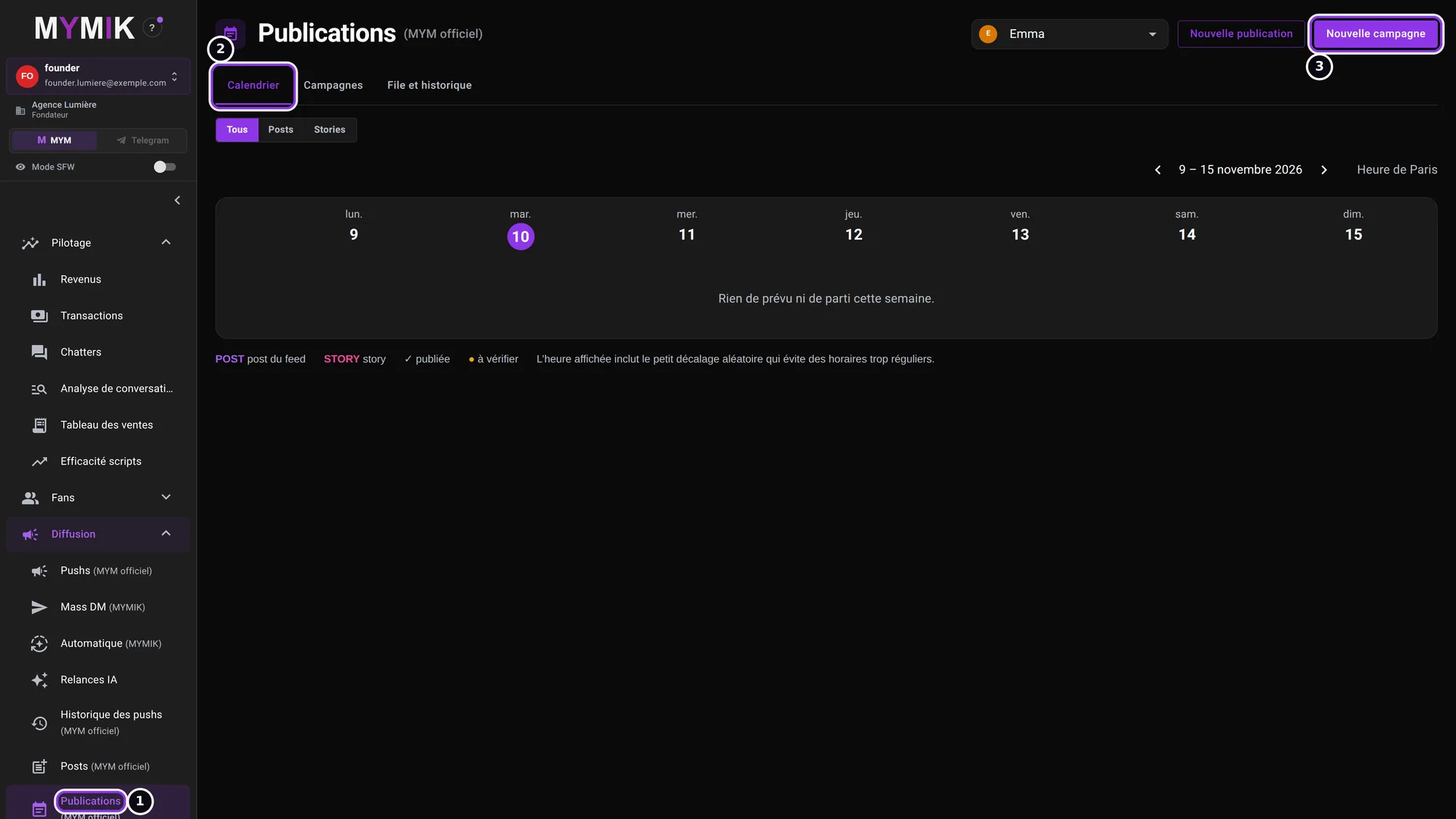 The Studio before the first campaign: the week’s calendar is empty.
2. Create a post campaign
Step 1 of the assistant: the destination, the media, the caption.
1. Click “Nouvelle campagne” and choose “Post du feed”
The assistant opens with its three steps at the top ❷: 1 · Contenu, 2 · Programmation, 3 · Vérification. Choose Post du feed ❶: a photo or a video and a caption on the creator’s wall, visible to everyone (public). Nothing is saved until you click “Créer”; if you close the assistant after typing something, the screen asks “Abandonner cette campagne ?” (“Abandon this campaign?”: “Continuer l’édition” or “Abandonner les modifications”).
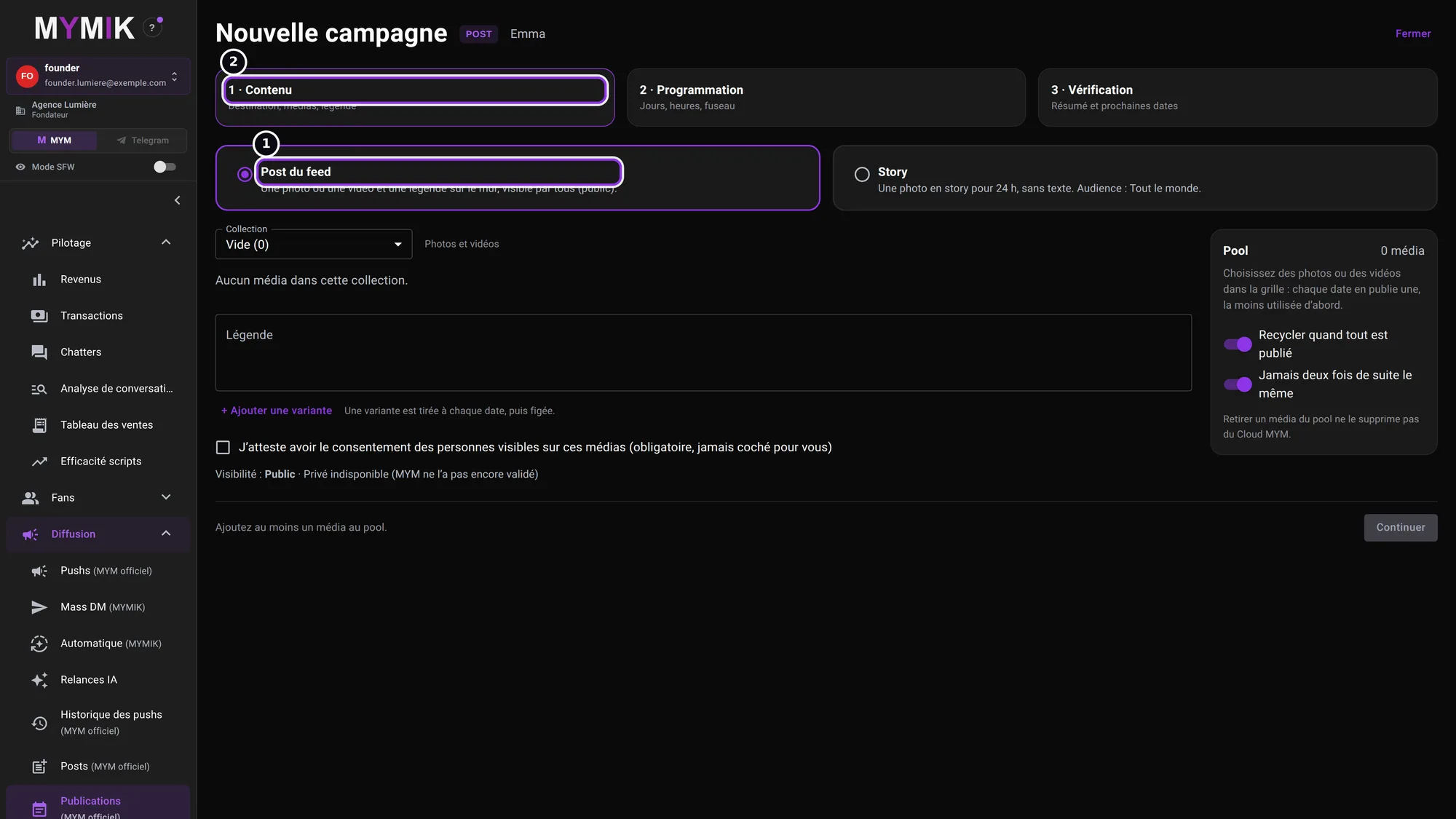 The “Post du feed” choice and the three steps of the assistant.
2. Build the media pool
The media come from the creator’s MYM Cloud, read live. Pick a collection ❶ in the list (it starts with « Tous les médias », “All media”: the creator’s whole MYM Cloud, including media filed in no collection), then click the media to add ❷: the number is the position in the pool ❸, on the right. For a post, photos and videos are offered (a video shows its length). The selection is kept when you change collection; clicking again removes the media. Removing a media from the pool does not delete it from the MYM Cloud. A media “en traitement chez MYM” (“being processed by MYM”) cannot be picked yet. On each date, the campaign publishes one media from the pool, the least used first.
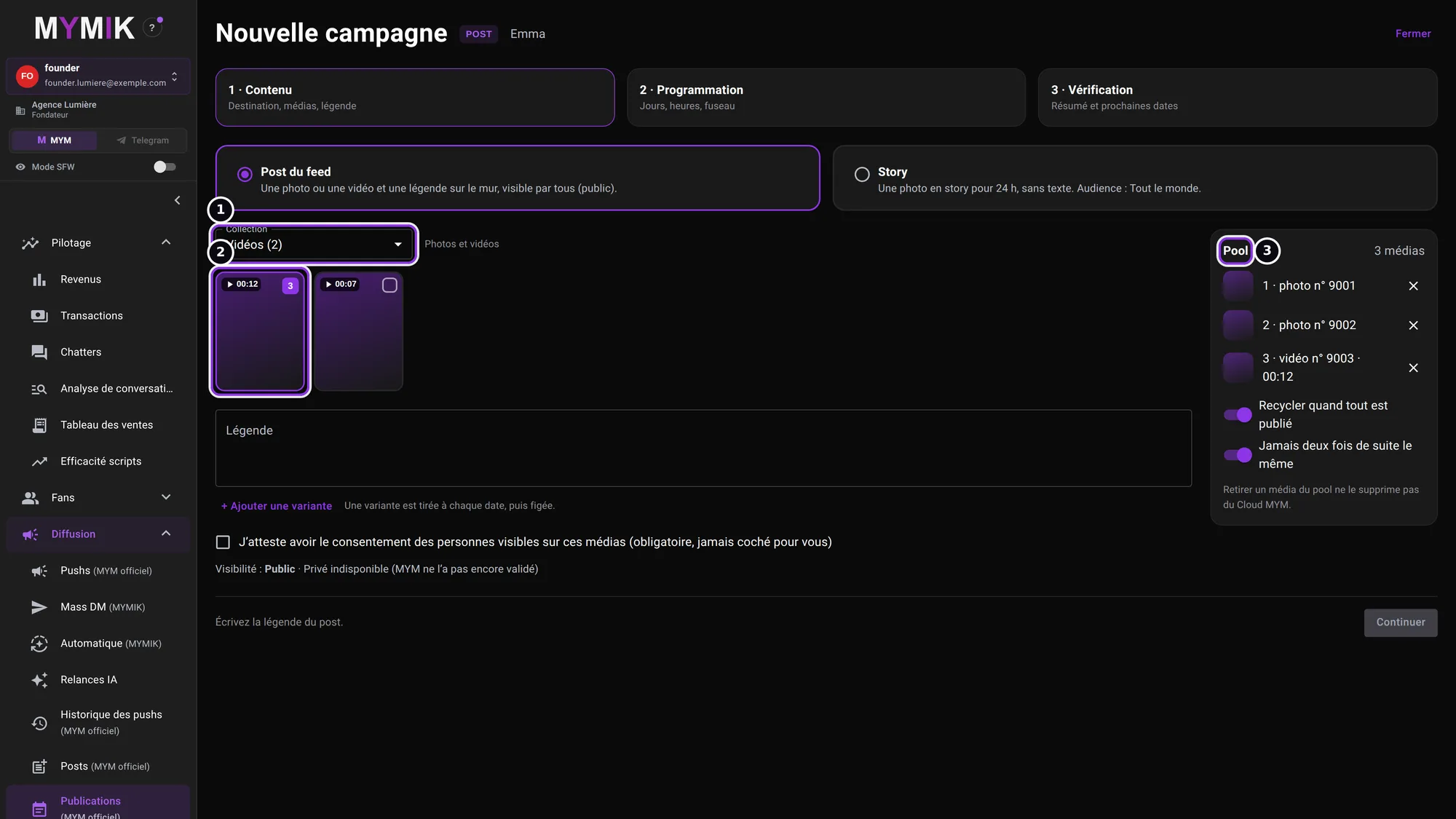 Two photos and one video in the pool: the number on each media is its position.
Two pool settings are on by default: Recycler quand tout est publié (“Recycle when everything is published”: the pool starts over) and Jamais deux fois de suite le même (“Never the same one twice in a row”). With a single media the two contradict each other: the screen then asks you to choose (“Republier cette photo à chaque date” or “La publier une seule fois”).
3. Caption, variants and consent
Write the caption ❶ (1,500 characters at most). + Ajouter une variante (“Add a variant”) ❷ adds another one, up to 10: “Une variante est tirée à chaque date, puis figée” (one variant is drawn for each date, then frozen). Finally tick the consent ❸: “J’atteste avoir le consentement des personnes visibles sur ces médias” (I confirm I have the consent of the people visible in this media). It is mandatory and never ticked for you. Visibility is Public; “Privé” (private) is unavailable. A story has no caption: this part does not exist for it.
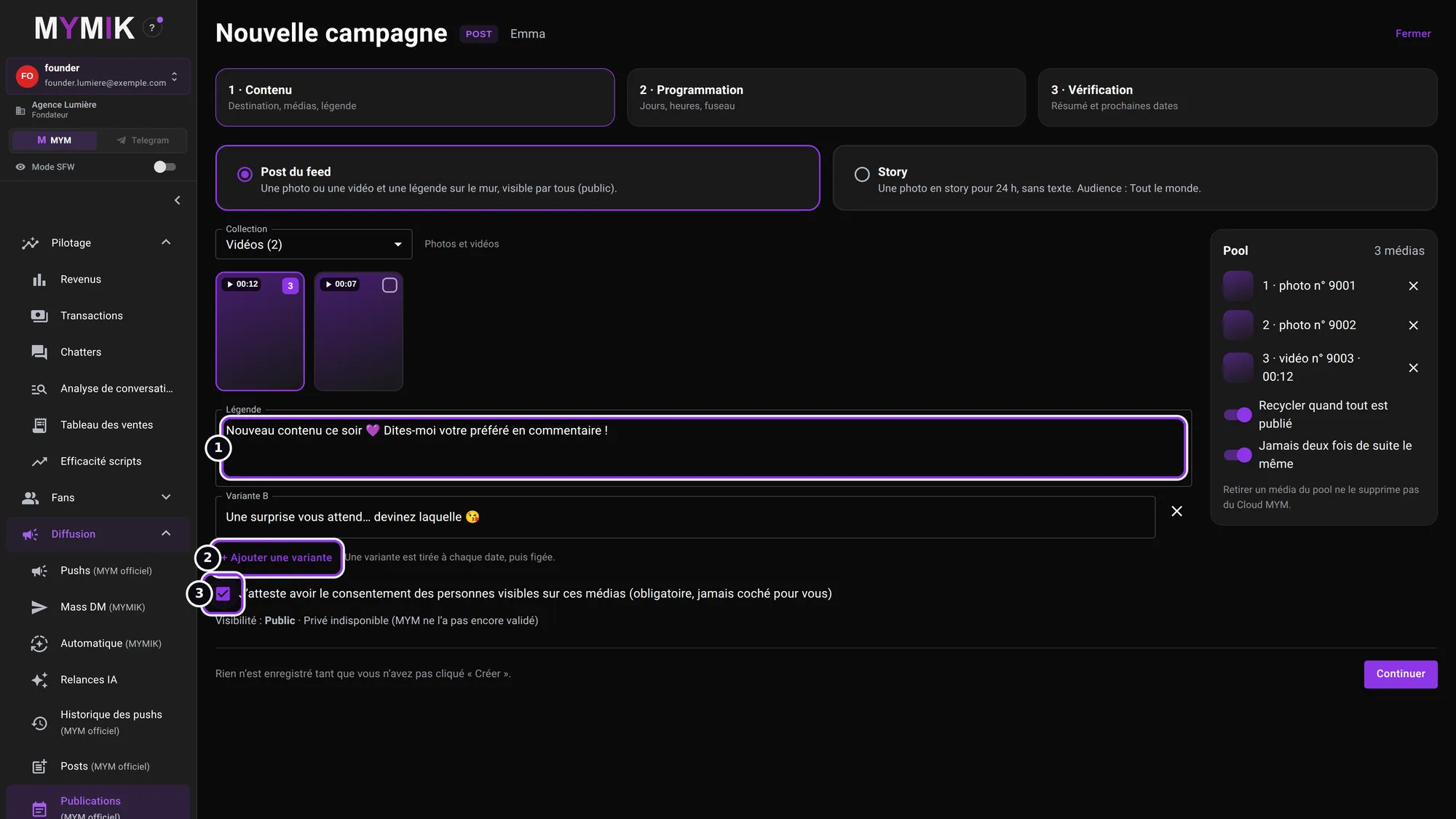 The caption, a variant B and the consent ticked.
“Continuer” stays greyed out until the step is complete; the sentence next to it says what is missing (“Ajoutez au moins un média au pool.”, “Écrivez la légende du post.”, “Attestez le consentement des personnes visibles.”).
3. Schedule, review, create
Steps 2 and 3: the week’s slots, then the review before “Créer”.
1. Step 2: the slots
Each line is a slot ❶ ❷: a time on a 24-hour clock (“19:30”) and a day (“Tous les jours” = every day, or Monday to Sunday). Here: every day at 12:00 and on Thursdays at 19:30. + Ajouter un créneau (“Add a slot”) ❸ adds one (10 at most); the cross removes a slot. The time zone is the agency’s by default. On the right, Prochaines dates (“Next dates”) ❹ gives the preview computed by the server: each date carries a small offset (“+7 min”, “±0 min”) and the status “Prévue” (planned). Two identical slots are refused (“Deux créneaux identiques : retirez-en un.”).
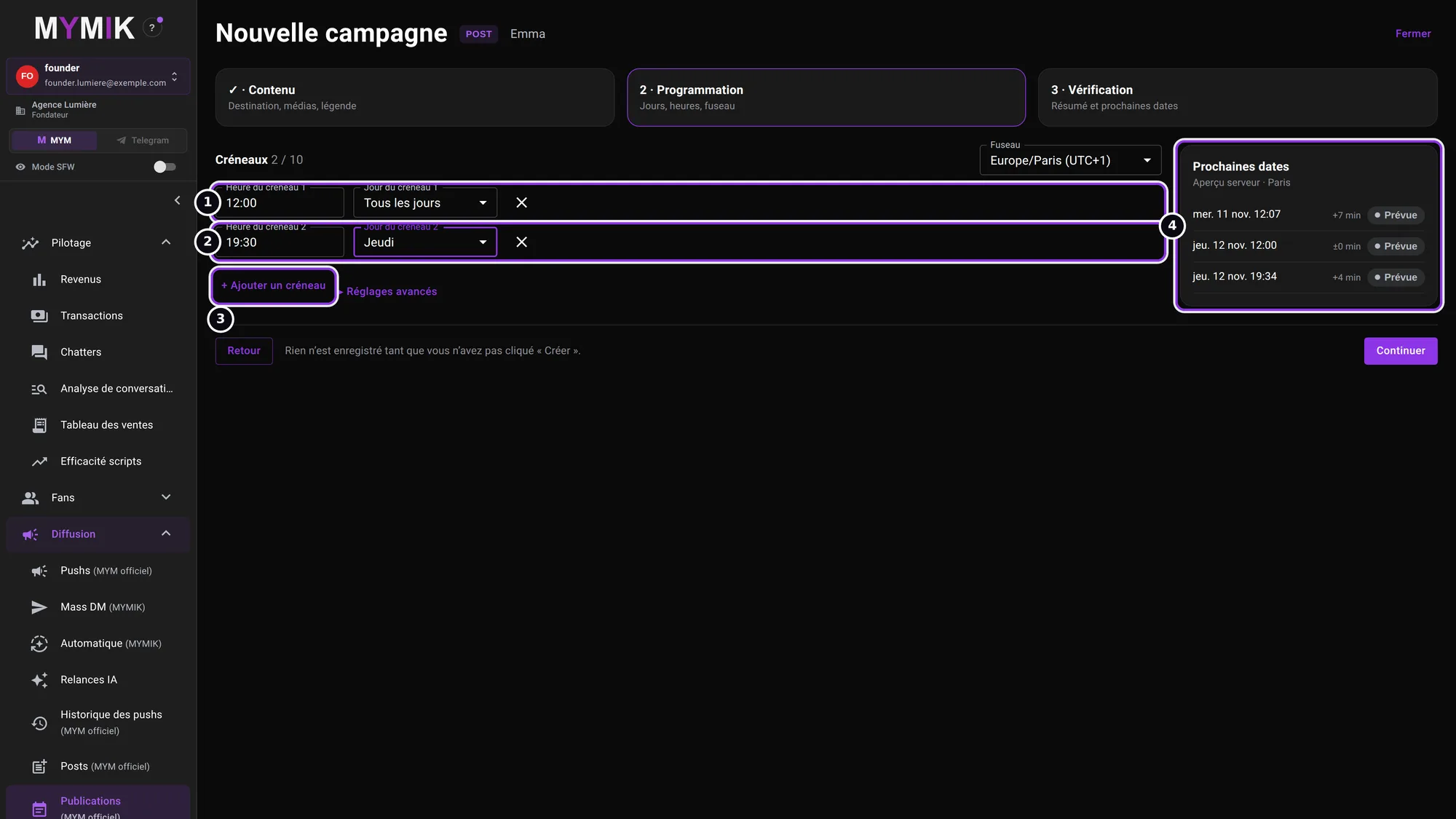 Two slots and the preview of the next dates.
2. Advanced settings: time variation, horizon, time zone
Réglages avancés (“Advanced settings”) unfolds three things. Varier l’heure (“Vary the time”) ❶: the real time moves a little from one day to the next, by at most ± 30 minutes (“Minutes de variation (±)” ❷, 7 by default) to avoid overly regular schedules; the same offset is recomputed identically. Préparer les dates (heures à l’avance) (“Prepare the dates (hours ahead)”) ❸: from 6 to 168 h, 48 by default; the server prepares, and publishes, nothing further away. The Fuseau (“Time zone”) ❹ fixes the time of each slot: the campaign sticks to it, never to the time zone of your computer.
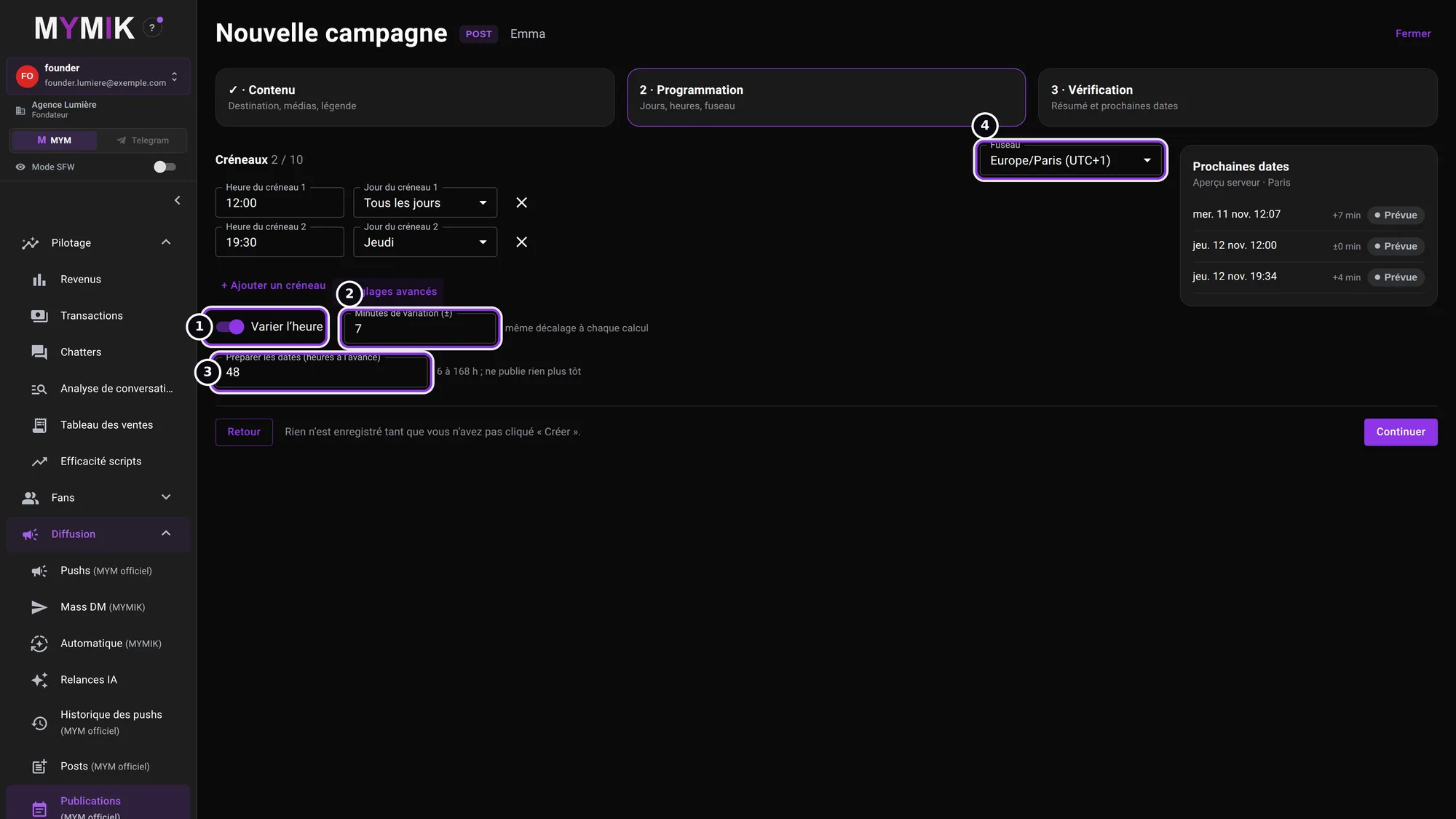 The advanced settings unfolded: 7-minute variation, dates prepared 48 h ahead.
3. Step 3: read the warnings
At step 3, the server reviews the campaign. A red warning ❶ is blocking: “L’activation sera refusée ; la création en pause reste possible” (activation will be refused; creating it paused remains possible). Here, an “Tous les jours” slot and a “Lundi” slot fall at the same time. While a warning blocks, Activer après création (“Activate after creation”) ❷ is greyed out. An orange warning is informative only (for example: “Les minutes de variation de l’aperçu sont indicatives : elles seront figées à l’activation.”). Click “Retour” (“Back”) to fix the slots or the media: a campaign that has already been created cannot be edited from this screen.
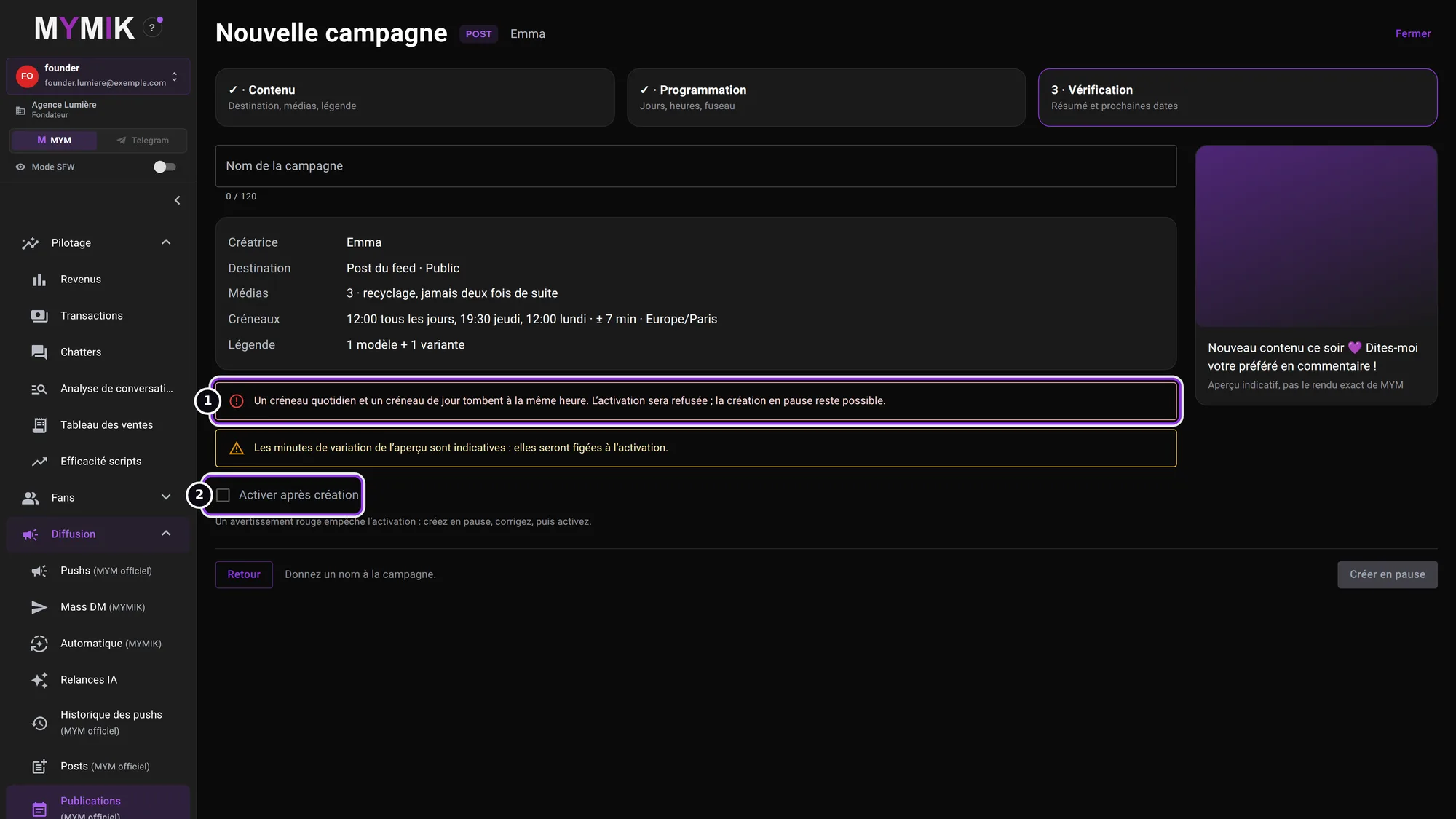 A blocking warning: two slots fall at the same time.
4. Name the campaign and click “Créer en pause”
Once the slots are fixed, give the Nom de la campagne (“Campaign name”) ❶ (120 characters at most). The summary ❷ recalls the creator, the destination, the media, the slots (with the variation and the time zone) and the caption. Activer après création ❸ is unticked by default: “Aucune publication ne part en pause.” (nothing goes out while paused). Click Créer en pause ❹. If you tick the box, the button becomes Créer et activer (“Create and activate”).
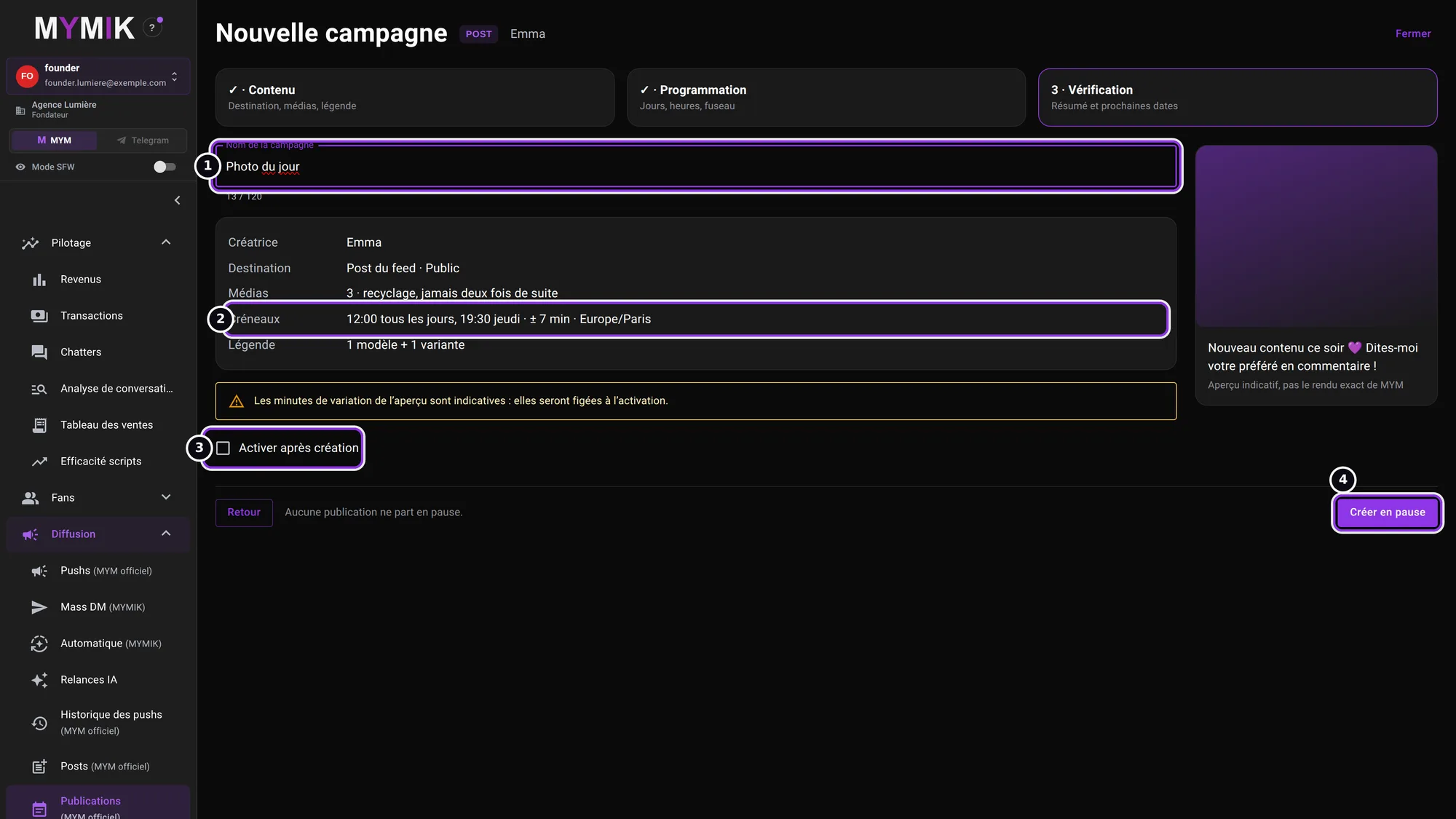 The name, the summary and “Créer en pause”.
4. Activate and pause
A campaign created paused publishes nothing; you stay in control at all times.
1. The campaign is created paused
The message ❶ confirms: “Campagne « Photo du jour » créée en pause.” (campaign created paused). The Campagnes tab shows the card: the type (POST), “3 médias · 2 créneaux” (3 media, 2 slots), the state En pause (paused) ❷ and “Aucune date tant qu’elle est en pause” (no date while paused). At the top, four counters: actives, en pause, publications dans les 48 h (publications within 48 h) and à vérifier (to check). The filters Toutes, Actives, En pause, Terminées sort the list. Click Activer ❸.
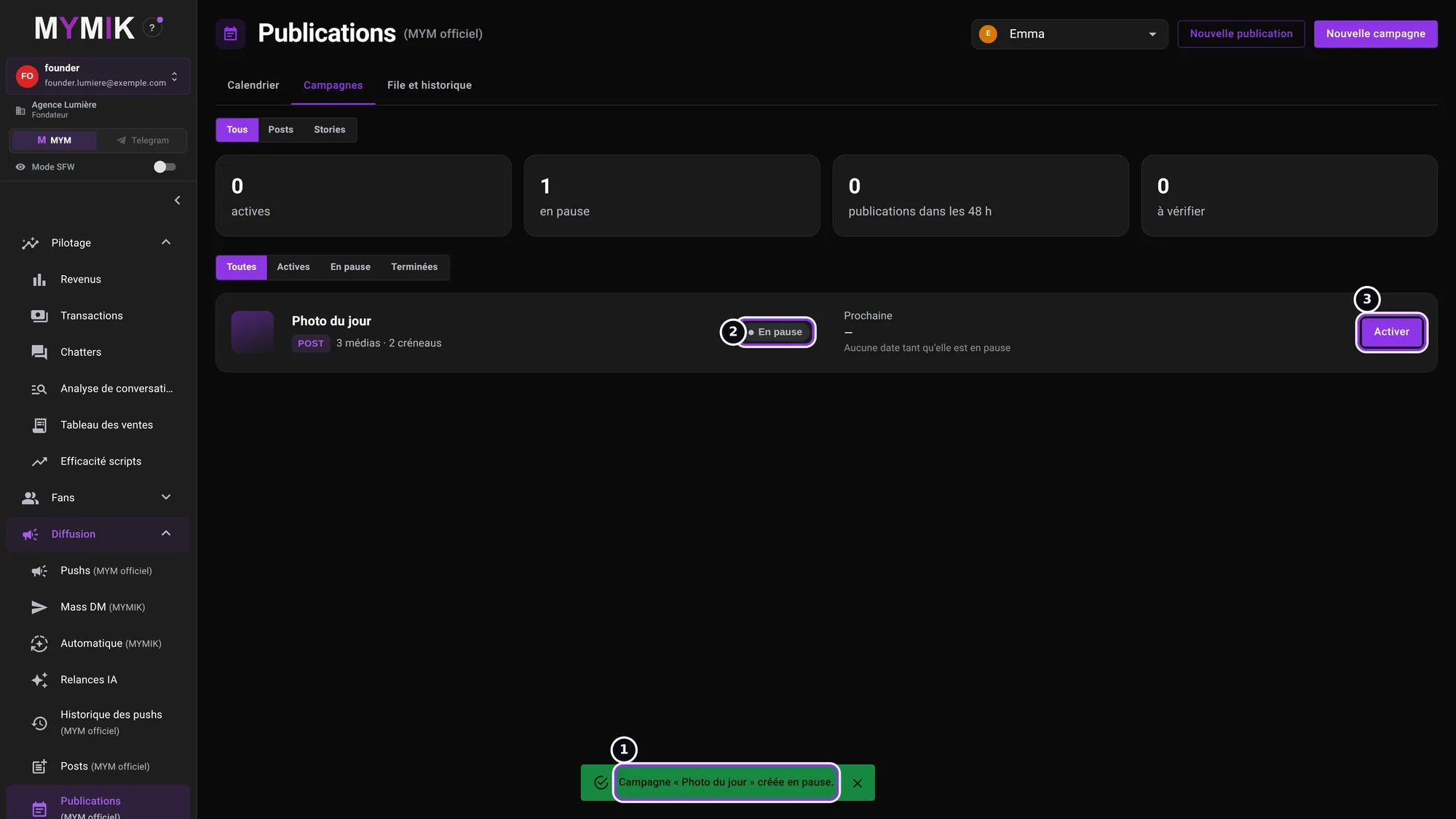 The campaign has just been created: it is paused.
2. Activate: the dates appear
The screen confirms “« Photo du jour » est active.” A few moments later the server prepares the dates: the state becomes Active ❶, the Prochaine (“Next”) column ❷ gives the day, the time (variation included) and the time zone, and the counter “publications dans les 48 h” goes up. The button becomes Mettre en pause (“Pause”) ❸. If activation is refused, the campaign stays paused and the screen names the warnings concerned (“Campagne « … » créée en pause : l’activation a été refusée.”).
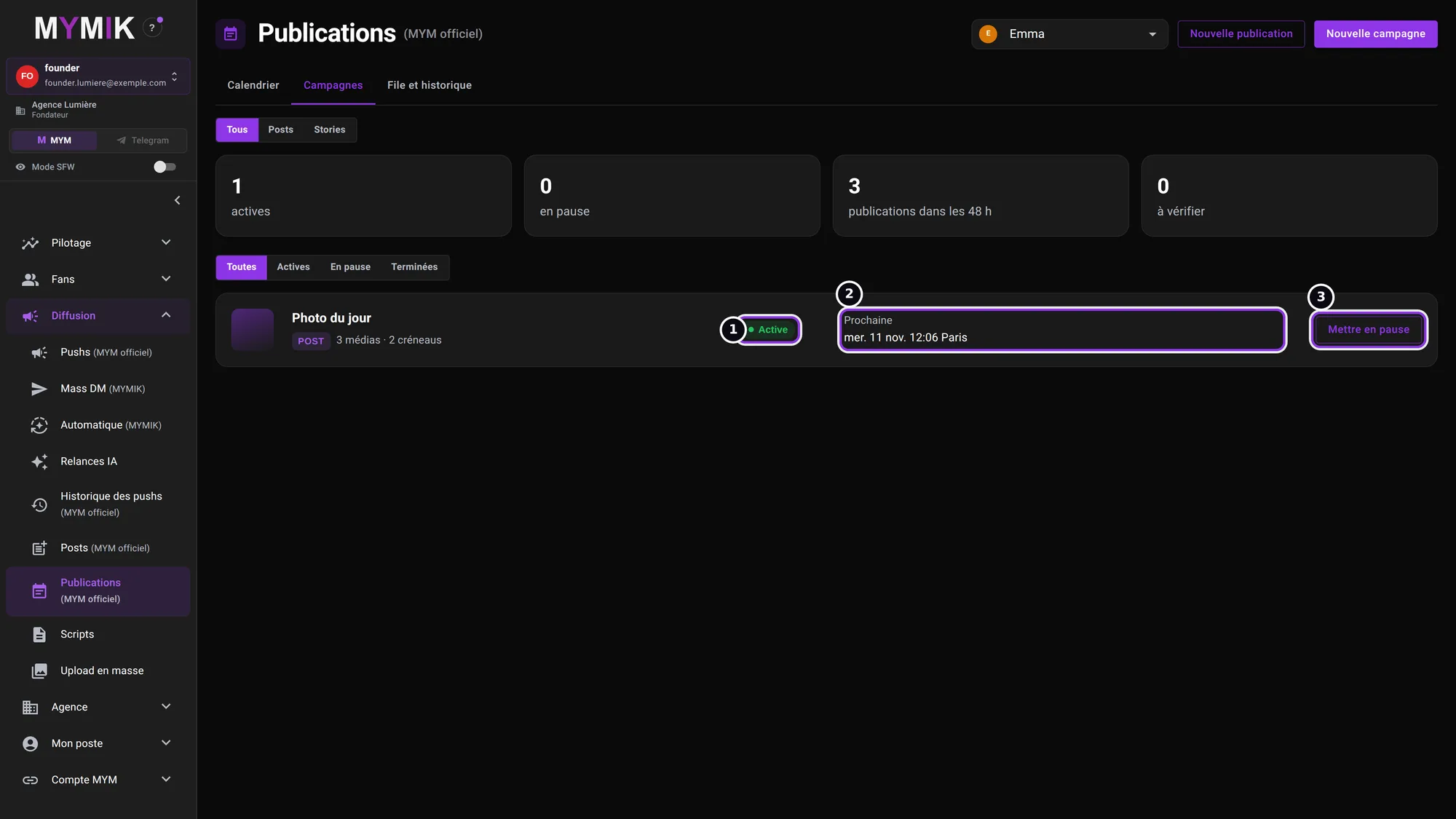 The campaign is active: the next publication is planned on Wednesday at 12:06.
3. Pause
Mettre en pause (“Pause”) stops departures right away: “« Photo du jour » est en pause : rien ne part tant qu’elle n’est pas réactivée.” (nothing goes out until it is reactivated) ❶ Its planned publications become “Annulée” (cancelled) with the reason “Campagne mise en pause”; when you reactivate, the upcoming slots are planned again. What has already gone out is untouched. The à vérifier counter ❷ counts the publications whose result MYM has not confirmed (section 6).
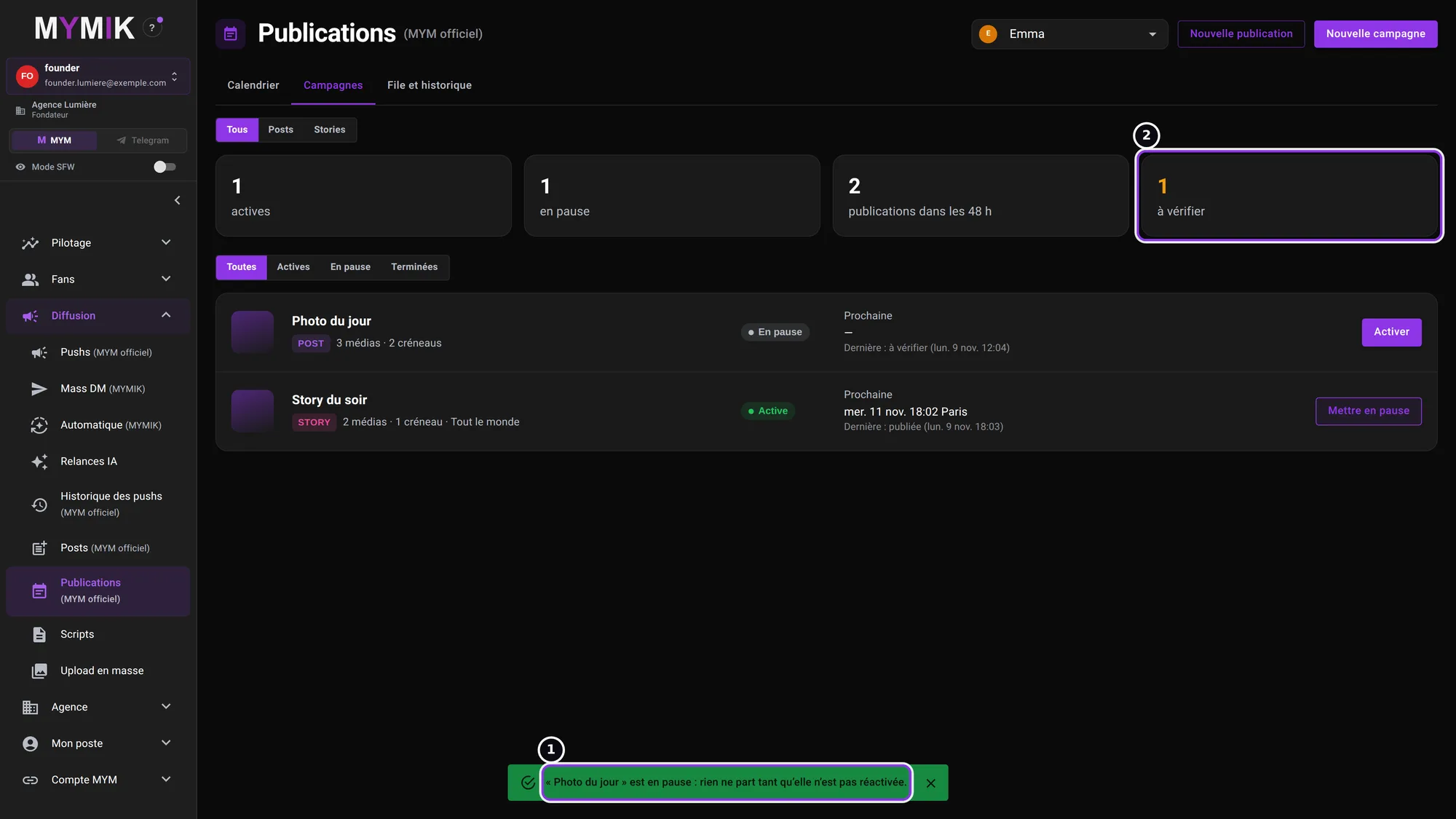 After pausing: one campaign paused, another one still active.
5. A story campaign
Same assistant, three differences: photos only, no caption, “Tout le monde” audience.
1. Choose “Story” and photos
In the assistant, choose Story ❶: “Une photo en story pour 24 h, sans texte. Audience : Tout le monde.” (a photo as a 24-hour story, without text, audience: everyone). The grid only shows photos ❷ (“Story : photos seulement”): a video story is not possible, and switching from Post to Story removes the videos already picked from the pool. Build the pool ❸ as for a post. There is no caption and no consent to enter.
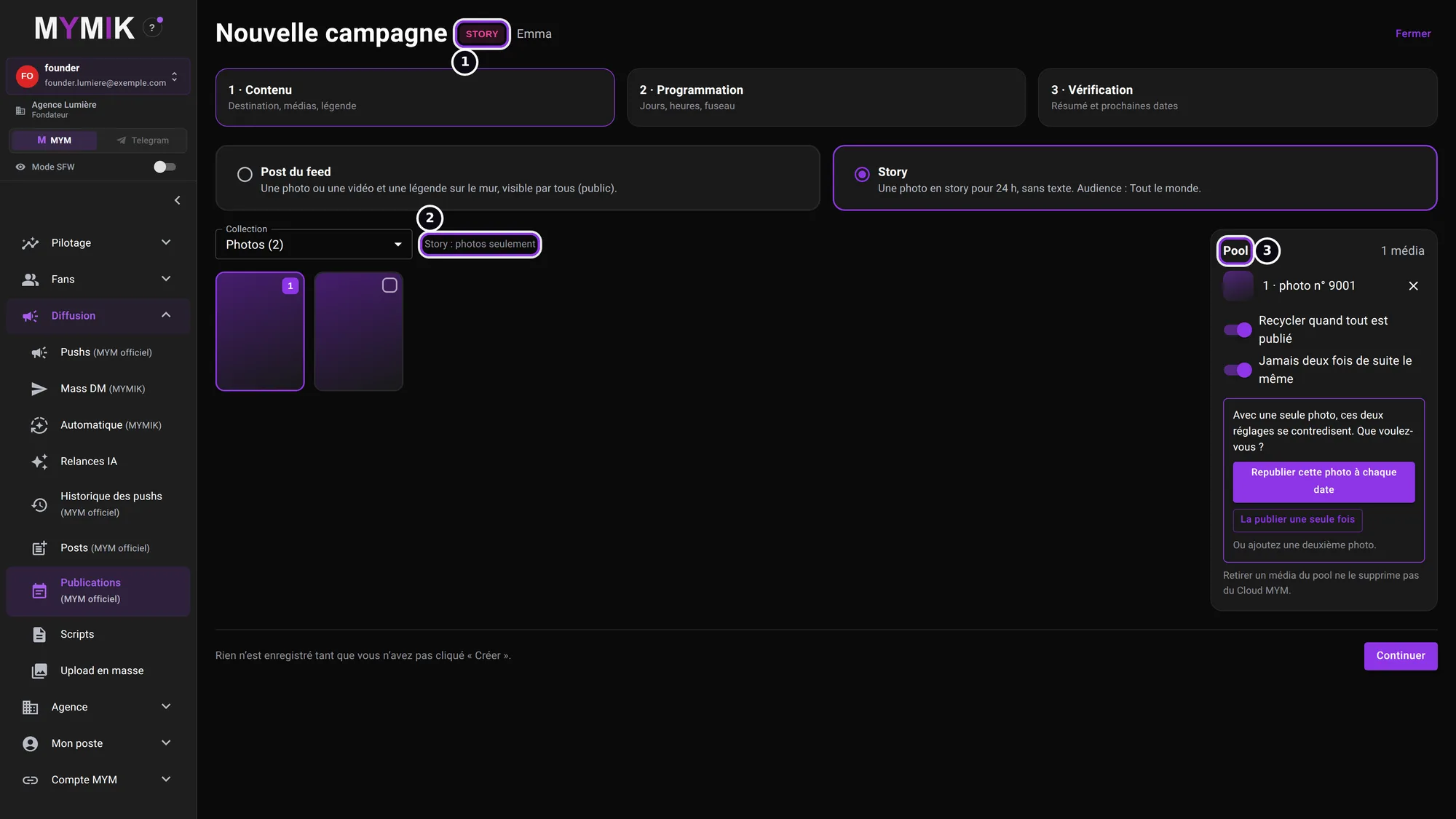 For a story, the grid only offers photos.
2. Scheduling: the audience
Slots are set as for a post ❷; each line shows “Tout le monde”. A box ❶ says it: only the “Tout le monde” (everyone) audience is available. “Mes abonnés” (my subscribers), “Mes anciens abonnés” (my former subscribers) and “Mes intéressés” (my interested fans) are blocked on the MYM side until their behaviour is verified: MYMIK never publishes publicly in their place.
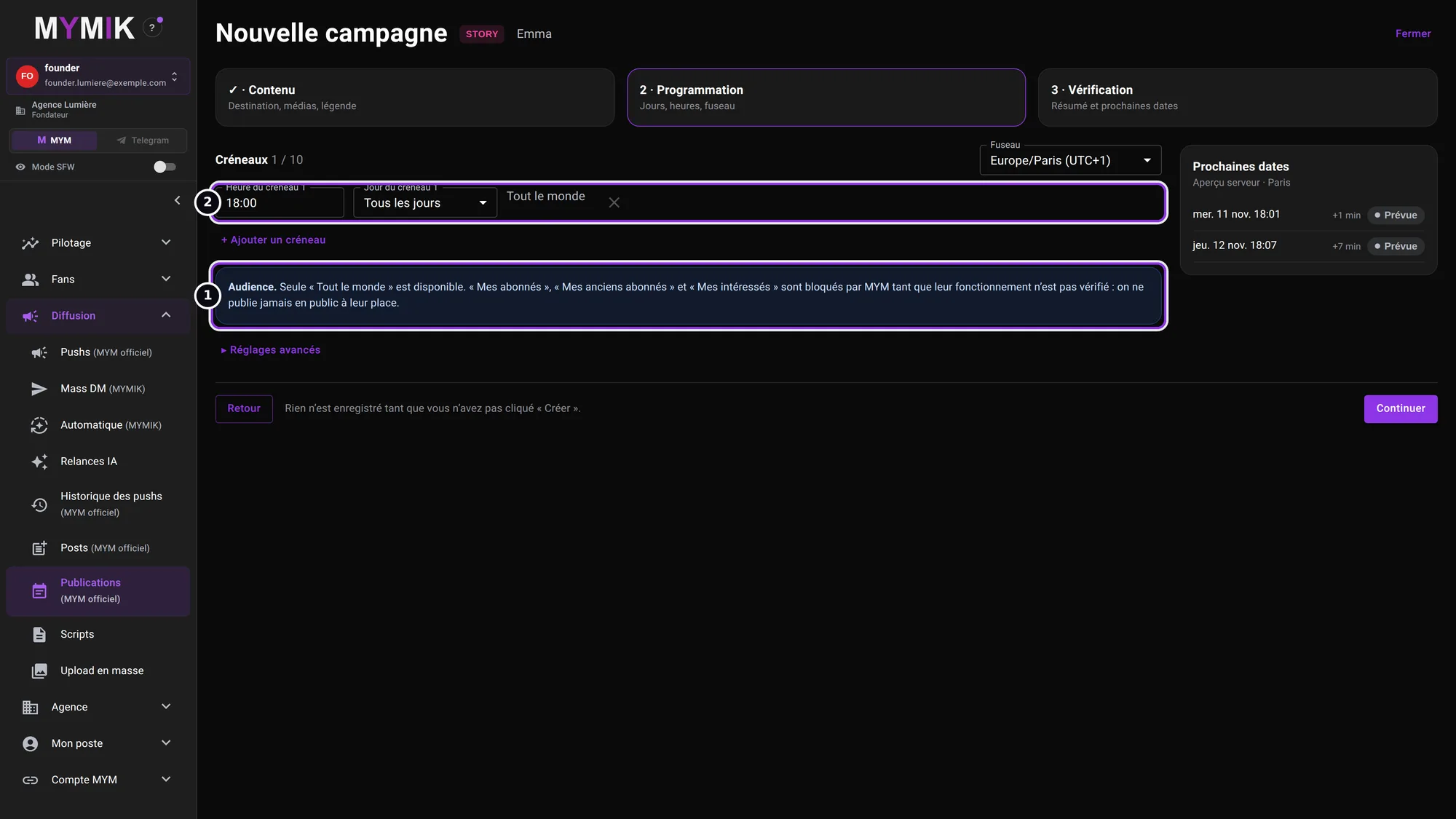 A slot at 18:00 every day, “Tout le monde” audience.
3. Create and activate, or create paused
At step 3, name the campaign then choose: without ticking Activer après création, the button is Créer en pause; by ticking the box it becomes Créer et activer (“Create and activate”) and the screen confirms “Campagne « Story du soir » créée et activée.” The Campagnes list then shows both campaigns: the story ❶ (STORY, “Tout le monde”) and the post ❷ (POST). The dates of a campaign that has just been activated appear a few moments later.
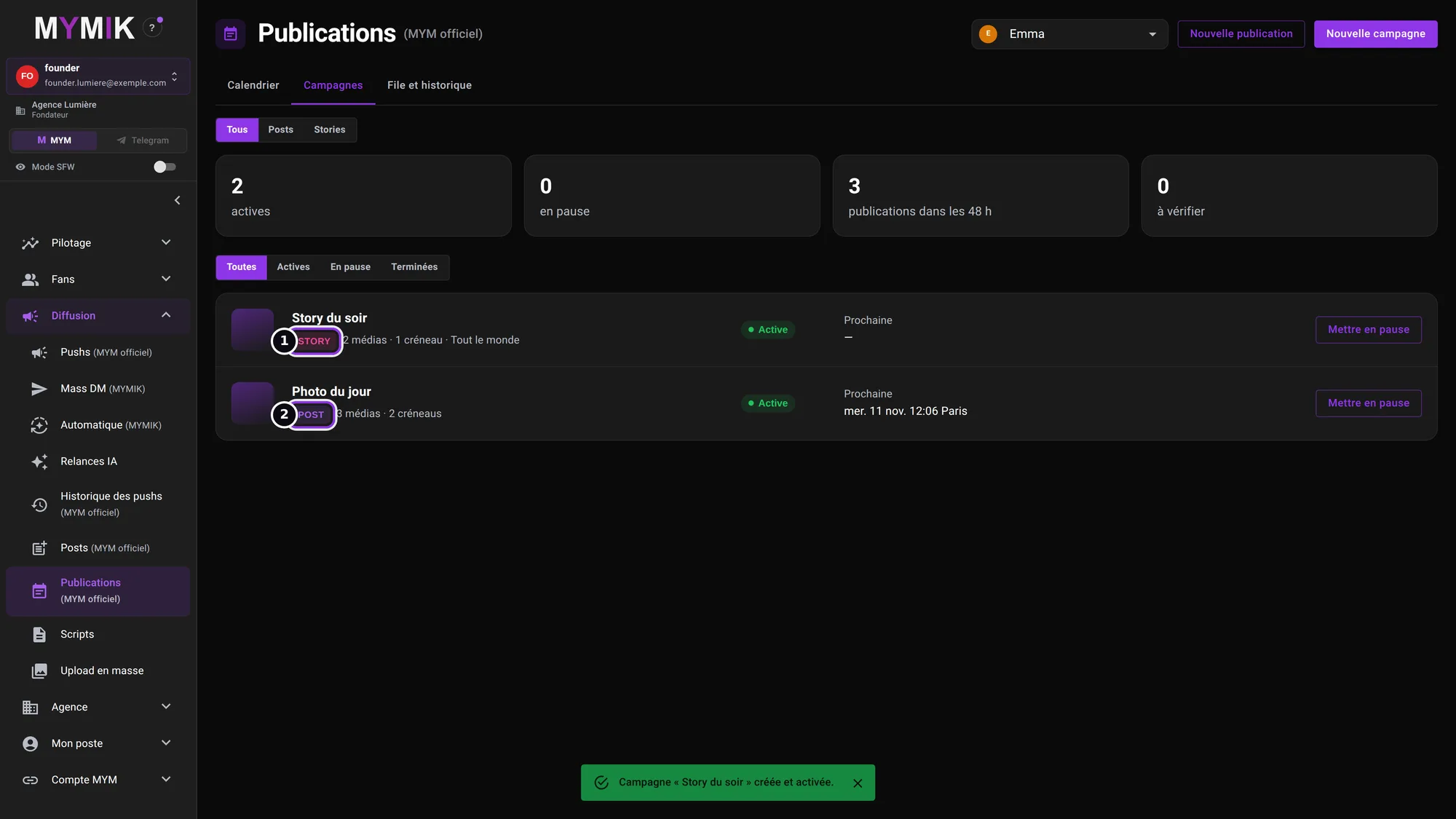 “Créer et activer”: the list shows the story and the post, both active.
6. Follow what goes out
The week’s calendar, the queue of upcoming publications and the history.
1. The Calendar
The Calendrier tab shows the week from Monday to Sunday, posts and stories mixed, one row per slot time. The arrows ❶ change week; “Heure de Paris” recalls the agency time zone; each tag is read in the time zone of its campaign. Each tag ❷ shows the real departure time, variation included (12:06 for a 12:00 slot), the type and the campaign. POST is purple, STORY pink ❸. The filter ❹ isolates stories or posts. A tag followed by ✓ is published; an orange “À vérifier” tag is an uncertain result. The server only prepares dates over each campaign’s horizon (48 h by default): beyond that the week stays empty, which is normal.
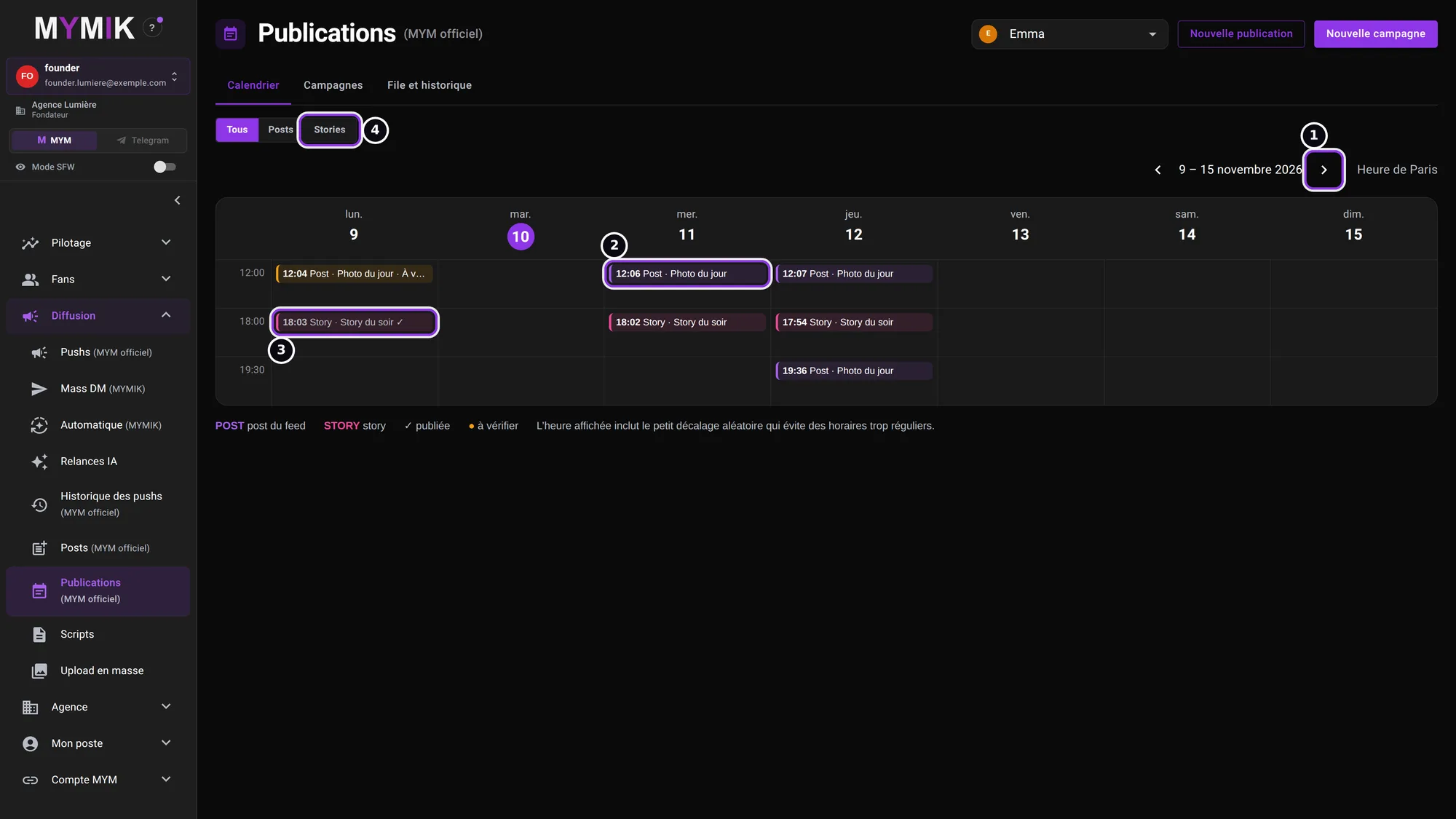 The calendar: a post to check on Monday, a published story, then the next dates.
2. The Queue: what will go out
In File et historique (“Queue and history”), À venir (“Upcoming”) ❶ lists, date by date, what will go out: the time (campaign time zone), the type, the campaign and the status ❷. “Prévue” (planned): the date is computed. “Réservée” (reserved): the media is picked, it goes out on time. “En cours” (running): sending to MYM is in progress. The Annuler (“Cancel”) button ❸ only exists on a Prévue publication, and only for the Founder, HR and Managers: one click cancels that date only (“Publication du … annulée.”), the campaign carries on for the others, and cancelling is final.
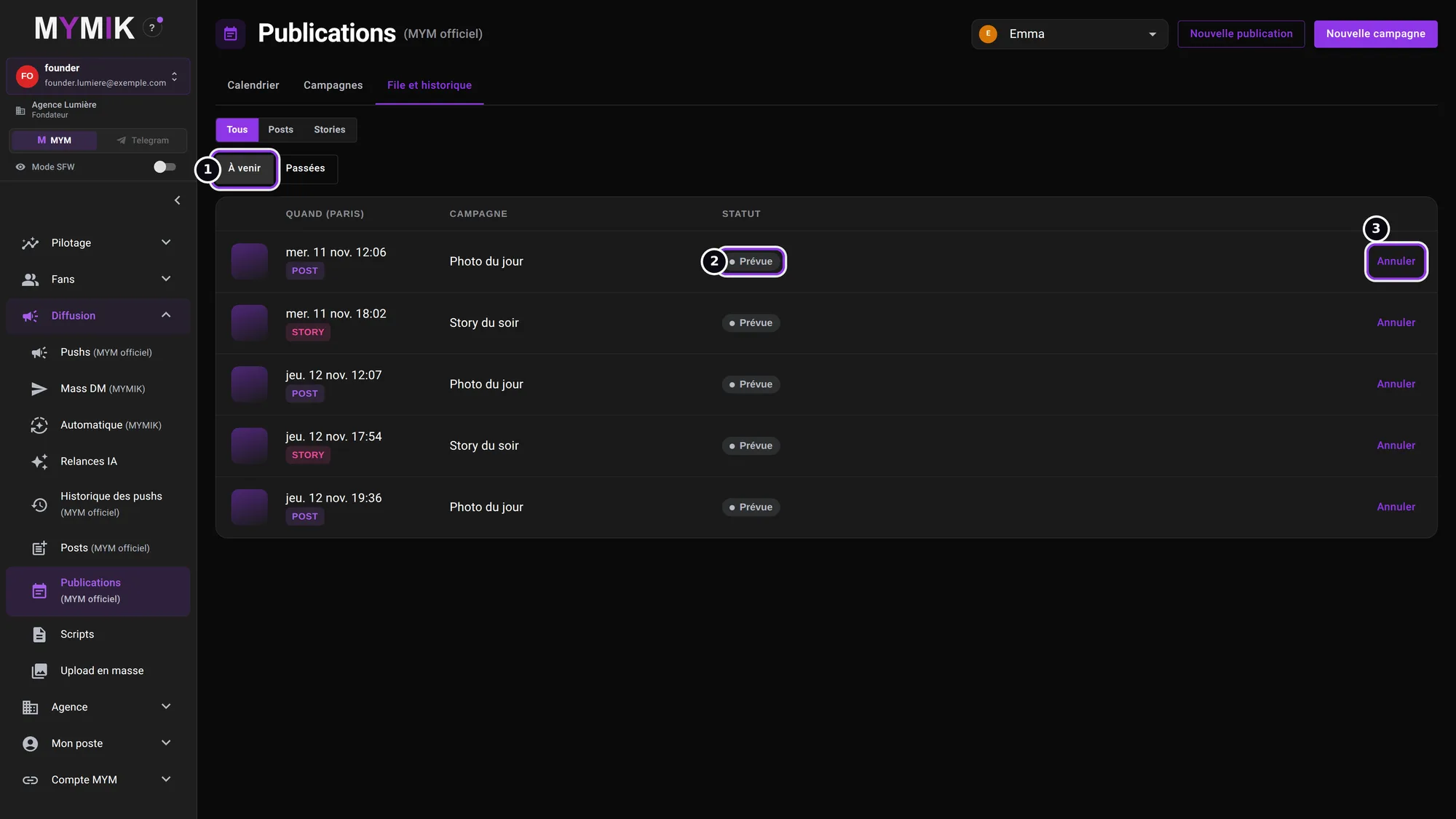 Five upcoming publications, each with its “Annuler” button.
3. The history and its statuses
Passées (“Past”) ❶ keeps everything that went out or ended. Publiée (published): it is done. Annulée (cancelled) ❸: with its reason (“Annulée à la main” = cancelled by hand, “Campagne mise en pause”…). Échouée (failed): with the reason in plain words, for example “Session MYM expirée — reconnectez la créatrice” (MYM session expired — reconnect the creator). Manquée (missed): the server was unavailable for more than 15 minutes, the publication is never caught up. À vérifier (to check) ❷: “MYM n’a pas confirmé ; rien n’a été renvoyé. Vérifiez sur MYM.” (MYM did not confirm; nothing was sent again. Check on MYM.) In that case, do not republish blindly: first look on MYM to see whether the publication is online.
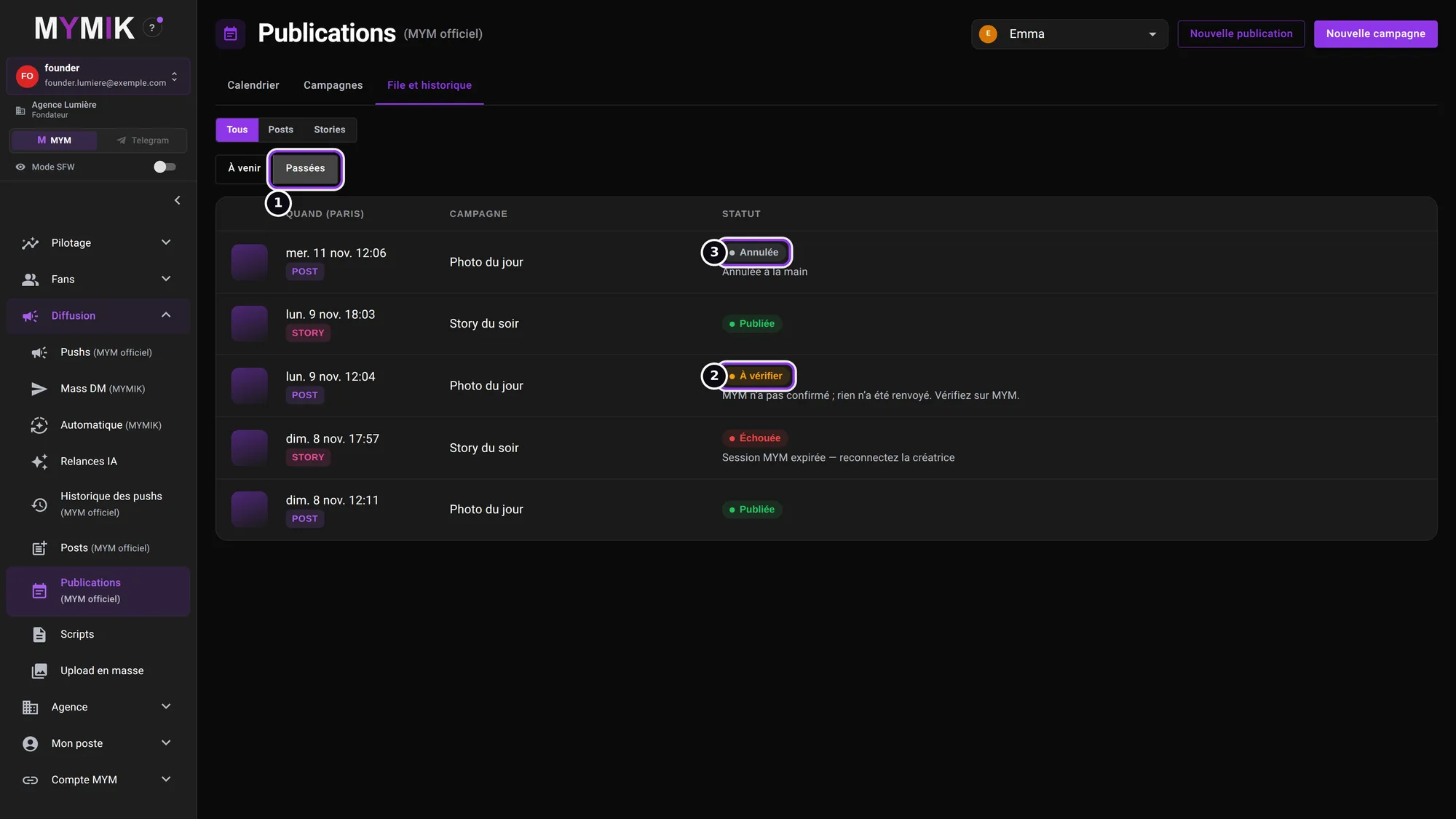 The history: cancelled, published, to check, failed. (These past states are placed in the example’s test database.)
7. Story now
Publish a photo as a story right away, without creating a campaign.
1. Nouvelle publication › Story maintenant
Click Nouvelle publication (“New publication”): the menu offers Post du feed (écran Posts) (“Feed post (Posts screen)”), which opens the usual Posts screen for a one-off publication, and Story maintenant (“Story now”), which opens here. Pick the collection, then one photo ❶ (a single choice). “Quand” (“When”) says Maintenant (“Now”) ❷: “Une story à une date précise se programme dans une campagne.” (a story at a given date is scheduled in a campaign). The audience is “Tout le monde”. Publier la story maintenant (“Publish the story now”) ❸ sends the request, once only: the screen follows the result (“Story en cours de publication…”, then “Story publiée”), and the photo can no longer be changed. If the result is uncertain (“À vérifier : MYM n’a pas encore confirmé. Rien n’a été renvoyé ; le serveur vérifie encore.”), check on MYM before publishing again.
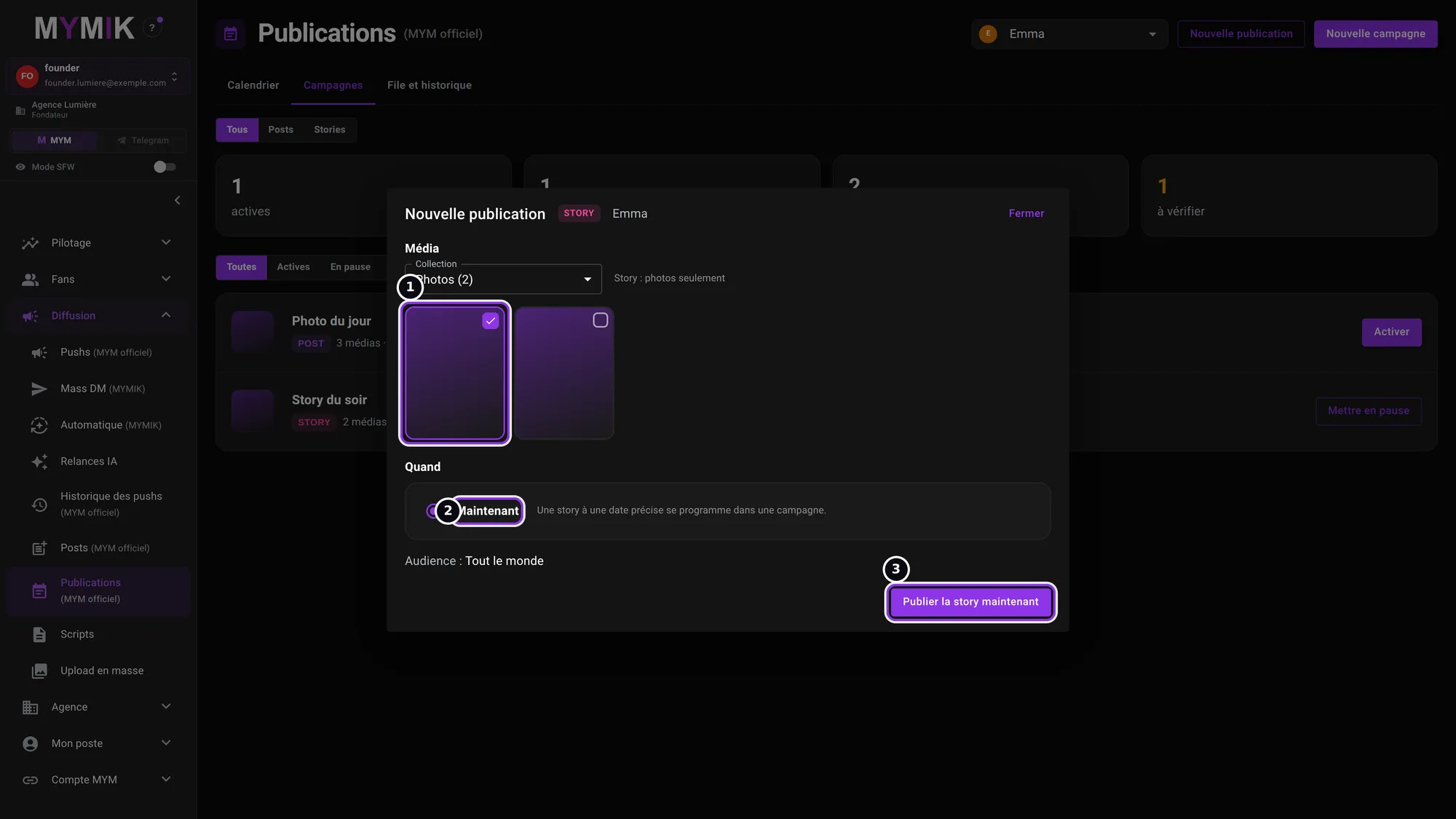 The “Story maintenant” window before publishing (the button was not clicked for this screenshot).
A story really publishes on MYM, in the creator’s name. Check the photo before you click.
8. I cannot see Publications in the menu
The Studio depends on an agency setting and on a role. Three cases.
1. The “Publications automatiques” setting
The Founder or HR open Agence › Accès et rôles (“Agency › Access and roles”). In Fonctionnalités, the Publications automatiques row ❶ (“Posts et stories MYM programmés par le serveur, même app fermée. Les campagnes se créent en pause.”) has a switch ❷: it must be on Actif (active). A module that is switched off disappears from the menu for the whole organisation. If this row does not appear at all, the feature is not yet opened for your agency on the MYMIK side: write to us at @MymikAppBot with your agency name.
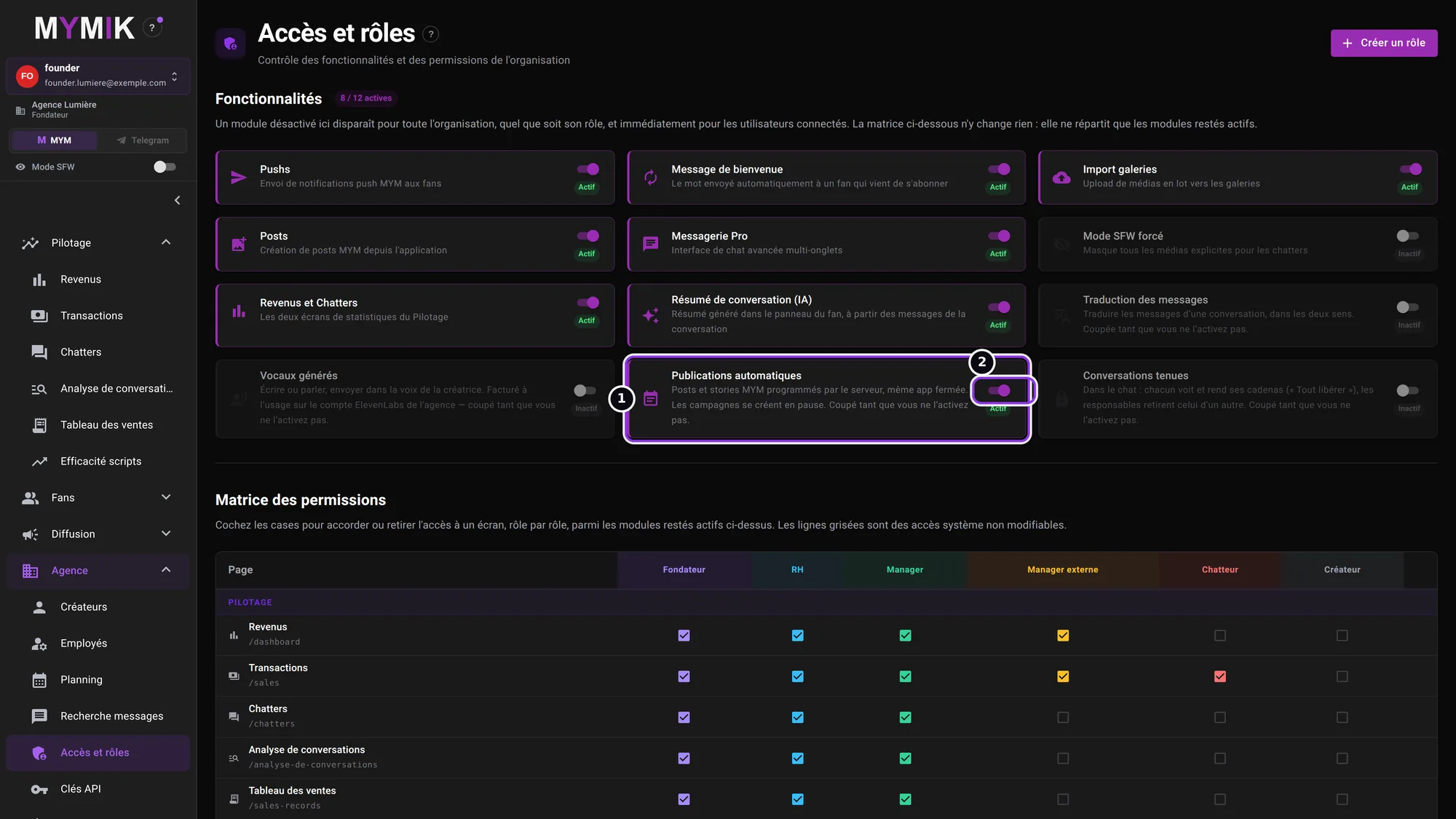 Agence › Accès et rôles: the “Publications automatiques” row and its switch.
2. Switch off: the page explains it
When the setting is off, the “Publications” entry leaves the menu, and the page opened directly shows “Programmez des posts et des stories qui partent seuls, même app fermée. Ce n’est pas encore activé pour votre agence.” (schedule posts and stories that go out on their own, even with the app closed. It is not yet activated for your agency.) ❶ If the sentence “Le fondateur l’active dans Agence › Accès et rôles.” (the founder activates it in Agency › Access and roles) is displayed, a Founder or an HR user clicks Ouvrir Accès et rôles ❷ and switches it back on. If that sentence does not appear, it is not an agency setting: write to us at @MymikAppBot.
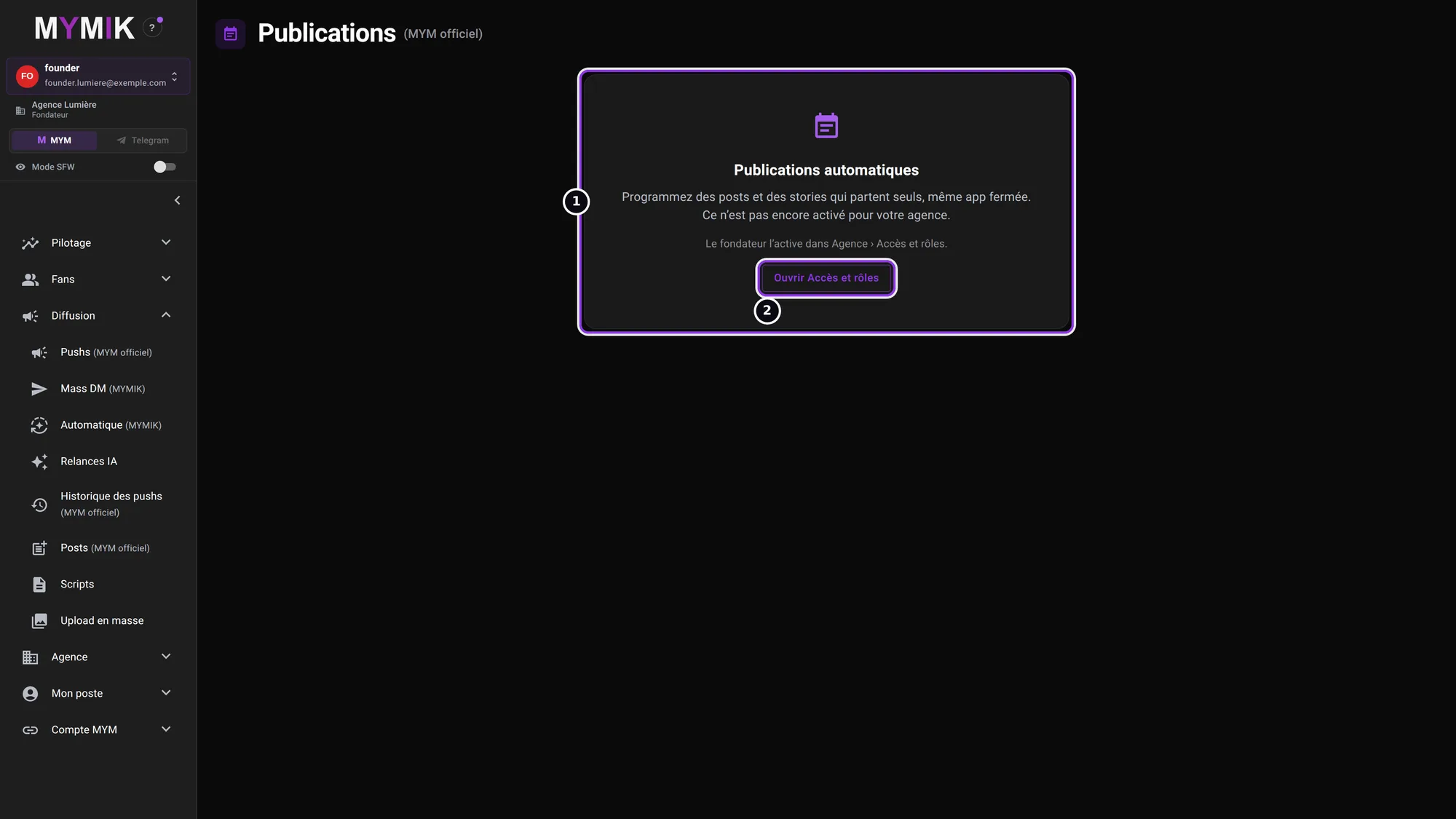 The page when the agency setting is off (menu without “Publications”).
3. You see the page, but no button
A Chatter or an External manager reads the Calendar ❶, the Campaigns ❷ and the Queue of their creators, without “Nouvelle campagne”, “Nouvelle publication”, “Activer”, “Mettre en pause” or “Annuler”. This is intended. To create or activate, ask a Founder, an HR user or a Manager.
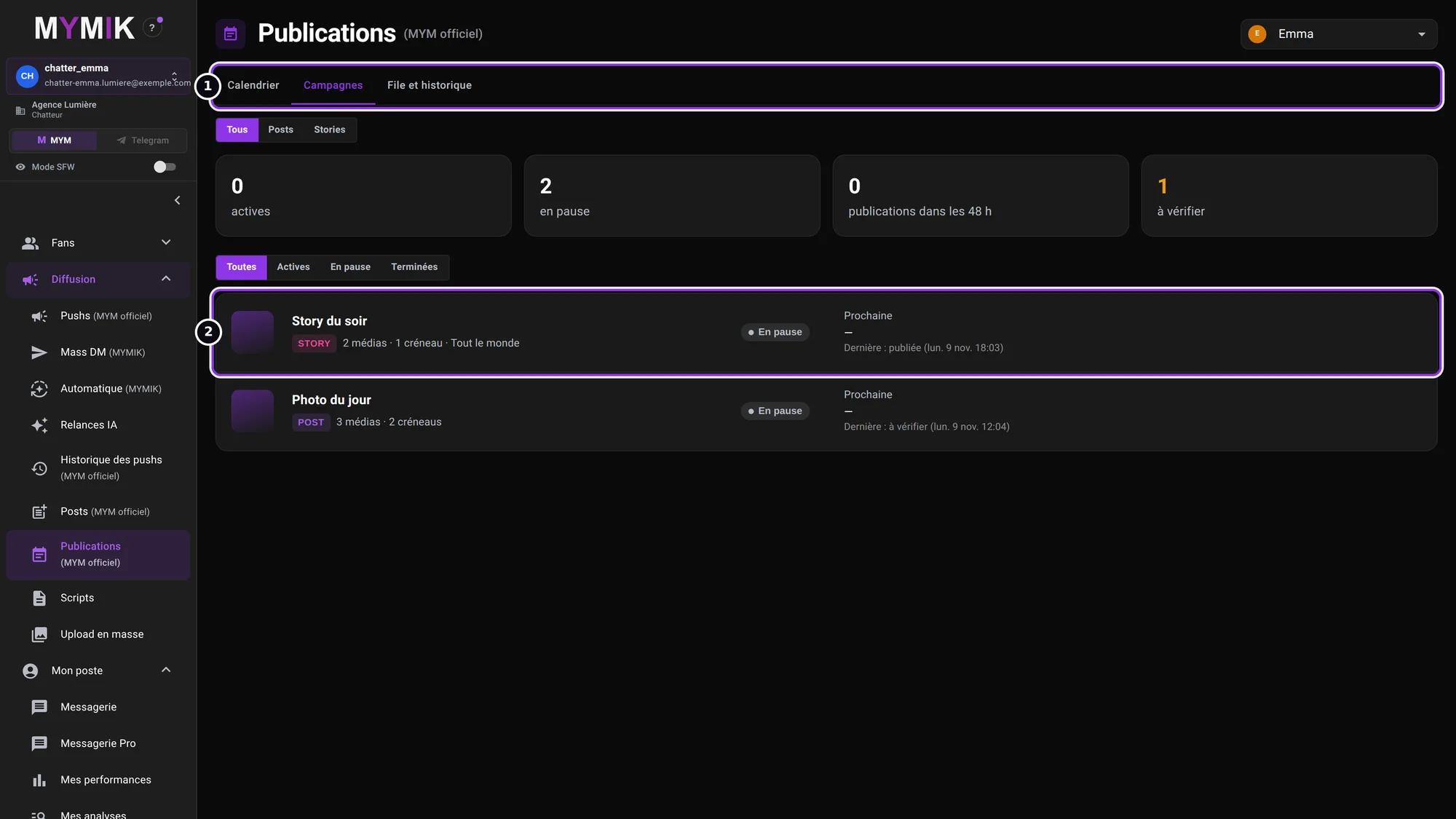 A chatter’s view: the campaigns, no writing button.
9. Troubleshooting
Symptom shown → cause → what to do. Quoted messages are those of the screen.
| What you see | Cause | What to do |
|---|---|---|
| “Ce n’est pas encore activé pour votre agence.” | The “Publications automatiques” setting is off, or the feature is not yet opened for your agency. | See section 8. Sentence “Le fondateur l’active…” present: switch it back on. Absent: @MymikAppBot. |
| “Impossible de lire le Cloud MYM de la créatrice.” + “Relire le Cloud MYM” | Reading the MYM Cloud failed or did not answer. | Click “Relire le Cloud MYM” (“Read the MYM Cloud again”). If it persists, check that the creator is connected in Créateurs. |
| “Cette créatrice n’est pas connectée à MYM. Reconnectez-la pour lire son Cloud.” | The creator’s MYM session is missing or expired. | Reconnect the creator from the Créateurs page, then reopen the assistant. |
| “Le Cloud MYM de cette créatrice n’a aucune collection.” / “Aucun média dans cette collection.” | Nothing to pick: empty Cloud, or a collection with no photo (for a story). | Add media to the creator’s MYM Cloud on MYM, or pick another collection. A story only takes photos. |
| A media “en traitement chez MYM” (being processed), no button | MYM has not finished processing the media. | Wait, then reopen the assistant: the media becomes pickable. |
| “Continuer” is greyed out | The step is incomplete. The sentence next to the button says what: “Choisissez Post du feed ou Story.”, “Ajoutez au moins un média au pool.”, “Écrivez la légende du post.”, “Attestez le consentement des personnes visibles.”, “Une heure est illisible”, “Donnez un nom à la campagne.” | Do what the sentence says. A time is written on a 24-hour clock (“14:30”). |
| A red warning at step 3; “Activer après création” greyed out | A blocking warning: for example “Aucun média dans le pool.”, “Aucun créneau : ajoutez au moins une heure.”, “Le consentement des personnes visibles n’est pas attesté.”, “Une vidéo ne peut pas encore partir en story.”, two slots too close together, or a single recycled media with “never twice in a row”. | Click “Retour” and fix before creating. A campaign that has already been created cannot be edited from the screen: create a new one and leave the old one paused. |
| “… créée en pause : l’activation a été refusée.” + a list | When activating, the server found a blocking warning (for example “Un média n’est plus dans le Cloud MYM de la créatrice.”). | The campaign stays paused, nothing goes out. Read the reasons, then create a new, corrected campaign. |
| “Rien de prévu ni de parti cette semaine.” | No active campaign, or the dates are beyond the prepared horizon (48 h by default). | Check the Campagnes tab: a paused campaign has no date. An active campaign shows its next dates as soon as they are prepared. |
| Status “À vérifier” | MYM did not confirm the result. Nothing was sent again. | Look on MYM to see if the publication is online before publishing anything again. |
| Status “Échouée” + a reason | The reason is written on the line, for example “Session MYM expirée — reconnectez la créatrice”, “MYM a refusé la publication”, “MYM limite les envois pour l’instant”, “Consentement des personnes visibles non attesté”. | Deal with the reason (for example, reconnect the creator) before the next date. |
| Status “Sautée”: “heure inexistante (changement d’heure)” | The slot falls on a time that does not exist on the day of the switch to summer time. | Nothing to do: that date is skipped, the following ones go out normally. |
Still stuck?
Write to us in private at @MymikAppBot with your agency, the creator, the campaign and the exact text displayed. The MYMIK team
MYMIK guide no. 14, version of 12/11/2026 (« Tous les médias » in the collection list).
Last updated on